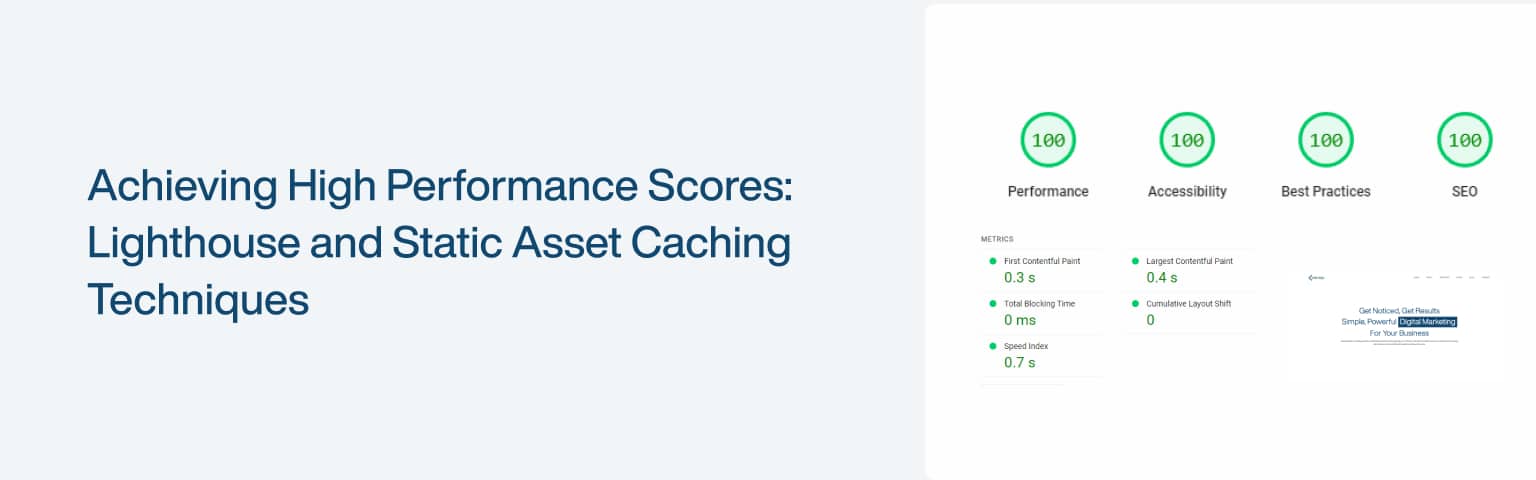
How do you improve your Lighthouse performance score?
You improve your Lighthouse performance score by fixing what the report flags, most often by caching static assets, deferring and reducing JavaScript, and serving files efficiently. Lighthouse measures how fast your page loads and becomes interactive, then scores it and lists the specific issues holding you back. The score isn’t the goal in itself; it’s a proxy for real user experience, and the two biggest levers for most sites are caching and JavaScript optimisation.
Key Takeaways
- Lighthouse scores performance from metrics including LCP, Total Blocking Time, and CLS, the same signals behind Core Web Vitals.
- “Good” Core Web Vitals are LCP 2.5s or less, INP 200ms or less, and CLS 0.1 or less, at the 75th percentile (web.dev).
- Caching static assets with Cache-Control headers makes repeat visits dramatically faster.
- Deferring, lazy-loading, and minifying JavaScript cuts the blocking time that drags scores down.
A good Lighthouse score reflects a fast, stable page, which keeps visitors and helps SEO. This guide explains the metrics Lighthouse measures, then walks through the highest-impact fixes: caching, JavaScript optimisation, and serving assets well. It builds on our wider guide to improving Core Web Vitals.
What does Google Lighthouse measure?
Google Lighthouse measures your page across performance, accessibility, best practices, and SEO, giving each a score out of 100 and listing specific fixes. It’s free, built into Chrome DevTools (and available as a standalone tool), and it simulates a visit to your page to produce a detailed, actionable report.
The performance score is built from lab measurements of several metrics. The ones that matter most are Largest Contentful Paint (LCP), how long until the main content appears; Total Blocking Time (TBT), how long the main thread is blocked and unable to respond; and Cumulative Layout Shift (CLS), how much the page jumps around as it loads. First Contentful Paint and Speed Index round out the picture. These map closely to Core Web Vitals, Google’s real-user performance signals, where good means LCP of 2.5 seconds or less, INP of 200 milliseconds or less, and CLS of 0.1 or less at the 75th percentile (web.dev). One caveat worth knowing: Lighthouse runs a lab test on a single simulated load, so use it to diagnose and verify fixes, then confirm improvements in real-user field data over the following weeks.
How does caching improve performance?
Caching improves performance by storing copies of your static files, images, CSS, and JavaScript, so they don’t have to be downloaded again on every visit. For returning visitors, cached assets load almost instantly from their device instead of travelling across the network, which is one of the biggest speed wins available.
There are three layers worth using together. Browser caching stores assets on the visitor’s device, controlled by the headers you send. Server-side caching stores rendered pages or data so the server doesn’t rebuild them every request (WordPress caching plugins and Nginx/Apache caches do this). And a Content Delivery Network (CDN) stores your files on servers around the world, serving each visitor from the nearest one to cut latency. The control that matters most for browser caching is the Cache-Control header, which tells the browser how long to keep a file before checking for a new version (MDN). Long-lived assets that rarely change (images, fonts) can be cached for a year; files that change more often (CSS, JS) for a shorter period, ideally with versioned filenames so updates still reach users.
How do you set Cache-Control headers?
You set Cache-Control headers in your server configuration, telling browsers how long to cache each file type, with long durations for assets that rarely change and shorter ones for those that do. The setup differs slightly between Apache and Nginx, but the principle is the same.
On Apache, you add rules to your .htaccess file:
<IfModule mod_expires.c>
  ExpiresActive On
  ExpiresByType image/png "access plus 1 year"
  ExpiresByType text/css "access plus 1 month"
  ExpiresByType application/javascript "access plus 1 month"
  ExpiresByType text/html "access plus 1 hour"
</IfModule>
On Nginx, you add location blocks to your server config:
location ~* \.(jpg|jpeg|png|gif|ico|woff2)$ { expires 1y; add_header Cache-Control "public"; }
location ~* \.(css|js)$ { expires 1M; add_header Cache-Control "public"; }
After editing, save and reload the server. The result is that repeat visitors download far less, since their browser already holds your stable assets, which directly improves perceived speed and your Lighthouse score. If you use a CDN or a caching plugin, it often manages these headers for you, so check its settings before hand-editing config.
How do you optimise JavaScript for a better score?
You optimise JavaScript by loading only what’s needed, when it’s needed, and keeping files small, which cuts the Total Blocking Time that drags Lighthouse scores down. JavaScript is the most common cause of a poor performance score, because the browser has to download, parse, and run it before the page can respond.
Work through these in order:
- Defer and async non-critical scripts. The default
<script>tag blocks rendering;deferruns the script after the HTML is parsed (in order), andasyncruns it as soon as it loads (MDN).
<script src="/js/app.js" defer></script>
<script src="/js/analytics.js" async></script>- Load scripts conditionally. Don’t load everything up front; load a feature’s script only when it’s actually needed, for example when the user scrolls to it or opens a component. This keeps the initial load light.
- Minify and bundle. Minification strips whitespace and comments to shrink files; bundling combines them to reduce requests. Build tools like Webpack or Vite handle both automatically.
- Remove unused JavaScript. Code the page never runs is pure cost; our guide to reducing unused JavaScript covers how to find and cut it, and eliminating render-blocking resources covers the deferral side in depth.
Together these reduce how much the main thread has to do during load, which is exactly what lowers Total Blocking Time and lifts the score.
How do you optimise images for a better score?
After JavaScript, images are the most common thing dragging a Lighthouse score down, because they’re often the largest, heaviest resources on the page, and the LCP element itself is usually an image. Three techniques cover most of the win: modern formats, lazy loading, and responsive sizing.
- Serve modern formats. WebP and AVIF compress far smaller than JPEG or PNG at the same quality, so converting images is one of the biggest, easiest savings, and Lighthouse flags it directly with its “Serve images in next-gen formats” audit (web.dev).
- Lazy-load offscreen images. Add
loading="lazy"so below-the-fold images load only as the user scrolls rather than all at once, but never lazy-load your LCP or above-the-fold image, which would delay the very thing Lighthouse measures. - Serve responsive images. Use
srcsetso each device downloads an appropriately sized image instead of one huge file that wastes bandwidth on small screens.
A typical responsive, lazy-loaded image looks like this:
<img src="hero-800.webp" srcset="hero-400.webp 400w, hero-800.webp 800w, hero-1200.webp 1200w" sizes="(max-width: 600px) 400px, 800px" width="800" height="500" alt="..." loading="lazy">Note the explicit width and height: setting them lets the browser reserve space and avoid layout shift (helping CLS) while the image loads. Compress everything before upload, and if you’re on WordPress, an image plugin or your CDN can generate WebP or AVIF and the right sizes automatically. For more on choosing formats, see our guide to image file types.
How do you eliminate render-blocking CSS and fonts?
Render-blocking resources are CSS and fonts the browser must fetch and process before it can paint anything, so they directly delay how fast your page appears and are a frequent Lighthouse flag (Chrome). Clearing them is mostly about loading the critical bits first and deferring the rest.
For CSS, inline the small amount of “critical” CSS needed to render the top of the page directly in the HTML, then load the full stylesheet without blocking, and minify what you ship. For fonts, the two highest-impact steps are preloading the fonts used above the fold so the browser fetches them early, and setting font-display: swap so text shows immediately in a fallback rather than staying invisible while the custom font loads:
<link rel="preload" href="/fonts/brand.woff2" as="font" type="font/woff2" crossorigin>Preloading tells the browser to start fetching the font right away instead of discovering it late in the CSS, and font-display: swap (set in your @font-face rule) prevents the invisible-text delay that hurts perceived speed. Together with deferring non-critical JavaScript, this clears the path to first paint, which is exactly what lifts LCP and your score. Our guide to eliminating render-blocking resources goes deeper on the technique.
How do you keep performance high over time?
You keep performance high by monitoring it regularly, because new plugins, scripts, and content quietly erode speed if no one watches. A good score is a moment-in-time result; staying fast is a habit, not a one-off fix.
Build a simple routine: run Lighthouse after any significant change (a redesign, a new plugin, added third-party tags) and watch your Core Web Vitals in PageSpeed Insights and Search Console, which show real-user field data rather than a single lab test. Set a performance budget, a cap on page weight and script size, and treat anything that breaches it as a regression to fix. Keep removing unused code, re-checking that caching is working, and confirming fixes in the field over the weeks after you ship them. Third-party scripts are a frequent culprit for creeping slowdowns, which our guide to minimising third-party impact addresses directly. The discipline of measure, fix, re-measure is what keeps a fast site fast.
Frequently asked questions
Lighthouse scores performance from 0 to 100, with 90 and above considered good (green), 50 to 89 needing improvement (orange), and below 50 poor (red). That said, the score is a guide, not the goal, what matters is real user experience, measured by Core Web Vitals field data. A page can score well in Lighthouse’s lab test yet still be slow for real visitors on weaker devices, so treat a strong Lighthouse score as a healthy sign but always confirm with field data from PageSpeed Insights or Search Console.
Final thoughts
Improving your Lighthouse performance score comes down to understanding what it measures, the same loading and responsiveness signals as Core Web Vitals, then fixing the issues it flags. For most sites the two biggest wins are caching static assets with proper Cache-Control headers and optimising JavaScript by deferring, lazy-loading, minifying, and removing what isn’t used.
Treat the score as a diagnostic, not a trophy: fix the largest opportunities first, confirm improvements in real-user field data, and set a performance budget so the gains don’t erode over time. Do that and a fast, stable page follows, which is what the score was really standing in for. For the metric-by-metric detail, pair this with our guide to improving Core Web Vitals.