How To Fix Error Establishing a Database Connection

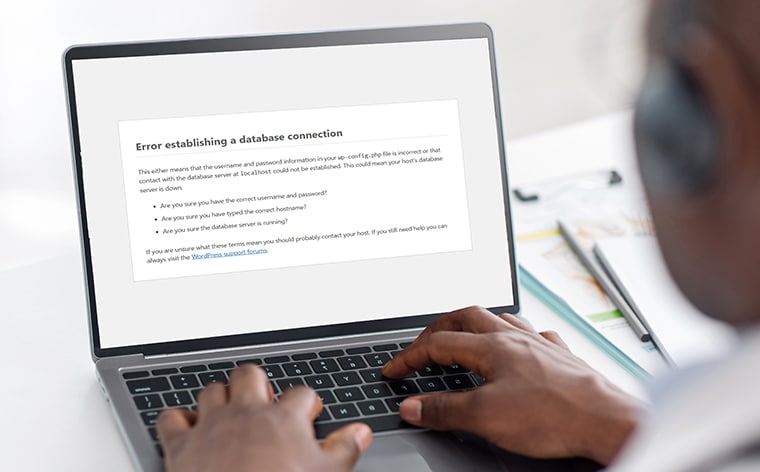
If you’ve ever come across the message “Error Establishing a Database Connection” while visiting your website, you know how worrying it can feel. This error happens when your website cannot connect to its database, which is where all your site’s important information, like posts, pages, and settings, is stored.

This problem is pretty common, especially for websites built with tools like WordPress or other systems that rely heavily on databases. It’s often caused by simple issues like incorrect settings, server problems, or database errors.

For website owners, this error can be frustrating because it makes the entire site inaccessible. Visitors see a blank screen instead of the content they expect, which can hurt your site’s reputation.

The good news? Fixing this error is usually straightforward if you understand what’s causing it. In this post, we’ll explore why this error happens and give you clear, easy-to-follow steps to solve it. By the end, you’ll feel more confident in handling this issue if it ever comes up.

What is the “Error Establishing a Database Connection”?

This error happens when your website can’t connect to its database. The database is like your site’s memory. It stores everything, including your content, user data, and settings. If the connection between your site and the database breaks, your website won’t load properly.

This problem is especially common in platforms like WordPress. That’s because WordPress uses a database to manage all its information, from blog posts to themes and plugins. When the connection fails, your site can’t pull the data it needs to display anything.

The database plays a key role in how your website works. Without it, your site wouldn’t know what to show visitors. This is why fixing this error is so important—it gets your site back up and running smoothly.

Why Does This Error Occur?

The “Error Establishing a Database Connection” can happen for several reasons. Here are the most common causes:

  1. Incorrect Database Credentials: Your website needs the right database name, username, password, and host to connect. If any of these details are wrong, the connection will fail.
  2. Database Server Issues: Sometimes, the server hosting your database is down or overloaded. If the server can’t respond, your site won’t connect to the database.
  3. Corrupted Database: A database can become corrupted due to unexpected crashes or issues during updates. When this happens, the connection might stop working.
  4. Exceeded Hosting Resources: If your hosting plan has limits on storage or traffic and those limits are exceeded, it can disrupt the database connection.
  5. File Corruption: Core files in your website may get corrupted due to failed updates, malware, or accidental changes. This can block the database connection.
  6. Plugin or Theme Conflicts: Sometimes, a poorly coded or incompatible plugin or theme can interfere with your website’s database connection.
  7. Changed Database Location: If your database has been moved to a new server or the hosting environment has changed, your website may need updated connection details.
  8. Permissions Issues: The database user might not have the right permissions to access the data, causing the connection to fail.

By identifying the specific cause, you can take the right steps to fix the error and get your website running again.

How to Identify the Root Cause

When you see the “Error Establishing a Database Connection,” the first step is to figure out what’s causing it. Here’s how you can do that:

  1. Use the CMS Error Message: Sometimes, the error message gives clues. For example, it might mention incorrect credentials or a server issue. Read the message carefully to understand where to start.
  2. Check Server Logs: Look at your server’s error logs. These logs often show detailed information about what went wrong, like a failed connection or a missing file.
  3. Test the Database Connection Manually: You can test if the database is reachable by running a simple PHP script. Here’s an example:
<?php
  // Load WordPress configuration
  require_once('wp-config.php');

  // Attempt database connection
  $connection = new mysqli(DB_HOST, DB_USER, DB_PASSWORD, DB_NAME);

  // Check the connection
  if ($connection->connect_error) {
    die("Database connection failed: " . $connection->connect_error);
  } else {
    echo "Database connection successful!";
  }

  // Close the connection
  $connection->close();
?>

Replace “localhost,” “username,” “password,” and “database_name” with your database details. If the script fails, the issue is likely with the database connection.

  1. Contact Your Hosting Provider: If you can’t find the problem, reach out to your hosting provider. They can check if the server is down or if there’s an issue with your hosting plan.

By following these steps, you can pinpoint the cause and take action to fix the error.

Step-by-Step Guide to Fix the Error

When you see the “Error Establishing a Database Connection,” follow these steps to fix it:

Step 1: Verify Database Credentials

Check if your website has the correct database details.

  • Open your website’s configuration file. In WordPress, this is the wp-config.php file.

Look for these lines:

define( 'DB_NAME', 'your_database_name' );
define( 'DB_USER', 'your_database_user' );
define( 'DB_PASSWORD', 'your_database_password' );
define( 'DB_HOST', 'localhost' ); // Or your database host
  • Make sure the database name, username, password, and hostname match your hosting account.
Step 2: Check the Database Server Status

Ensure the database server is running and reachable.

  • Use a tool like ping or a PHP connection script to test the server.
  • If the server doesn’t respond, check for high traffic or server issues.
Step 3: Repair a Corrupted Database

If the database is corrupted, repair it.

For WordPress, add this line to wp-config.php:

define('WP_ALLOW_REPAIR', true);
  • Go to http://yourwebsite.com/wp-admin/maint/repair.php to run the repair.
  • Alternatively, use phpMyAdmin to repair the database tables.
Step 4: Resolve Hosting Resource Issues

If your hosting plan is overloaded, fix resource problems.

  • Check if your site is using too much bandwidth, storage, or CPU.
  • Consider upgrading to a plan with higher limits if needed.
Step 5: Disable Plugins and Themes

A plugin or theme might be causing the problem.

  • Disable all plugins through your hosting file manager by renaming the plugins folder.
  • Switch to a default theme by renaming the theme folder.
  • Test your site. If it works, re-enable plugins and themes one at a time to find the issue.
Step 6: Update Core Files

Replace any corrupted website files.

  • Download a fresh version of your CMS (e.g., WordPress).
  • Replace core files except for the configuration file and the wp-content folder.
  • Always back up your site before making changes.
Step 7: Contact Hosting Support

If the error persists, ask your hosting provider for help.

  • Explain the issue and steps you’ve tried.
  • Share any error logs or screenshots to help them identify the problem.

By following these steps, you can fix the error and restore your website. If you’re unsure, don’t hesitate to get professional support!

Preventing the Error in the Future

Avoiding the “Error Establishing a Database Connection” is easier when you take a few precautions. Here’s how you can keep your website running smoothly:

1. Regular Database Backups
  • Back up your database regularly to avoid losing data.
  • Use plugins or hosting tools that automate backups.
  • Keep multiple copies of backups in safe locations, like cloud storage.
2. Monitor Website Traffic
  • Keep an eye on your website traffic, especially during peak times.
  • Use tools like Google Analytics to track traffic patterns.
  • Upgrade your hosting plan if your site is growing and needs more resources.
3. Keep Everything Up-to-Date
  • Update your CMS, plugins, and themes regularly.
  • Outdated software can cause bugs or conflicts with the database.
  • Check for compatibility before installing updates.
4. Choose a Reliable Hosting Provider
  • Use a hosting provider with a strong reputation for uptime and support.
  • Pick a plan that fits your site’s needs and can handle growth.
  • Reliable hosting minimizes server-related errors.

Tools and Resources to Help You

When dealing with the “Error Establishing a Database Connection,” the right tools and resources can make troubleshooting easier. Here are some helpful options:

Tools for Database Management and Repair

  • phpMyAdmin: A popular tool for managing and repairing your database. Most hosting providers include it in their control panels.
  • Adminer: A lightweight database management tool that’s simple to use and great for quick fixes.
  • Backup Plugins: Plugins like UpdraftPlus or WP Database Backup can help restore your database if needed.

Hosting Provider Support Pages

  • Most hosting providers offer detailed guides and tutorials for common database issues.
  • Check your hosting provider’s help center for troubleshooting steps or contact their support team.

CMS Documentation

  • WordPress Documentation: The WordPress support site has a section dedicated to database errors and their solutions.
  • Other CMS Guides: Platforms like Joomla or Drupal have similar troubleshooting resources available online.
Pro Tip

Bookmark these tools and resources for quick access. They can save you time when troubleshooting database problems. With the right help, you can fix issues and prevent them from happening again!

Understanding the “Error Establishing a Database Connection” is key to resolving it quickly and keeping your website running smoothly. Most of the time, the issue can be fixed with simple troubleshooting steps like checking credentials, repairing the database, or updating files. Staying proactive by maintaining your site and monitoring its health can help prevent such errors in the future.If you need help, Chetaru offers expert WordPress Maintenance Services and Hacked Site Repair Services to ensure your website stays secure and functional. Contact us today to get started!

How to Delete a Theme in WordPress

If you’re using WordPress to manage your website, you might need to delete a theme. This could be because you’re cleaning up old themes you no longer use or want to simplify your site’s backend. Whatever your reasons, removing themes can help make your site more efficient and reduce security risks associated with outdated software.

Before you start deleting anything, it’s crucial to back up your website. This means saving a copy of your site’s content and settings just how they are now. Backing up is like taking a snapshot; if anything goes wrong, you can restore your site to how it was before you made any changes. Always remember, better safe than sorry!

Preparing to Delete a WordPress Theme

Checking the Active Theme

First, you need to find out which theme your website is currently using. This is important because you don’t want to accidentally delete the theme that’s making your website look and function correctly. To check your active theme, log in to your WordPress dashboard, go to the Appearance menu, and click Themes. Here, you’ll see all the themes you’ve installed. The theme that is currently active will have a label that says Active.

It’s crucial not to delete this active theme directly from your website because it will leave your site without a proper design and could cause display or functionality problems. If you want to delete the active theme, you should activate a different one. This way, your website will remain operational and look good while you make the change.

Backing Up Your Website

Backing up your website is like keeping a safety net under your digital presence. If anything goes wrong, you can use this backup to get your site back to how it was before making any changes. You should always back up your files and your database because your files include your themes, plugins, and media. In contrast, your database holds your posts, comments, and settings.

There are many tools and plugins available to help you with backups. Some popular options include UpdraftPlus, BackWPup, and VaultPress. These plugins can automatically back up your site to a location like Dropbox, Google Drive, or their own cloud services. Select one that fits your requirements and budget, and set it up to regularly save your website data. This way, you’re always prepared for any situation.

Steps to Delete a WordPress Theme

Accessing the Theme Directory

To delete a theme, first, you need to get to the right place in your WordPress dashboard. Log in to your dashboard, click on Appearance, and then choose Themes. This will take you to the theme directory, where you can see all the themes that you have installed on your website.

Deleting the Theme

Once you are in the Themes section, follow these steps to safely remove a theme:

  1. Hover over the theme you need to delete, and a Theme Details button will appear. Click on it.
  2. A new window will pop up showing details about the theme. There is a Delete link at the bottom right of this window. Click on this link.
  3. A confirmation window become visible asking if you want to delete the theme. Click OK to confirm and delete the theme.

Suppose you can’t delete the theme through the dashboard, perhaps because the delete option is not available or it gives an error. In that case, you’ll need to try another method.

Using FTP to Delete a Theme

If deleting from the dashboard doesn’t work, you can delete the theme using FTP (File Transfer Protocol), which lets you manage your site’s files directly on the server.

  1. First, you require to connect to your website using FTP software. Enter your website’s FTP address, username, and password. You can get this information from your web hosting provider.
  2. Once connected, navigate to the wp-content/themes folder. Here, you’ll see folders for each theme installed on your site.
  3. Find the folder of the theme you need to delete. Right-click on it and choose Delete from the menu. Confirm the deletion.

Using FTP is straightforward, but be cautious. Deleting the wrong file or folder can disrupt your site, so double-check before removing anything.

These steps will help you safely remove any WordPress theme, whether directly through your WordPress dashboard or using FTP.

Post-Deletion Steps

Checking the Site’s Functionality

After you’ve deleted a theme, it’s important to ensure your website works properly. Start by going through your website like a visitor. Check different pages to see if they load correctly and look for any errors. If everything seems fine, remove the theme without affecting your site’s performance.

If you notice any issues like pages not loading or displaying errors, here’s what you can do:

  1. Clean your browser’s cache & try loading the site again.
  2. If the problem persists, check if the active theme is properly set up and compatible with your WordPress version.
  3. If necessary, restore your website using the backup you made earlier. This will bring everything back to how it was before you deleted the theme.

Cleaning Up Unused Database Entries

Sometimes, themes leave behind data in your website’s database, even after they’re deleted. Cleaning this up can help keep your site running smoothly.

To clean up leftover data:

  1. Consider using a plugin like WP-Optimize or Advanced Database Cleaner. These tools can help you safely remove unnecessary data without damaging your website.
  2. Install and activate the plugin, then follow its instructions to scan and clean your database.

Remember, while cleaning up the database is helpful, it’s optional unless you’re experiencing specific issues that require it. Always back up your website before making any changes to the database. This way, you’re keeping your site safe while ensuring it runs at its best.

In this guide, we’ve explored the steps for safely deleting a WordPress theme, including preparations like backups, the deletion process, and post-deletion checks to ensure your site remains in top shape. Keeping your WordPress site streamlined by removing unused themes can significantly enhance its performance and security. Now might be an excellent opportunity to explore new themes or rethink your website’s design to ensure it remains appealing and functional.

If you need help with your website or are considering a new design, don’t hesitate to contact Chetaru, a Custom WordPress design agency. We’re here to assist you with all your web design needs.

Migrating from Squarespace to WordPress

Deciding to move your website from one platform to another, like from Squarespace to WordPress, is a big step. This process, known as website migration, is important for several reasons. It can help you meet your growing needs by adding more complex features, improving your site’s search engine optimization (SEO), or reducing costs in the long run. In simple terms, migration can improve your website as your needs change. Let’s explore how making this switch might benefit you and how to do it smoothly.

The Benefits of Migrating from Squarespace to WordPress

Moving your website from Squarespace to WordPress can bring several advantages. Here’s what you can expect:

Enhanced Customization Options

WordPress lets you change almost every part of your website. WordPress gives you the tools to do it your way, whether you want to adjust the layout, add new features, or change how your site looks. This freedom means your website can grow and change as your needs do.

Greater Plugin Availability

Plugins are like apps for your website. WordPress offers thousands of plugins that you can add to your site. These plugins can do everything from adding photo galleries and submission forms to creating online stores.

SEO Advantages

Being found on Google is key to getting more visitors to your site. WordPress is well-known for being SEO-friendly. It makes it easier for search engines to understand your site, which can help you rank higher in search results. This means many people can find and visit your website.

Cost-Effectiveness and Scalability

WordPress can be a more budget-friendly option in the long run. It’s free to use, and you only pay for extra services like hosting and premium plugins. WordPress grows with you as your website or business grows, handling more visitors or content without needing a complete overhaul.

Switching to WordPress can be smart, especially if you’re looking for more control over your website and planning for future growth.

Pre-Migration Checklist

Before you start migrating from Squarespace to WordPress, it’s important to prepare. Here’s what to consider:

  1. Take Inventory of All Pages: List all the pages on your Squarespace site. This helps you ensure that everything is transferred and nothing is left behind.
  2. Backup Your Site: Save all your content, including text, images, and other files. Having a backup ensures you can restore anything if needed.
  3. Check for Custom Code Snippets: Save these snippets if you have added custom code to your Squarespace site. You will need them when you set up your WordPress site.
  4. Review Current SEO Settings: Note your SEO settings and keywords. This will help you maintain your search engine rankings when you switch to WordPress.
  5. Gather All Media Files: Download all images, videos, and other media from Squarespace. Later, upload them to WordPress.
  6. Evaluate Third-Party Integrations: List any third-party services or plugins you use with Squarespace. Find similar options for WordPress or plan to set them up again after migration.
  7. Plan Your New Site Structure: Decide how your WordPress site looks and works. Planning ahead makes the setup process smoother.

How to Move from Squarespace to WordPress

Moving your website from Squarespace to WordPress is a straightforward process if you follow these steps:

Choose a Host

First, you must pick a hosting provider for your new WordPress site. Hosting is where your website lives on the internet. Popular hosting providers include Bluehost, SiteGround, and WP Engine. Look for a host that offers good customer support and reliable performance. Many hosts offer one-click WordPress installation, which makes setting up your site easier.

Install WordPress

Once you have chosen a host, the next step is to install WordPress. Most hosting providers have a simple process for this. After logging into your hosting account, look for an option to install WordPress. Follow the on-screen instructions. This usually involves selecting your domain name and setting up an admin username and password.

Export Squarespace Content

Next, you need to export your content from Squarespace. Go to your Squarespace settings and find the option to export your content. Squarespace enables you to export your pages and blog posts as an XML file. Download this file to your computer. Note that some content, like product pages, may not be included in the export and might need to be moved manually.

Import Squarespace Content into WordPress

Now it’s time to bring your content into WordPress. Log in to your WordPress dashboard and go to ‘Tools’> ‘Import.’ Choose the option to import an XML file. Upload the file you exported from Squarespace. WordPress will then import your pages and posts. You may need to assign authors to the content during this process.

Import Your Squarespace Images into WordPress

Sometimes, images don’t transfer with the rest of your content. You will need to manually upload them to WordPress. Download your images from Squarespace and save them to your computer. Then, in your WordPress dashboard, go to ‘Media’> ‘Add New.’ Upload your images here. You can then add them back into your pages and posts where needed.

Customization Tips After Migration

After moving your site from Squarespace to WordPress, you’ll want to customize it to match or enhance your previous design. Here’s how you can do it:

  1. Choose a Similar Theme: Pick a WordPress theme that closely matches your old Squarespace design. There are many free and premium themes available. Look for one that offers the layout and style you like.
  2. Use Page Builders: Page builders like Elementor and Beaver Builder can easily help you create custom layouts. These tools let you drag and drop elements onto your pages, making it simple to recreate your Squarespace design or make improvements.
  3. Customize Your Theme: Most WordPress themes offer customization options. Go to the WordPress Customizer to change colors, fonts, and other style settings. This helps you tweak the theme to better match your brand.
  4. Add Custom CSS: If you have specific design needs that the theme and page builder can’t handle, you can add custom CSS. This allows you to fine-tune the aspect of your site. WordPress has a built-in CSS editor in the Customizer.
  5. Install Essential Plugins: Enhance your site’s functionality with plugins. For example, you can use a plugin for advanced galleries, contact forms, or social media integration. Choose plugins that help your site look and work the way you want.
  6. Optimize for Mobile: Make sure your site looks good on mobile devices. Many themes are responsive, but check your site on different devices to ensure a great user experience everywhere.
  7. Test Your Site: After customizing, test your site to ensure everything works well. Check all links, forms, and interactive elements to ensure they function properly.

Troubleshooting Common Issues

Migrating your website from Squarespace to WordPress can come with a few challenges. Here’s how to address some common issues:

Data Import Issues

Sometimes, not all your content will transfer smoothly. If you find some pages or posts missing, you might need to manually copy and paste the content into WordPress. Check the import settings to ensure all types of content are selected during the import process.

Broken Links

After migration, you might find some links broken. Use a plugin like Broken Link Checker to identify broken links on your site. Then, update these links manually to ensure all parts of your site are connected correctly.

SEO Rankings

Maintaining your SEO rankings is crucial during migration. Set up 301 redirects to point old Squarespace URLs to the new WordPress URLs. This helps search engines understand that your content has moved, preserving your rankings. Use an SEO plugin like Yoast SEO to optimize your content and meta tags in WordPress.

Missing Images

If images didn’t transfer during the migration, upload them manually to the WordPress media library. Then, update your posts and pages to include the correct images. This ensures your visual content is restored and displays correctly.

By addressing these common issues, you can ensure a smoother migration process and maintain the quality and performance of your website on WordPress.

Post-Migration Maintenance

Once you’ve migrated your site from Squarespace to WordPress, keeping it well-maintained is key. Here are some tips to help you:

  1. Regular Backups: Make sure to back up your site regularly. Use plugins like UpdraftPlus or BackupBuddy to schedule automatic backups. This way, you can restore your site if anything goes wrong.
  2. Keep WordPress Updated: Always update WordPress to the latest version. Updates often include crucial security fixes and new features. Also, update your themes and plugins regularly.
  3. Use Security Plugins: Protect your site from hackers with security plugins like Wordfence or Sucuri. These plugins help monitor your site for threats and provide tools to keep it secure.
  4. Monitor Performance: Use tools like Analytics and PageSpeed Insights to monitor your site’s performance. Ensure your site loads fast and runs smoothly for all users.
  5. Check for Broken Links: Frequently check your site for broken links. Plugins like Broken Link Checker can help find and fix these links, improving user experience and SEO.
  6. Optimize Your Database: Over time, your WordPress database can become cluttered. Use plugins like WP-Optimize to clean up your database, which can help your site run faster.
  7. Regular Content Updates: Keep your content fresh and suitable. Update your blog posts, pages, and other content regularly to keep your audience engaged and enhance your search engine rankings.
  8. Manage User Roles: If you have multiple users, manage their roles and permissions carefully. Only give access to those who need it to keep your site secure.

Why Choose Chetaru?

Migrating your website is a big step, but with Chetaru, you’re with a team of professionals. Our experience and expertise ensure that your migration is handled professionally, allowing you to enjoy the benefits of WordPress without the hassle. Let us help you take your website to the next level. Contact us today to get started!

Migrating from Squarespace to WordPress is essential for those looking to gain more control and flexibility over their website. The process opens up a world of enhanced customization options, greater plugin availability, improved SEO, and cost-effectiveness. These benefits are crucial as they allow your website to grow and adapt to changing needs, ensuring it remains competitive and effective. Maintaining your new WordPress site with regular updates, backups, and security measures ensures it continues to perform well. If you want to enhance your website’s capabilities and have more control over its design and functionality, switching to WordPress is a smart and strategic move.

How to Migrate Your Website From Wix to WordPress

Choosing the right platform for your website is crucial. WordPress is a flexible and powerful CMS (Content Management System) that many prefer. It offers more control and customization options than Wix. With WordPress, you can easily change your site’s design, add plugins for extra features, and optimize for search engines. Migrating from Wix to WordPress can seem daunting, but it provides long-term benefits. You gain more control over your site’s look and feel better SEO options, and the ability to grow your site as needed. This guide will walk you through the steps to make this transition smooth and stress-free.

Plan Your Migration

Proper planning is essential for a successful website migration from Wix to WordPress. This section will guide you through backing up your Wix content and choosing a reliable hosting provider, setting a strong foundation for your new WordPress site.

Backup Your Wix Content

Backing up your Wix content is essential to ensure you retain all valuable information during the migration process. Having a backup allows you to restore your content if something goes wrong.

Steps to Backup
  1. Text: Open each page on your Wix site, copy the text, and paste it into a Word document or text file.
  2. Images: Right-click on each image on your Wix site and select “Save As” to download them to your computer.
  3. Other Media: Follow similar steps to download videos or other media files, ensuring you have copies of all important content.

Choose a Hosting Provider

Choosing the right hosting provider is important for your WordPress site’s performance.

Criteria for Selection
  1. Reliability: Look for providers with a good uptime record.
  2. Support: Ensure they offer 24/7 customer support.
  3. Ease of Use: A provider with a one-click WordPress installation makes setup easy.
Recommendations
  • Bluehost: Known for its reliability and one-click WordPress installation.
  • SiteGround: Offers excellent support and performance.
  • HostGator: Provides easy WordPress installation and good customer service.

Set Up Your WordPress Site

Installing WordPress is easy and can be done in two ways: using a one-click installation or manually.

One-Click Installation:

  1. Log into your hosting account.
  2. Find the one-click WordPress install option: This is usually in the control panel.
  3. Follow the prompts: Enter your site details and click “Install.”
  4. Access your new WordPress site: Log in with the credentials provided once the installation is complete.

Manual Installation:

  1. Download WordPress: Go to WordPress.org and download the latest version.
  2. Upload to your server: Use an FTP client to upload the WordPress files to your hosting server.
  3. Create a database: Create a new MySQL database and user in your hosting control panel.
  4. Run the installer: Open a web browser and go to your domain name to run the WordPress installation script. Follow the instructions and enter your database details.

For more detailed guides, visit the WordPress installation page.

Choose and Install a Theme

Choosing the best Theme for your site is crucial for its look and feel. A good theme enhances user experience and aligns with your brand.

How to Select a Suitable Theme:
  1. Purpose: Choose a theme that fits your site’s purpose (e.g., blog, e-commerce, portfolio).
  2. Features: Look for themes with the features you need, such as customizable headers, responsive design, and SEO optimization.
  3. Reviews: Check user reviews and ratings for reliability and support.
Resources for Free and Premium Themes:
  • Free Themes: Explore the WordPress theme repository for a wide selection of free themes.
  • Premium Themes: Check out marketplaces like ThemeForest or Elegant Themes for high-quality paid themes.
Steps to Install and Activate a WordPress Theme:
  1. Go to Appearance> Themes: In your WordPress dashboard, navigate to Appearance and click on Themes.
  2. Add New Theme: Click the “Add New” button to browse or upload a theme.
  3. Install the Theme: Click “Install” on the Theme you choose.
  4. Activate the Theme: Once installed, click “Activate” to apply the Theme to your site.

These steps will help you find, install, and activate a theme that enhances your WordPress site’s functionality and design.

Transfer Content from Wix to WordPress

Transferring your content from Wix to WordPress is a vital step in the migration process. This section will guide you through manually moving your text, images, and media to your new WordPress site, ensuring a smooth transition with minimal disruption.

Manual Content Transfer

Manual content transfer is necessary because Wix doesn’t offer a direct export option to WordPress. This ensures all your content moves over correctly.

Steps for Copying and Pasting Content:
  1. Open Your Wix Site: Go to the page you want to transfer.
  2. Copy the Text: Highlight the text, right-click, and select “Copy.”
  3. Open Your WordPress Dashboard: Go to Pages > Add New or Posts > Add New.
  4. Paste the Text: Right-click in the content editor and select “Paste.”
  5. Format as Needed: Adjust formatting to match your site’s style.
  6. Save and Publish: Click “Save Draft” or “Publish” when ready.

3.2 Pages and Posts

Creating new pages and posts in WordPress is straightforward.

How to Create:
  1. New Page: Go to Pages > Add New.
  2. New Post: Go to Posts > Add New.
  3. Enter Content: Paste your copied content or write new content.
  4. Publish: Click “Publish” to make it live.
Tips for Organizing Content Effectively:
  • Use Categories: Group similar posts using categories.
  • Add Tags: Use tags for specific topics within posts.
  • Keep Structure Simple: Ensure easy navigation by maintaining a clean page hierarchy.

Images

Steps to Download Images from Wix:

  1. Open Your Wix Site: Find the image you need.
  2. Right-Click and Save: Right-click on the image and choose “Save As” to download it.

Instructions for Uploading Images to the WordPress Media Library:

  1. Go to Media > Add New: In your WordPress dashboard, navigate to Media and click “Add New.”
  2. Upload Image: Drag and drop the image or click to select the file.
  3. Insert into Content: When editing a page or post, click “Add Media,” select your image, and click “Insert into post.”

Using an Import Tool

Using import tools can simplify the process of transferring content from Wix to WordPress, saving you time and effort.

Overview of Plugins and Tools:
  • CMS2CMS: This tool helps automate the content transfer process from Wix to WordPress. It can move pages, posts, images, and other media efficiently.
  • WordPress Importer: Although not directly for Wix, it can assist in importing content from other sources if used creatively.
How These Tools Can Simplify Parts of the Content Transfer Process:
  1. CMS2CMS:
    • Sign Up: Create an account on the CMS2CMS website.
    • Connect Sites: Follow the instructions to connect your Wix and WordPress sites.
    • Select Content: Select the content you want to migrate, such as pages, posts, and media.
    • Start Migration: Initiate the migration process. The tool will handle the transfer automatically.
  2. WordPress Importer (for other content):
    • Install Plugin: Go to Plugins > Add New and search for “WordPress Importer,” then install and activate it.
    • Import Content: Follow the instructions to import content files (if applicable) that you’ve exported from other sources.

These tools can greatly reduce the manual effort required to transfer your site content, ensuring a smoother and more efficient migration process.

Set Up Redirects

Setting up redirects is essential to ensure visitors and search engines can find your new WordPress site. This section will guide you through creating 301 redirects to maintain SEO and provide a seamless user experience during the transition.

It is crucial to maintain SEO and user experience during migration. Setting up 301 redirects ensures that visitors and search engines are directed to the correct pages on your new WordPress site.

Steps to Set Up 301 Redirects:

Through Hosting Providers:
  1. Log into Your Hosting Account: Access your hosting control panel.
  2. Find the Redirects Section: This is usually under the domain management area.
  3. Create a New Redirect: Enter your old Wix URL and the new WordPress URL.
  4. Save the Redirect: Apply the changes to ensure the redirect is active.
Using WordPress Plugins:
  1. Install a Plugin: Go to Plugins > Add New, search for “Redirection,” then install and activate it.
  2. Access the Plugin: Go to Tools > Redirection.
  3. Set Up a Redirect: Enter your old URL and the new URL.
  4. Save the Redirect: Click “Add Redirect” to apply it.

Design and Customize Your WordPress Site 

Designing and customizing your WordPress site is essential for creating a unique and appealing user experience. This section will guide you through customizing your Theme, installing essential plugins, and setting up navigation menus to ensure your site is both functional and visually appealing.

Customize Theme

Using the WordPress Customizer, you can easily modify your Theme’s Appearance to match your vision.

Steps to Customize:
  1. Go to Appearance> Customize in your WordPress dashboard.
  2. Use the options to change colors, fonts, and layouts.
  3. See your changes in real time and click “Publish” when you’re happy with the results.
Tips for Maintaining Design Consistency:
  • Stick to a single color scheme across your site.
  • Use the same fonts for headings and body text.
  • Keep your layout simple and clean for easy navigation.

Install Plugins

Plugins add more features to your WordPress site, enhancing its functionality and performance.

Essential Plugins:
  • SEO: Yoast SEO helps improve your site’s search engine ranking.
  • Security: Wordfence Security protects your site from threats.
  • Performance: WP Super Cache speeds up your site by caching pages.
How to Find, Install, and Activate Plugins:
  1. Go to Plugins > Add New in your WordPress dashboard.
  2. Use the search bar to find the plugin you need (e.g., search “Yoast SEO”).
  3. Click “Install Now” next to the plugin.
  4. Once installed, click “Activate” to enable the plugin on your site.

These steps will help you find and use plugins to improve your website.

Rebuild Navigation Menus

Setting up navigation menus in WordPress helps visitors find their way around your site easily.

Steps to Set Up Navigation Menus:
  1. Go to Appearance> Menus in your WordPress dashboard.
  2. Click “Create a new menu” and give it a name.
  3. Add pages, posts, and categories to your menu by checking the boxes and clicking “Add to Menu.”
  4. Arrange the items by dragging and dropping them into your preferred order.
  5. Save the menu and assign it to a location, like the main menu.
Tips for Improving Site Structure and User Experience:
  • Keep menus simple with clear labels.
  • Include only the most important pages to avoid clutter.
  • Make sure your menu is easy to navigate on both desktop and mobile devices.

Following these steps will help you create an intuitive and user-friendly navigation system for your site.

Test Your New Site 

Testing your new WordPress site is crucial to ensure everything works correctly and looks good. This section will guide you through checking your content, functionality, and compatibility across different devices and browsers to ensure a smooth user experience.

Check All Content

Verifying your content transfer is crucial to ensure nothing is missing or misplaced. This step ensures your site remains accurate and functional, maintaining a good user experience.

Steps to Ensure All Content is Displayed Correctly:
  1. Review Pages and Posts: Review each page and post to check that text, images, and links are correctly displayed.
  2. Check Media: Ensure all images and media files are uploaded and appear as expected.
  3. Test Links: Click on all links to verify they lead to the correct pages.

These steps will help ensure your content is accurately transferred and displayed on your new WordPress site.

Test Functionality

Testing the functionality of your WordPress site is essential to ensure everything works as it should.

How to Test Forms, Links, and Interactive Elements:
  1. Forms: Fill out and submit all forms to ensure they work and you receive submissions.
  2. Links: Click on all internal and external links to verify they lead to the correct pages.
  3. Interactive Elements: Check buttons, sliders, and any other interactive features to ensure they respond correctly.
Tools for Testing Site Functionality:
  • Broken Link Checker: This plugin helps find and fix broken links.
  • Browser Developer Tools: Use the developer tools like Chrome or Firefox to inspect and test site elements.
  • User Testing Tools: Services like UserTesting can provide feedback on how real users interact with your site.

These steps will help you ensure your site’s functionality is smooth and reliable.

Mobile and Browser Testing

Ensuring your site has a responsive design is crucial. A responsive site modify to different devices and browsers, providing a better user experience.

Steps to Test Your Site on Different Devices and Browsers:
  1. Use Your Own Devices: Check your site on smartphones, tablets, and desktops.
  2. Browser Testing: Open your site in different browsers like Chrome, Firefox, Safari, and Edge.
  3. Online Tools: Use tools like BrowserStack or Responsinator to test how your site looks and functions on multiple devices and browsers.

Go Live 

After setting up and testing your new WordPress site, it’s time to make it live. This section will guide you through updating your DNS settings and monitoring your site to ensure a smooth launch and ongoing performance.

Update DNS Settings

Updating your DNS settings is essential to ensure that your domain points to your new WordPress website. This step is also crucial for making your website accessible to visitors.

Instructions for Pointing Your Domain:
  1. Log in to your domain registrar account.
  2. Find the DNS settings or domain management area.
  3. Change the A record to point to your new hosting provider’s IP address.
  4. Save the changes.
Importance of Updating DNS Settings: 

Updating your DNS settings ensures that visitors are directed to your new WordPress site when they type your domain name. Without this step, your site will remain inaccessible to your audience.

Monitor for Issues

Monitoring your site after it goes live ensures everything runs smoothly.

How to Use Google Search Console:
  1. Sign Up: Go to Google Search Console and sign up.
  2. Add Your Site: Follow the instructions to add and verify your site.
  3. Monitor Performance: Check for issues like crawl errors and track site performance metrics.
Steps to Identify and Fix Common Issues:
  1. Check for Errors: Regularly review reports for 404 errors or broken links.
  2. Fix Issues: Correct any errors found, such as fixing broken links or addressing crawl issues.
  3. Monitor Speed: Use tools like Google PageSpeed Insights to check and optimize your site’s loading speed.

These steps will help you keep your site running smoothly and efficiently after it goes live.

Optimize and Maintain 

Once your WordPress site is live, ongoing optimization and maintenance are crucial to keep it performing well. This section will guide you through essential SEO practices, performance optimization, and regular backups to ensure your site remains fast, secure, and effective.

SEO

Optimizing your site for search engines is key to attracting visitors. Using an SEO plugin like Yoast SEO can make this process easier.

Installing and Configuring Yoast SEO:
  1. Go to Plugins > Add New in your WordPress dashboard.
  2. Search for “Yoast SEO” and click “Install Now,” then “Activate.”
  3. Follow the setup wizard to configure basic settings.
Basic SEO Practices to Follow:
  • Use Keywords: Include relevant keywords in your titles, headings, and content.
  • Optimize Meta Descriptions: Write clear, concise meta descriptions for each page.
  • Create Quality Content: Publish valuable and original content regularly.
  • Internal Linking: Link to other pages on your site to help visitors and search engines navigate.

These steps will help improve your site’s visibility and ranking in search engine results.

Performance Optimization

Site speed is crucial for a good user experience and better search engine rankings. Optimizing your site’s performance ensures faster load times and happier visitors.

Steps to Use Caching Plugins:
  1. Install a Caching Plugin: Go to Plugins > Add New, search for “WP Super Cache” or “W3 Total Cache,” and click “Install Now,” then “Activate.”
  2. Configure the Plugin: Follow the plugin’s setup guide to enable caching and configure settings for optimal performance.
Steps to Optimize Images:
  1. Compress Images: Use tools like TinyPNG or plugins like Smush to compress image files without losing quality.
  2. Use the Right Formats: Save images in web-friendly formats like JPEG for photos and PNG for graphics with transparency.
  3. Lazy Load Images: Install a plugin like Lazy Load to only load images when they appear in the visitor’s viewport.

These steps will help your site load faster, improving user satisfaction and SEO.

Regular Backups

Regular backups are essential to protect your content from data loss or website issues. Setting up automated backups ensures your site can be restored quickly if something goes wrong.

How to Set Up Regular Backups:
  1. Install a Backup Plugin: Go to Plugins > Add New, search for “UpdraftPlus,” click “Install Now,” then “Activate.”
  2. Configure Backup Settings: Go to Settings > UpdraftPlus Backups. Choose how often you want backups to run (daily, weekly) and where to store them (e.g., cloud storage like Google Drive).
  3. Run a Test Backup: Click “Backup Now” to create your first backup and ensure everything is working correctly.
Recommendations for Backup Plugins:
  • UpdraftPlus: Easy to use with options for scheduled backups and cloud storage integration.
  • BackupBuddy: Comprehensive solution with migration and restoration features.
  • VaultPress: Real-time backups and security scanning, especially good for high-traffic sites.

Following these steps will help you safeguard your site’s content and ensure quick recovery in case of issues.

Migrating your website from Wix to WordPress involves careful planning, setting up your new site, transferring content, and ongoing maintenance. By following the steps outlined in this guide, you can achieve a seamless transition, gaining more flexibility and control over your website. WordPress offers powerful customization options, better SEO capabilities, and an array of plugins to enhance your site’s functionality. Don’t hesitate to take the leap; the benefits are well worth the effort. If you have any questions or want to share your migration experiences, feel free to reach out. We’re here to help you every step of the way.

Magento vs WordPress vs Joomla

Introduction: Choosing the Right CMS

In the digital world, selecting the right Content Management System (CMS) is a vital decision for individuals and businesses. A CMS makes it easy to build and take care of your website, so you can have a smooth and impressive online presence. Regarding CMS options, three popular platforms that often come up for comparison are Magento, WordPress, and Joomla.

The Importance of Choosing the Right CMS

Choosing a suitable CMS is paramount for the success of your website. It determines how easily you can update and maintain your content, manage your online store (if applicable), and customize your website to meet your needs. A suitable CMS can streamline workflow, enhance user experience, and facilitate growth.

Overview of Magento, WordPress, and Joomla

Magento stands out as a robust and full-featured e-commerce platform designed to meet the needs of online businesses. It offers comprehensive tools and functionalities for managing and scaling online stores. To explore Magento and its comparison with other e-commerce platforms, refer to our article on Magento vs. Shopify.

WordPress is a widely used and flexible tool for managing website content. It’s known for being easy to use and offers a variety of extra features through plugins. Initially developed for blogging, WordPress has evolved into a robust platform supporting various types of websites, from simple blogs to complex e-commerce stores. To learn more about how Magento compares with WordPress, read our article on Magento vs. WordPress.

Joomla is another popular CMS that offers flexibility and functionality for a wide range of website types. It excels at managing content-heavy websites and has a strong user community. Joomla is known for its ease of use and extensive customization options. To better understand how Magento stacks up against Joomla, you can refer to our article on Magento vs. Joomla.

Each CMS has its strengths and advantages; the choice ultimately depends on your specific requirements and goals. In the following sections, we will delve deeper into the key features, muscles, and advantages of Magento, WordPress, and Joomla to help you make an informed decision.

Magento: A Powerful E-commerce Platform

Regarding e-commerce, Magento is widely recognized as one of the leading content management systems (CMS). With its robust features and capabilities, Magento empowers businesses to create and manage their online stores effectively. Let’s explore the key features and advantages of Magento.

Key Features of Magento

  1. Scalability: Magento is highly scalable, making it suitable for businesses of all sizes. It can handle a large number of products and accommodate high levels of website traffic without compromising performance.
  2. Flexibility: Magento provides various customization choices, enabling businesses to adapt their online stores to meet their unique needs. From design and layout to functionality and integrations, Magento provides the flexibility to create a unique and personalized e-commerce experience.
  3. Advanced Product Management: With Magento, managing product catalogs becomes effortless. It supports the creation of complex product attributes, categories, and variations, enabling businesses to showcase their products in a structured and organized manner.
  4. Search Engine Optimization (SEO): Magento prioritizes SEO-friendly practices, helping businesses improve their visibility in search engine results. It offers customizable URLs, meta tags, and sitemaps, enabling companies to optimize their online stores for better search engine rankings.
  5. Mobile Responsiveness: A responsive website is crucial in today’s mobile-driven world. Magento understands this and provides mobile-responsive themes and designs, ensuring that online stores look and function seamlessly across different devices.
  6. Payment and Shipping Integrations: Magento web design offers a wide range of payment and shipping integrations, making it convenient for businesses to provide multiple payment options and streamline the shipping process.

Strengths and Advantages of Magento

  1. Scalability and Performance: Magento’s architecture and caching mechanisms contribute to its high performance and scalability. It can handle large product catalogs, tall order volumes, and significant website traffic without compromising speed or user experience.
  2. E-commerce Functionality: Magento is designed for e-commerce, offering advanced features such as inventory management, customer segmentation, promotions, and multi-store capabilities. It provides a complete set of tools to help businesses efficiently handle their online sales.
  3. Community and Support: Magento has a vibrant and active community of developers, designers, and users. This community-driven approach ensures continuous improvements, updates, and extensions for the platform. Additionally, a wealth of online resources, forums, and documentation is available, making it easier for businesses to get support and guidance.

Thanks to its powerful features and capabilities, Magento continues to be a favored option for businesses aiming to build a solid online presence and succeed in e-commerce. However, it’s essential to consider factors such as website goals, budget, technical expertise, and future scalability. 

WordPress: A Versatile Content Management System

Regarding content management systems (CMS), WordPress stands out as a highly versatile and widely used platform. Initially designed for blogging, WordPress has evolved into a comprehensive CMS that powers many websites, including blogs, corporate websites, e-commerce stores, and more.

Key Features of WordPress

WordPress offers a range of features that make it a popular choice among website owners:

  1. User-Friendly Interface: WordPress boasts a user-friendly interface, allowing users of all skill levels to create and manage their websites easily.
  2. Extensive Theme Library: With a vast collection of free and premium themes, WordPress enables users to customize the design and appearance of their websites, catering to various industries and preferences.
  3. Plugin Ecosystem: The WordPress plugin ecosystem is extensive, offering a wide range of plugins that enhance the functionality of a website. With these plugins, you can easily enhance your website by adding contact forms, improving SEO, integrating social media, and much more.
  4. Content Management: WordPress excels as a content management system, providing intuitive tools for creating, editing, and organizing content. Its built-in editor offers a familiar editing experience, similar to popular word-processing software.
  5. SEO-Friendly: WordPress is designed to help websites perform well in search engines, making it more straightforward for them to appear higher in search results. It offers customizable permalinks, meta tags, and the ability to install SEO plugins for further optimization.

Strengths and Advantages of WordPress

WordPress has several strengths and advantages that contribute to its popularity:

  1. Flexibility: WordPress is incredibly versatile and can cater to a wide range of websites, whether you need a primary blog or a sophisticated e-commerce site. Its vast plugin and theme ecosystem allows for extensive customization and scalability.
  2. User-Friendly Interface: WordPress is designed with a user-friendly interface, so even if you’re not a tech expert, you can effortlessly create and take care of your website. The user-friendly dashboard and content editor streamline the website management process.
  3. Large Community and Support: WordPress has an active community of users, developers, and designers. This means support is readily available through forums, documentation, tutorials, and online resources. Users can also seek assistance from professional developers and agencies for more complex needs.
  4. E-commerce Capabilities: While WordPress is known for its content management capabilities, it also offers powerful e-commerce functionalities through plugins like WooCommerce. This makes it a viable option for businesses selling products or services online.

Considering WordPress’s essential features, strengths, and advantages, it is evident why it is a popular choice for individuals and businesses. However, before deciding, assessing your website goals, requirements, and resources is essential. 

Joomla: A Flexible CMS for Various Needs

Joomla is a versatile content management system (CMS) offering many features and functionalities. It is known for its flexibility and ability to cater to various website needs. Let’s explore the critical elements of Joomla and the strengths it brings to the table.

Key Features of Joomla

Joomla boasts a robust set of features that make it a popular choice for website development. Some key features of Joomla include:

  1. User-friendly interface: Joomla provides a simple and user-friendly interface that helps website owners and administrators easily handle content and perform updates.
  2. Powerful content management: With Joomla, you can effectively organize and manage your website’s content. It provides a structured approach to content management, allowing you to create categories, tags, and custom fields.
  3. Flexible template system: Joomla offers a flexible template system that will enable you to customize the look and feel of your website. It provides a wide selection of free and premium templates, allowing you to create a unique design for your site.
  4. Extensibility through extensions: Joomla’s extension ecosystem is vast and diverse. You can make your website even better by adding special tools called extensions. These tools can do all sorts of things, like helping you sell products online, connect with people on social media, create discussion forums, and more.
  5. Multilingual support: Joomla supports multilingual websites, making it an ideal choice for businesses targeting a global audience. It has handy language management tools to create and handle content in various languages easily.

Strengths and Advantages of Joomla

Joomla offers several strengths and advantages that set it apart from other CMS platforms. Here are some notable ones:

  1. Flexibility: Joomla is highly flexible and can adapt to different website requirements. Whether you need a simple blog, a corporate website, an e-commerce store, or a community-driven portal, Joomla can accommodate your needs.
  2. Scalability: Joomla is scalable, which means it can handle websites of various sizes. Whether you have a small personal website or a sizeable enterprise-level platform, Joomla can scale to meet your growing needs.
  3. Community support: Joomla benefits from a thriving community of developers, designers, and users who work together to improve it. The community provides support, documentation, and extensions, ensuring you have resources to rely on when using Joomla.
  4. Security: Joomla takes security seriously and regularly releases updates to address vulnerabilities. Our platform has a unique team of security experts who work hard to protect your website.

By leveraging Joomla’s key features and strengths, you can create a flexible and dynamic website that meets your specific requirements. When comparing Joomla to other CMS platforms like Magento and WordPress, it’s essential to consider your website goals, budget, technical expertise, and future growth plans. To make the right choice for your needs, it’s necessary to grasp these factors and understand them when picking a CMS.

Comparing Magento, WordPress, and Joomla

When picking a content management system (CMS), it’s essential to look at the features and what each option can do to make the right choice. In this section, we will compare Magento, WordPress, and Joomla in terms of ease of use and user-friendliness, e-commerce functionality, customization and flexibility, and community and support.

Ease of Use and User-Friendliness

CMSEase of Use and User-Friendliness
MagentoModerate
WordPressEasy
JoomlaModerate

Magento is a robust e-commerce platform with many features, but it may need some technical know-how and experience to use effectively. In contrast, WordPress is famous for its easy-to-use interface and simple content management system. Joomla falls in between, offering a moderate learning curve for users

E-commerce Functionality

CMSE-commerce Functionality
MagentoExtensive
WordPressLimited (with plugins)
JoomlaLimited (with extensions)

Regarding e-commerce functionality, Magento shines as a specialized platform with comprehensive features tailored specifically for online stores. While WordPress and Joomla offer e-commerce capabilities through plugins and extensions, they may provide a different level of sophistication and dedicated e-commerce functionality than Magento.

Customization and Flexibility

CMSCustomization and Flexibility
MagentoHighly Customizable
WordPressHighly Customizable
JoomlaHighly Customizable

All three CMS options provide a high degree of customization and flexibility. Magento, WordPress, and Joomla offer a wide range of themes, templates, and plugins/extensions that allow users to create unique and personalized websites. However, Magento stands out with its extensive customization options specifically designed for e-commerce websites.

Community and Support

CMSCommunity and Support
MagentoActive and Supportive Community
WordPressLarge and Supportive Community
JoomlaActive and Supportive Community

Magento, WordPress, and Joomla all benefit from active and supportive communities. These communities provide forums, documentation, tutorials, and user-contributed resources that can assist users in troubleshooting issues and finding solutions. With their large user bases, WordPress and Joomla have pervasive community support.

By comparing the ease of use, e-commerce functionality, customization and flexibility, and community and support of Magento, WordPress, and Joomla, you can decide which CMS best aligns with your website goals and requirements. Remember to consider factors such as your budget, technical expertise, and scalability needs when making your final choice.

Considerations for Choosing the Right CMS

When selecting the suitable CMS (Content Management System) for your website, there are several key considerations to remember. Understanding your website goals and requirements, assessing your budget and resources, evaluating your technical expertise, and considering scalability and future growth are all critical factors in making an informed decision.

Website Goals and Requirements

Before choosing a CMS, it’s essential to define your website goals and requirements clearly. Consider the purpose of your website, whether it’s an e-commerce store, a blog, a portfolio, or a corporate site. Each CMS has its strengths and focuses, so aligning your website goals with the capabilities of the CMS is crucial.

Evaluate the specific features and functionalities that your website needs, such as e-commerce capabilities, SEO tools, multilingual support, or content organization. You can narrow down the CMS options that best meet your needs by identifying your requirements.

Budget and Resources

Another crucial consideration is your budget and resources. Assess the financial help you have available to allocate towards the CMS, including the initial setup costs, ongoing maintenance, and any additional plugins or extensions you may need.

In addition to financial resources, consider the human resources available to manage the CMS. Evaluate the technical expertise within your team or the availability of external support, as different CMSs may require varying levels of technical knowledge to set up, customize, and maintain.

Technical Expertise

The technical expertise required plays a significant role in choosing the suitable CMS. Some CMSs, such as WordPress, have user-friendly interfaces and a large community that provides extensive documentation and support. This makes them more accessible to individuals with limited technical knowledge.

On the other hand, CMSs like Magento and Joomla may require a higher level of technical proficiency and development skills. If you have a team with the necessary expertise or are willing to hire developers, these CMSs can provide more advanced functionalities and customization options.

Scalability and Future Growth

Considering your website’s scalability and future growth is vital, especially if you anticipate expanding or evolving your online presence over time. Assess the CMS’s ability to handle increasing traffic, content volume, and additional features as your website grows.

Magento, for example, is known for its scalability and robust e-commerce capabilities, making it suitable for businesses with ambitious growth plans. In contrast, WordPress provides a variety of add-ons and designs that can adjust to different requirements, serving both small and big websites effectively.

By evaluating scalability and future growth, you can select a CMS that aligns with your long-term vision and minimizes the need for extensive migrations or platform changes down the line.

Choosing the suitable CMS requires a thoughtful analysis of your website goals, available resources, technical expertise, and growth plans. When you think about these factors carefully, you can make an intelligent choice that helps your website succeed.

WordPress vs PrestaShop : Finding the Best Platform for Your Online Store

Introduction to WordPress and PrestaShop

WordPress and PrestaShop are popular platforms offering distinct features and functionalities while designing and managing websites. Understanding the basics of each platform is crucial to making an informed decision about the best fit for your website needs.

What is WordPress?

WordPress is an extensively used content management system (CMS) that powers most of the internet. Originally developed as a blogging platform, it has progressed into a versatile CMS that can be used to create various websites, from simple blogs to complex e-commerce stores.

One of the key strengths of WordPress is its user-friendly interface and intuitive design, making it accessible to both beginners and experienced users. It offers a library of themes and plugins, allowing users to customize their websites according to their requirements. Whether you need a basic blog or a feature-rich e-commerce store, WordPress provides the flexibility to create a website tailored to your needs. Explore our collection of WordPress themes, plugins, and templates to find the perfect fit for your website.

What is PrestaShop?

PrestaShop is a dedicated e-commerce platform designed specifically for creating online stores. It provides comprehensive tools and features to help businesses establish and manage their online presence. PrestaShop is renowned for its robust e-commerce functionality, offering extensive product management, inventory control, and payment integration capabilities.

With PrestaShop, you can easily set up an online store and customize its appearance and functionality to match your brand. It gives a range of customization options, allowing you to tailor your store’s design, layout, and features to meet the exclusive needs of your business. PrestaShop offers the tools to create a successful online store, whether you’re a small business owner or a larger enterprise.

Overview of Their Purpose and Functionality

In summary, WordPress and PrestaShop serve different purposes. WordPress is a versatile content management system suitable for various websites, including blogs, portfolios, business websites, and even e-commerce stores. On the other hand, PrestaShop primarily provides a comprehensive e-commerce solution, making it ideal for businesses looking to set up and manage an online store.

In the following sections, we will explore WordPress and PrestaShop’s key features and capabilities, allowing you to compare and evaluate which platform best suits your website needs.

Key Features of WordPress

WordPress is an in-demand content management system (CMS) known for its versatility and user-friendly interface. Let’s explore some key features that make WordPress an excellent choice for managing your website.

Content Management System (CMS) Capabilities

At its core, WordPress is designed to be a powerful CMS, allowing users to easily create, edit, and manage their website content. With its intuitive interface, you can effortlessly publish blog posts, create pages, and organize your content in a logical structure.

WordPress also provides a robust media management system, enabling you to upload and insert images, videos, and other media files into your content. This makes it convenient to create visually appealing and engaging websites.

Extensibility with Plugins and Themes

One of the greatest strengths of WordPress is its extensive ecosystem of plugins and themes. Plugins are extra fetures that enhance the functionality of your WordPress website. Whether you want to add contact forms, improve SEO, or integrate social media, a plugin is available to suit your needs. You can search and install plugins from the official WordPress plugin repository or third-party sources.

Themes, on the other hand, determine the overall design and layout of your website. WordPress provides a wide range of free and premium themes, allowing you to customize the look and feel of your site to match your brand or style. You can explore various themes in the WordPress themes directory or create a custom design using WordPress templates.

User-Friendly Interface

WordPress prides itself on its user-friendly interface, making it available to users with varying technical expertise. The dashboard provides a straightforward and intuitive interface for managing your website. Whether you are a beginner or an experienced user, you can easily navigate through the different sections and customize your website to your specific requirements.

The user-friendly nature of WordPress extends to its content creation and editing capabilities. With a simple and familiar editor, you can format text, add media, and create engaging content without coding knowledge.

By leveraging the content management system capabilities, extensibility with plugins and themes, and user-friendly interface, WordPress offers a versatile and efficient platform for managing and creating websites. Whether you are a small business owner or someone looking to hire a WordPress website developer, WordPress provides the tools and features to build a professional and engaging online presence.

Key Features of PrestaShop

When comparing WordPress and PrestaShop, it’s essential to understand the key features that make PrestaShop stand out as an e-commerce platform. PrestaShop offers a range of functionalities specifically designed to support online businesses.

E-commerce Functionality

PrestaShop is renowned for its robust e-commerce capabilities. It provides a complete set of features tailored to meet the needs of online retailers. From product catalog management to order processing and customer management, PrestaShop offers a complete e-commerce solution.

With PrestaShop, you can create and customize your online store, manage product listings, set up payment gateways, and configure shipping options. It also includes features like customer account management, order tracking, and customer support tools, enabling you to deliver a smooth shopping experience to your customers.

Product Management and Inventory Control

Efficient product management and inventory control are crucial for any e-commerce business. PrestaShop offers advanced tools to help you effectively manage your product catalog and track your inventory.

With PrestaShop, you can easily create and categorize products, set pricing and discounts, manage stock levels, and track product availability. The platform also allows you to set up product attributes, such as size or color variations, and define product combinations. These features make it easier to showcase your products and provide a smooth shopping experience for your customers.

Customization Options

Tailoring your online store to align with your brand and business needs is essential for success. PrestaShop gives a wide range of customization options, allowing you to design a unique and visually appealing online store.

You can choose from various themes to define your website’s look and feel. PrestaShop offers free and premium themes, enabling you to find the design that best suits your brand. Additionally, you can customize various aspects of your store, including the layout, colors, fonts, and more.

To expand the functionality of your PrestaShop store, you can leverage a vast library of add-ons and modules. These add-ons allow you to enhance your store’s features, such as integrating with popular payment gateways, implementing marketing tools, and improving search engine optimization (SEO).

By harnessing the e-commerce functionality, robust product management capabilities, and extensive customization options PrestaShop provides, you can create a successful online store for your business.

When choosing between WordPress and PrestaShop, consider your requirements and business goals. Each platform has its strengths and is suited to different websites and businesses.

Comparing WordPress and PrestaShop

When deciding between WordPress and PrestaShop, it’s essential to understand how these platforms compare in crucial areas such as website development and design, e-commerce capabilities, and SEO and marketing features.

Website Development and Design

WordPress is widely recognized for its versatility and flexibility in website development and design. Users can create stunning and unique websites tailored to their needs with a vast selection of themes and templates. WordPress offers many options to cater to different industries and niches, whether you are looking for a proficient business website or a creative portfolio.

On the other hand, PrestaShop primarily focuses on e-commerce functionality. While it offers some customization options for website design, it may not be as extensive as WordPress. PrestaShop provides a robust platform for creating and managing online stores, making it a perfect choice for businesses selling products or services online.

E-commerce Capabilities

When it comes to e-commerce capabilities, PrestaShop takes the lead. With its dedicated focus on e-commerce, PrestaShop offers a detailed set of features designed to meet online store owners’ needs. This includes functionalities such as product management, inventory control, payment gateways, shopping carts, and order management. PrestaShop provides a seamless experience for businesses looking to establish and grow their online presence.

While WordPress was designed as a blogging platform, it has evolved into a robust content management system (CMS) with extensive e-commerce capabilities through plugins like WooCommerce. WooCommerce allows users to transform their WordPress websites into fully functional online stores. With a wide range of plugins, WordPress offers many e-commerce features, making it suitable for businesses requiring content management and e-commerce functionality. Learn more about WordPress e-commerce capabilities in our article on WordPress website design.

SEO and Marketing Features

WordPress and PrestaShop recognize the importance of SEO and marketing for online success. WordPress has built-in SEO-friendly features, such as customizable URLs, meta tags, and the ability to integrate popular SEO plugins. These plugins provide advanced optimization tools, making improving your website’s visibility in search engine results easier. For more information, check out our article on WordPress SEO plugins.

PrestaShop also offers various SEO features and functionalities to enhance your online store’s visibility. It includes options to optimize product pages, generate SEO-friendly URLs, and implement meta tags. Additionally, PrestaShop provides marketing features like discount codes, product reviews, and customer loyalty programs to help drive sales and engage customers.

When comparing WordPress and PrestaShop in terms of SEO and marketing features, it’s important to consider the specific requirements of your business. Both platforms offer valuable tools, but the choice ultimately depends on the extent of your e-commerce needs and the level of integration you require for your SEO and marketing strategies.

By examining the differences between WordPress and PrestaShop in website development and design, e-commerce capabilities, and SEO and marketing features, you can make a perfect decision based on your business goals and requirements. Consider technical expertise, budget, and long-term scalability when picking the platform that suits your needs.

Considerations for Choosing Between WordPress and PrestaShop

Several important factors must be considered when deciding between WordPress and PrestaShop for your website. Each platform has its strengths and weaknesses, and understanding your specific website goals and objectives, technical expertise and resources, and budget and cost considerations can help guide your decision-making process.

Website Goals and Objectives

First and foremost, it’s important to clearly define your website goals and objectives. Consider the primary purpose of your website. Is it primarily an e-commerce platform or a content-focused blog? WordPress is renowned for its versatility and an excellent choice for content-driven websites, blogs, and even small e-commerce ventures. On the other hand, PrestaShop specializes in e-commerce functionality, making it a preferred option for businesses primarily focused on selling products online.

Technical Expertise and Resources

Another crucial consideration is your technical expertise and resources. WordPress is known for its user-friendly interface and intuitive content management system (CMS). It is widely used and has a vast community of developers, making it relatively easy to find support and resources. While still user-friendly, PrestaShop may require more technical expertise, especially when managing product inventory and customizing e-commerce features. Consider your team’s skill set and the level of technical support available to you when making your decision.

Budget and Cost Considerations

Budget and cost considerations play a significant role in any website development project. WordPress and PrestaShop offer free, open-source software, but additional costs must be considered. WordPress offers a huge range of themes and plugins for extensive customization and functionality. Still, some premium options may come at a cost. PrestaShop, an e-commerce-specific platform, offers many built-in e-commerce features. Still, you may need additional modules or themes for specific functionality. Consider your budget and the potential costs associated with your desired features when deciding. It’s also important to factor in ongoing maintenance and security measures, as outlined in our article on WordPress security.

By carefully considering your website goals and objectives, technical expertise and resources, and budget and cost considerations, you will be better equipped to decide between WordPress and PrestaShop. Remember to assess your business’s needs and explore each platform’s features and capabilities.

WordPress vs OpenCart: A Comprehensive Comparison for Your E-Commerce Needs

Introduction to WordPress and OpenCart

When choosing your website’s content management system (CMS), it’s crucial to consider your specific needs and goals. Two popular options in the CMS landscape are WordPress and OpenCart. Let’s explore what each of these platforms has to offer.

What is WordPress?

WordPress is a widely-used CMS that powers millions of websites across various industries. It is known for its flexibility, user-friendliness, and extensive customization options. With WordPress, you can create various websites, from simple blogs to complex e-commerce stores.

One of the key assets of WordPress is its extensive library of themes, which determine the appearance and layout of your website. These themes allow you to create a visually appealing and professional-looking site without extensive coding knowledge. Additionally, WordPress offers a vast array of plugins that add extra features to your website, such as social media integration, contact forms, and e-commerce capabilities. You can find many themes and plugins on our website, including WordPress themes and WordPress plugins.

What is OpenCart?

On the other hand, OpenCart is a CMS specifically designed for e-commerce websites. It provides a complete set of features tailored to the needs of online businesses. With OpenCart, you can create and manage an online store, sell products, and handle customer orders and payments.

OpenCart offers a variety of templates that enable you to customize the design and layout of your online store. These templates are optimized for e-commerce functionality, allowing you to showcase your products effectively. OpenCart also provides essential e-commerce features, such as inventory management, order tracking, and multiple payment gateways, to ensure a easy shopping experience for your customers.

Importance of Choosing the Right CMS

Choosing the right CMS is crucial for the success of your website. It impacts not only the appearance and functionality of your site but also its scalability and ease of management. Selecting a CMS that aligns with your business objectives and requirements ensures a seamless user experience and efficient website management.

In the following sections, we will explore the features and functionality of WordPress and OpenCart, comparing their ease of use, customization options, e-commerce capabilities, and more. This will allow you to decide which CMS is the right fit for your specific needs and goals.

Comparing Features and Functionality

When deciding between WordPress and OpenCart, it’s important to compare their features and functionality to determine which platform best suits your needs. Let’s explore some key aspects: ease of use, design and customization options, e-commerce capabilities, and SEO and marketing features.

Ease of Use

WordPress is well-known for its user-friendly interface and intuitive content management system (CMS). With its extensive range of themes, plugins, and templates, WordPress empowers users to create and update their websites without requiring advanced technical skills. On the other hand, OpenCart may have a steeper learning curve, requiring more technical expertise to navigate and set up.

Design and Customization Options

WordPress offers various design and customization options, allowing users to create visually stunning websites that align with their brand identity. Its flexibility is evident through the availability of numerous themes and the ability to customize layouts, colors, fonts, and more. OpenCart, while offering customization options, may provide a different level of design versatility than WordPress.

E-commerce Capabilities

OpenCart is designed explicitly for e-commerce, making it a powerful platform for online stores. It provides various features tailored to e-commerce needs, such as inventory management, product listings, shopping carts, and payment gateways. While WordPress has e-commerce capabilities through plugins like WooCommerce, it may require additional setup and configuration to match the comprehensive e-commerce functionality OpenCart offers.

SEO and Marketing Features

WordPress and OpenCart offer various SEO and marketing features to help improve online visibility. With its extensive selection of SEO plugins, WordPress provides robust options for optimizing your website’s search engine rankings. OpenCart, while less focused on content creation, provides built-in features for managing product listings and optimizing product pages for search engines. Whether you prioritize content marketing or e-commerce optimization, both platforms offer solutions to enhance your online presence.

By comparing these key factors, you can assess which platform aligns better with your requirements. Remember to consider other aspects such as your budget, scalability, and the availability of community support. 

Considerations for Small Businesses

Selecting a suitable content management system (CMS) is crucial for small businesses looking to set up an online presence. When comparing WordPress and OpenCart, there are several factors that small businesses should consider to make an informed decision.

Budget and Cost

Regarding budget and cost considerations, both WordPress and OpenCart have their advantages. WordPress is an open-source platform, which means it is free to use. However, there may be costs associated with purchasing premium themes, plugins, and templates to enhance the functionality and design of your website. These additional investments can vary depending on your specific requirements. On the other hand, OpenCart is a dedicated e-commerce platform. While it is also open-source, it is primarily designed for online stores. Small businesses that require advanced e-commerce features may need to invest in themes, extensions, and third-party integrations, which can add to the total cost.

Scalability and Growth Potential

Scalability is another important consideration for small businesses. WordPress is known for its flexibility and scalability. It suits various websites, from simple blogs to complex e-commerce sites. With the help of extensive support and community, small businesses can easily expand their WordPress websites. OpenCart, being specifically focused on e-commerce, offers a range of features tailored to online stores. It provides a strong foundation for businesses looking to grow their e-commerce operations.

Support and Community

Access to reliable support and a supportive community is crucial for small businesses, especially when managing their website. WordPress boasts a vast and active community contributing to the platform’s continuous development, updates, and troubleshooting. This means assistance and guidance are readily available through forums, tutorials, and documentation. OpenCart also has an active community, although it may be smaller than WordPress. However, OpenCart’s dedicated focus on e-commerce ensures businesses can find specialized support for their online store needs.

By considering these factors, small businesses can decide between WordPress and OpenCart. It’s important to assess your budget, scalability requirements, and the level of support you need. Consulting with experts in WordPress website development and e-commerce solutions can provide additional insights and guidance. Ultimately, making the right option will depend on your requirements and goals as a small business.

Making the Right Choice

When choosing between WordPress and OpenCart, it’s essential to assess your needs and goals, consult with experts, and carefully consider your options before deciding.

Assessing Your Needs and Goals

Before making a decision:

  1. Take the time to evaluate your business’s specific requirements and objectives.
  2. Consider factors such as the type of website you want to build, the level of customization you require, and the functionality you need.
  3. Assess whether WordPress or OpenCart aligns better with your goals. Keep in mind that WordPress offers a wider range of features and flexibility for various websites, including blogs, portfolios, and e-commerce stores.

Consult our articles on WordPress themes, plugins, and templates to explore the WordPress platform’s vast possibilities.

Consulting with Experts

Seeking expert advice in the field can be invaluable when making such an important decision. Reach out to WordPress development companies or consultants who have experience working with both WordPress and OpenCart. They can provide insights into the strengths and limitations of each platform, helping you make an informed choice based on your specific requirements. Additionally, they can assist with the technical aspects of setting up your chosen platform and provide ongoing support.

Remember to check out our articles comparing WordPress with other CMS platforms like Wix, Squarespace, Drupal, Shopify, and more to understand the options available.

Finalizing Your Decision

Once you have assessed your needs and consulted with experts, it’s time to finalize your decision. Consider your budget, each platform’s scalability and growth potential, and the level of support and community available. While OpenCart may be suitable for businesses focused solely on e-commerce, WordPress offers a more versatile and scalable content management system.

Take advantage of our articles on WordPress security, WordPress design, website development, CMS plugins, and more to delve deeper into WordPress’s features, benefits, and disadvantages.

Ultimately, the decision between WordPress and OpenCart depends on the unique requirements of your business. By carefully evaluating your needs, seeking expert advice, and considering all relevant factors, you can make an informed decision that sets your business up for success.

WordPress Scalability Secrets: Unleashing the Potential for Growth

Understanding WordPress Scalability

When managing a website, scalability is vital in ensuring its smooth operation and ability to handle growing demands. In the context of WordPress, scalability refers to the platform’s capability to accommodate increased traffic, content, and user interactions without compromising performance.

What is Scalability in the Context of WordPress?

In the context of WordPress, scalability refers to the proficiency of a WordPress website to handle increasing traffic, content, and user interactions while maintaining optimal performance. A scalable WordPress site can effectively handle high volumes of visitors, accommodate a growing database, and respond to user requests without experiencing significant slowdowns or crashes.

Various factors come into play to achieve scalability, including the hosting environment, caching and performance optimization, database optimization, and content delivery network (CDN). These factors work together to ensure the website can handle increasing demands and provide a seamless user experience.

The Importance of Scalability for Small Businesses

Scalability is particularly important for small businesses that aim to grow and expand their online presence. As a small business owner, your website is a crucial platform for attracting customers, generating leads, and driving sales. It is essential to have a website that can handle increased traffic as your business gains popularity and attracts more visitors.

A scalable WordPress website allows you to accommodate sudden spikes in traffic without experiencing slowdowns or crashes. It ensures your website remains accessible and performs well, even during high-demand product launches, promotions, or seasonal sales.

In addition to handling increased traffic, scalability enables small businesses to seamlessly add new content, features, and functionalities as their needs evolve. Whether you want to create a blog, launch an e-commerce store, or integrate third-party plugins, a scalable WordPress website can adapt and grow with your business.

Small businesses can future-proof their online presence by prioritizing scalability and avoiding costly website overhauls or migrations as their needs expand. It allows you to focus on your business’s growth and success while providing a seamless user experience to your customers.

Understanding the concept of scalability is just the beginning. To effectively scale your WordPress website, it’s important to consider the various factors impacting scalability, such as hosting environment, caching and performance optimization, database optimization, and CDN. In the following sections, we will explore these factors in more detail, providing insights and best practices to help you achieve optimal scalability for your WordPress website.

Factors Affecting WordPress Scalability

Several factors must be considered to ensure optimal performance and scalability of a WordPress website. These factors include the hosting environment, caching and performance optimization, database optimization, and using a Content Delivery Network (CDN).

Hosting Environment

The hosting environment plays a vital role in the scalability of a WordPress website. Choosing a reliable and scalable hosting provider is essential. A dedicated or cloud hosting provider can provide the resources to handle increased traffic and ensure a smooth user experience. It’s also important to consider factors like server location, uptime guarantees, and the ability to handle traffic spikes.

Caching and Performance Optimization

Implementing caching mechanisms and performance optimization techniques can significantly improve the scalability of a WordPress website. Caching plugins, such as WP Super Cache or W3 Total Cache, help reduce server load and improve page load times by storing static versions of web pages. Optimizing JavaScript files, images, minifying CSS, and leveraging browser caching can enhance website performance.

Database Optimization

The database is a critical component of a WordPress website, and optimizing its performance is vital for scalability. Regular database maintenance includes cleaning up unused data, optimizing database tables, and running scheduled backups. It can help improve website performance. Plugins like WP-Optimize or WP-Sweep can automate database optimization tasks, making it easier to keep the database running efficiently.

Content Delivery Network (CDN)

A Content Delivery Network (CDN) is a network of servers distributed across multiple locations worldwide. By storing static website content on these servers, a CDN can significantly improve a WordPress website’s scalability and load times. When a user clicks on the website, the CDN transmits the content from the server closest to their location, reducing latency and improving overall performance. Integrating a CDN, such as Cloudflare or Akamai, with a WordPress website can help handle high traffic volumes and ensure a seamless user experience.

By addressing these factors, small businesses can enhance the scalability of their WordPress websites, allowing them to handle increased traffic and grow their online presence effectively. It’s important to regularly monitor website performance, conduct performance audits, and make necessary adjustments to ensure continuous optimization and scalability.

Scaling WordPress for High Traffic

As your WordPress website gains popularity and experiences high traffic, ensuring its scalability to maintain optimal performance becomes crucial. Scaling WordPress involves strategies and techniques to handle increased traffic without compromising the site’s speed and stability. Here are three common methods for scaling WordPress for high traffic: load balancing, horizontal scaling, and vertical scaling.

Load Balancing

Load balancing involves distributing the incoming traffic across multiple servers to prevent overloading a single server. By using load-balancing techniques, you can improve the performance and availability of your WordPress site, even during peak traffic periods.

Load balancing can be achieved through multiple methods, such as round-robin DNS, reverse proxies, or dedicated load-balancing hardware. This approach ensures that each server receives an equal share of traffic, reducing the likelihood of performance bottlenecks and improving overall response times.

Horizontal Scaling

Horizontal scaling, known as scaling out, involves adding more servers to your current infrastructure to handle increased traffic. You can effectively handle more concurrent users and requests by distributing the load across multiple servers.

With horizontal scaling, you can utilize tools and technologies like load balancers and content delivery networks (CDNs) to distribute traffic evenly across multiple servers. This approach not only enhances performance but also improves the fault tolerance of your WordPress site. However, remember that proper configuration and synchronization across these servers are essential to maintain consistency in data and content.

Vertical Scaling

Vertical scaling, known as scaling up, involves upgrading your existing server or hardware resources to handle increased traffic. This can include upgrading the server’s CPU, RAM, storage, or network capacity.

Vertical scaling is suitable for anticipating moderate traffic increases or when specific WordPress site components require additional resources. It allows for more effective use of resources and can provide a significant performance boost. However, there may be limitations to vertical scaling, as there is a maximum capacity that a single server can handle.

By understanding load balancing, horizontal scaling, and vertical scaling, you can implement the necessary measures to ensure your WordPress site can handle high traffic without compromising performance. It’s important to assess your precise requirements and consult a qualified WordPress development company to determine your website’s most appropriate scaling strategy. For more information about choosing a WordPress development company, look at our article on hiring a WordPress development company.

Plugins and Tools for WordPress Scalability

To enhance the scalability of your WordPress website, there are several plugins and tools available that can optimize performance and improve overall scalability. These tools focus on caching, content delivery, and performance optimization. Let’s explore three essential categories: caching plugins, CDN integration plugins, and performance optimization tools.

Caching Plugins

Caching is a crucial aspect of optimizing WordPress performance and scalability. Caching plugins help decrease the load on your server by storing static versions of your web pages, which can be served to visitors quickly. By caching your website’s content, you can significantly improve page load times and handle increased traffic.

Various caching plugins are available for WordPress, each with its own features and functionalities. These plugins generate static HTML versions of your pages and store them for quick retrieval. Some popular caching plugins include WP Super Cache, W3 Total Cache, and WP Rocket.

CDN Integration Plugins

A Content Delivery Network (CDN) is a network of servers distributed across various locations worldwide. CDN integration plugins can easily integrate your WordPress website with a CDN service. These plugins optimize the delivery of your website’s static files, such as images, CSS, and JavaScript, by distributing them across multiple servers.

By leveraging a CDN, your website can handle high traffic volumes and reduce the load on your server. Some well-known CDN integration plugins for WordPress include W3 Total Cache, WP Fastest Cache, and WP Rocket. Integrating a CDN with your WordPress website can greatly enhance its scalability and performance.

Performance Optimization Tools

To optimize the performance of your WordPress website, there are various performance optimization tools available. These tools analyze your website’s performance, identify improvement areas, and provide optimization recommendations.

Popular performance optimization tools include GTmetrix, Pingdom, and Google PageSpeed Insights. These tools assess page load times, image optimization, code minification, and more. By implementing the recommendations provided by these tools, you can enhance the speed and performance of your website, contributing to its overall scalability.

By utilizing caching plugins, CDN integration plugins, and performance optimization tools, you can significantly improve the scalability of your WordPress website. These plugins and tools are designed to optimize performance, reduce server load, and handle increased traffic effectively. Implementing these solutions can help ensure your website remains fast, responsive, and accessible to users, even during peak periods of high traffic.

Hiring a WordPress Development Company

When it comes to scaling your WordPress website, seeking the expertise of a professional WordPress development company can make a significant difference. These companies specialize in optimizing WordPress websites for scalability and ensuring seamless performance even under high-traffic conditions. In this section, we will explore the qualities to look for in a WordPress development company, the questions to ask potential developers and provide case studies of successful WordPress scalability.

Qualities to Look for in a WordPress Development Company

When hiring a WordPress development company, it’s important to consider several key qualities that can help ensure a successful partnership. Look for a company that has:

  1. Experience: Find a company with a proven track record in handling WordPress scalability projects. Look for their portfolio and client testimonials to gauge their expertise.
  2. Expertise in WordPress: Ensure the company has in-depth knowledge of the WordPress platform, including its features, limitations, and best practices.
  3. Scalability Focus: Look for a company that understands the unique challenges of scaling WordPress websites and has strategies to address them effectively.
  4. Strong Communication: Effective communication is essential for a successful project. Choose a company that values clear and timely communication, keeping you informed throughout development.
  5. Collaborative Approach: A good WordPress development company will work closely with you, considering your requirements and goals to create a tailored scalability plan for your website.
  6. Attention to Quality: Look for a company that emphasizes quality in their work, ensuring that your website remains secure, optimized, and user-friendly even after scaling.

Questions to Ask Potential Developers

Before finalizing a WordPress development company, it’s important to ask them a series of questions to assess their suitability for your project. Here are a few questions to get started:

  1. Can you provide a portfolio of WordPress websites you have successfully scaled?
  2. What strategies do you employ to ensure optimal performance and scalability of WordPress websites?
  3. How do you approach database optimization and caching for WordPress scalability?
  4. What security measures do you apply to protect WordPress websites during scaling?
  5. Do you provide ongoing support and maintenance for WordPress websites after scaling?
  6. What is your estimated timeline for scaling our WordPress website?
  7. What is your pricing structure for WordPress scalability projects?

You can obtain valuable insights into potential WordPress development companies’ expertise, approach, and commitment by asking these questions.

Case Studies of Successful WordPress Scalability

To further understand the capabilities of a WordPress development company, it’s beneficial to review their case studies. Case studies provide real-world examples of how the company has successfully scaled WordPress websites. Look for case studies highlighting challenges faced, strategies implemented, and the outcomes achieved. These case studies can give you confidence in the company’s ability to handle the scalability needs of your own WordPress website.

When hiring a WordPress development company, consider their qualities, ask relevant questions, and review their case studies. This will help you make an informed decision and ensure that your WordPress website scales effectively to handle increased traffic and deliver a seamless user experience.

WordPress vs BigCommerce: A Detailed CMS Comparison

Understanding Content Management Systems (CMS)

To make an informed decision about choosing the right CMS for your website, it’s essential to understand what a Content Management System (CMS) is and why it’s important to choose the right one for your specific needs.

What is a Content Management System (CMS)?

A Content Management System (CMS) is a application enabling individuals and businesses to generate, oversee, and publish digital content on their websites without in-depth technical expertise. It provides a user-friendly interface that streamlines the process of producing and modifying web pages, blog posts, images, and other forms of content.

A CMS enables users to organize and store content in a structured manner, making it easier to manage and update. It typically includes features like a text editor, media library, template system, and user management capabilities. With a CMS, you can easily create, edit, and publish content without manually writing or modifying code.

Importance of Choosing the Right CMS

Selecting the right CMS is crucial because it can significantly impact the success and efficiency of your website. Here are a few reasons why choosing the right CMS is important:

  1. Ease of Use: A user-friendly CMS simplifies managing and updating your website. It allows you to make changes to your content quickly and easily, empowering you to keep your website up-to-date without relying on technical assistance.
  2. Customization: The right CMS should offer a range of customization options to adjust with your unique website requirements. This includes the ability to select and customize themes or templates, add plugins for additional functionality, and personalize the design and layout of your website.
  3. Scalability: As your website grows, you may need to add new features, expand your content, or accommodate increased traffic. Choosing a scalable CMS allows you to easily scale your website as needed without major disruptions or the need to switch to a different platform.
  4. SEO-Friendly: A CMS with built-in SEO capabilities can help enhance the visibility of your website in search engine. It should provide features such as customizable URLs, meta tags, and easy integration with SEO plugins to optimize your content for search engines.
  5. Cost-Effectiveness: The right CMS should provide a cost-effective website management solution. It should balance affordability, functionality, and ease of use, allowing you to achieve your website goals without incurring excessive expenses.

When considering a CMS, it’s vital to evaluate your exact needs and consider factors such as the nature of your website, budget, technical expertise, and scalability requirements. By understanding what a CMS is and the importance of choosing the right one, you can make an informed decision that aligns with your goals and enables you to create a successful online presence.

WordPress: The Powerhouse CMS

Regarding content management systems (CMS), WordPress is a powerhouse that has revolutionized website creation and management. With its user-friendly interface, extensive customization options, and robust plugin ecosystem, WordPress has become the go-to choice for businesses, bloggers, and individuals.

Overview of WordPress

WordPress is an open-source CMS that powers millions of websites across the globe. It offers a user-friendly dashboard, making it accessible to beginners and experienced users. WordPress provides a range of themes and templates that allow users to design visually appealing websites without extensive coding knowledge. These themes can be further customized to suit individual preferences and branding requirements. For more information on WordPress themes, check out our article on WordPress themes.

Features and Benefits of WordPress

One of the key features of WordPress is its extensive plugin ecosystem. With thousands of plugins available, users can enhance the functionality of their websites with just a few clicks. These plugins offer many capabilities, including SEO optimization, e-commerce integration, social media sharing, and more. For more information on WordPress plugins, visit our article on WordPress plugins.

Another advantage of WordPress is its scalability. WordPress can accommodate your needs, starting with a simple blog or running a complex e-commerce site. Its flexibility allows adding new pages, features, and functionality as your website grows.

WordPress also boasts strong SEO capabilities. The platform is designed with search engine optimization in mind, providing features such as customizable permalinks, meta tags, XML sitemaps, and more. These features help improve your website’s visibility in search engine results, driving organic traffic. To know more about WordPress SEO, check out our article on WordPress SEO.

One of the major advantages of WordPress is its affordability. As an open-source platform, WordPress is free to use, which makes it an attractive option for small businesses and individuals with limited budgets. However, users should consider additional costs such as hosting, domain registration, premium themes, and plugins.

When comparing WordPress to other CMS options, it’s important to consider your website’s nature, budget and resources, and technical expertise. These factors will help determine whether WordPress is the right CMS for your needs. 

WordPress has established itself as a powerhouse CMS, providing users a versatile and customizable platform to create and manage their websites. With its extensive features, strong SEO capabilities, and affordability, WordPress is popular for individuals and businesses seeking to establish an online presence.

BigCommerce: A CMS for Ecommerce

BigCommerce stands out as a powerful and comprehensive content management system (CMS) designed specifically for online stores. With its features and benefits, BigCommerce offers an exceptional platform for businesses looking to establish a robust online presence and drive sales.

Overview of BigCommerce

BigCommerce is a cloud-based CMS that offers a user-friendly interface and intuitive tools to help businesses create and manage their online stores. It provides a range of modifiable templates and themes that enable businesses to create visually appealing and professional-looking eCommerce websites. The platform also offers built-in features such as product catalogs, shopping carts, and payment gateways, making it a one-stop solution for all eCommerce needs.

Features and Benefits of BigCommerce

BigCommerce offers a broad range of features and advantages that make it an attractive choice for eCommerce businesses:

  1. Scalability: BigCommerce is highly scalable, allowing businesses to grow and expand their online stores without worrying about technical constraints. The platform can manage high volumes of traffic and transactions, ensuring a smooth shopping experience for customers.
  2. Mobile-Optimized: With the increasing popularity of mobile shopping, BigCommerce provides mobile-responsive templates that automatically adjust to different screen sizes. This assures that your online store looks great and functions effectively on any device, attracting and retaining mobile shoppers.
  3. SEO-Friendly: BigCommerce offers built-in SEO features that help boost the visibility of your online store in search engine results. It allows you to optimize product pages, URLs, meta tags, and more, giving your store a betteOpportunity e of ranking higher in search engine results pages (SERPs).
  4. Integrated Payment Gateways: BigCommerce integrates with various payment gateways, making it straightforward for businesses to accept customer payments. It supports popular payment options such as PayPal, Stripe, and Square, ensuring a smooth and secure checkout.
  5. Product Management: BigCommerce simplifies product management with its intuitive interface. You can easily add, edit, and organize products, set pricing and inventory levels, and create variations. This streamlines the process of managing a large catalog of products.
  6. Marketing and Conversion Tools: BigCommerce provides various marketing and conversion tools to help businesses attract and retain customers. These include promotional banners, discount codes, customer reviews, and abandoned cart recovery features. These tools can help increase customer engagement and drive sales.
  7. 24/7 Support: BigCommerce offers 24/7 customer support to assist businesses with any technical issues or questions. The platform also provides a comprehensive knowledge base and community forum where you can find answers to questions and learn from other BigCommerce users.

By leveraging the features and benefits of BigCommerce, businesses can create a powerful and user-friendly eCommerce website. However, when comparing BigCommerce with other CMS options like WordPress, it’s important to consider factors such as customization, eCommerce functionality, SEO capabilities, and cost. Comparing WordPress and BigCommerce

When comparing WordPress and BigCommerce, several key factors come into play. These factors include customization, flexibility, eCommerce functionality, SEO capabilities, and cost and pricing models. Let’s take a closer look at each of these aspects.

Customization and Flexibility

WordPress is renowned for its extensive customization options. With a huge selection of themes, plugins, and templates, users can tailor their websites to meet specific design and functionality requirements. The availability of a WordPress website builder allows users to easily create and modify their sites without the need for extensive technical expertise.

On the other hand, BigCommerce offers a range of pre-built themes and templates specifically designed for e-commerce websites. While customization options may be more limited than WordPress, BigCommerce provides a user-friendly interface that allows users to personalize their online stores without delving into complex coding.

Ecommerce Functionality

As a content management system (CMS) designed for eCommerce, BigCommerce provides robust eCommerce functionality. It offers comprehensive features such as inventory management, product catalogs, secure payment gateways, and shipping options. BigCommerce simplifies setting up and managing an online store, making it a perfect choice for businesses selling products or services.

While WordPress is known as a blogging platform, it has evolved into a flexible CMS that can handle eCommerce functionality through plugins like WooCommerce. With WooCommerce, users can transform their WordPress websites into fully functional online stores with shopping carts, product listings, and payment options. However, it’s important to note that managing an eCommerce store on WordPress may require additional technical knowledge and the installation of various plugins.

SEO Capabilities

Both WordPress and BigCommerce offer strong SEO capabilities to help improve website visibility and organic search rankings. WordPress, with its extensive range of SEO plugins and built-in SEO features, provides users with more flexibility in optimizing their content for search engines. Users can easily optimize page titles, meta descriptions, URLs, and other SEO elements to enhance their website’s visibility. WordPress’s clean code and responsive design also contribute to better search engine rankings.

BigCommerce also offers SEO-friendly features, including customizable URLs, automatic sitemaps, and built-in SEO optimization tools. While the SEO options may be more limited than WordPress, BigCommerce still provides the tools to improve search engine visibility for eCommerce websites.

Cost and Pricing Models

WordPress and BigCommerce differ in their approaches when comparing cost and pricing models. WordPress is an open-source platform, meaning it is free to use. However, users may incur costs for web hosting, domain registration, premium themes, and plugins. The total cost can vary depending on the specific requirements of the website.

On the other hand, BigCommerce operates on a subscription-based model. It offers different pricing tiers that provide various features and functionalities based on the online store’s needs. While this means users clearly understand their monthly expenses, it’s important to consider the long-term costs associated with using BigCommerce.

Ultimately, the choice between WordPress and BigCommerce depends on the nature of your website, budget, technical expertise, and growth potential. Consider your specific requirements and goals to determine which CMS best fits your needs.

Considerations for Choosing the Right CMS

There are several important considerations when selecting a Content Management System (CMS) for your website. These factors can help you determine which CMS, whether it’s WordPress or BigCommerce, is the best fit for your specific needs.

Nature of Your Website

The nature of your website plays a significant role in determining the appropriate CMS. Consider whether your website primarily focuses on content creation and blogging or requires robust eCommerce functionality. WordPress excels in content management, offering various themes, plugins, and templates for creating dynamic websites and blogs. On the other hand, BigCommerce is specifically designed for eCommerce, providing built-in features and tools to manage online stores effectively.

Budget and Resources

Another crucial consideration is your budget and available resources. WordPress is an open-source CMS that is free to use and customize. However, you may need to invest in premium themes or plugins for additional features and functionalities. BigCommerce, as a dedicated eCommerce platform, comes with different pricing plans that offer various features and support options. Evaluating your budget and resources is essential to determine which CMS aligns with your financial capabilities.

Technical Expertise

Consider your level of technical expertise when choosing a CMS. WordPress is known for its user-friendly interface, making it accessible to individuals with limited technical knowledge. It offers various resources, tutorials, and community support to help users navigate the CMS. BigCommerce, while user-friendly, may require some technical know-how, especially when handling the intricacies of eCommerce functionality. Assess your comfort level and the level of technical expertise available to you or your team.

Scalability and Growth Potential

Scalability and growth potential are essential, especially if you anticipate your website’s future expansion. WordPress is highly scalable, allowing you to add new features and functionality as your website grows. With a vast library of plugins and themes, you can customize your website to meet changing needs. BigCommerce is specifically built for eCommerce scalability, offering robust features for managing inventory, processing payments, and handling a growing customer base. Consider the long-term goals of your website and choose a CMS that can accommodate future growth.

By considering the nature of your website, budget and resources, technical expertise, and scalability and growth potential, you can make an informed decision when choosing between WordPress and BigCommerce. Remember to assess your specific requirements and align them with the strengths and capabilities of each CMS.

WordPress vs Tumblr – Which CMS is a Game Changer?

Content Management Systems (CMS) Overview

When it comes to managing content online, selecting the perfect Content Management System (CMS) is vital for the success of your website or blog. A CMS permits you to create, edit, and publish web content without extensive technical knowledge. Two popular CMS options are WordPress and Tumblr. Let’s explore the importance of selecting the right CMS and gain an understanding of these platforms.

Importance of Choosing the Right CMS

Selecting the right CMS is essential because it directly impacts your website’s or blog’s efficiency and effectiveness. A well-suited CMS lets you easily organize and update your content, attract and engage your audience, and achieve your online goals. It provides the necessary tools and features to create a visually appealing and user-friendly website.

A CMS also plays a vital role in the scalability and flexibility of your website. As your business or personal needs evolve, the CMS should accommodate growth and adapt to changing requirements. Additionally, a well-optimized CMS can enhance your website’s search engine visibility, driving more traffic and improving your online presence.

Understanding WordPress and Tumblr

WordPress is a strong and versatile CMS that powers millions of websites worldwide. It offers various features and capabilities that cater to various needs, from small blogs to large-scale e-commerce websites. WordPress provides:

  • A user-friendly interface.
  • Extensive theme and plugin options.
  • A vast community of developers and designers.

This makes it highly customizable and allows you to create a customized website. 

Tumblr, on the other hand, is a microblogging platform that focuses on simplicity and social interaction. It is known for its ease of use and its appeal to individuals looking for a quick and straightforward way to share their thoughts, images, and multimedia content. Tumblr provides a range of customizable themes and allows for simple integration with social media platforms. While it may not offer the same extensive features as WordPress, it is a popular choice for personal blogging and creative expression.

By understanding the importance of selecting the right CMS and gaining insights into WordPress and Tumblr, you can choose the best platform for your needs. The following sections will explore these two CMS options’ features, capabilities, and benefits.

WordPress: The Powerhouse CMS

Regarding content management systems (CMS), WordPress stands out as a powerhouse offering various features and capabilities. It has become the go-to choice for many small businesses looking to set-up a strong online presence. Let’s explore the features and benefits that make WordPress a popular CMS for small businesses.

Features and Capabilities of WordPress

WordPress boasts comprehensive features and capabilities, making it a versatile CMS for small businesses. Here are some key highlights:

  1. User-Friendly Interface: WordPress offers a user-friendly interaction that allows even non-technical users to easily manage and update their website content. The intuitive dashboard provides quick access to various features and settings, making website management a breeze.
  2. Vast Theme Library: With a vast collection of WordPress themes available, small businesses can choose a design that best represents their brand. Themes can be customized and tailored to match specific business needs, ensuring a unique and professional website.
  3. Plugin Support: WordPress offers extensive plugin support, allowing businesses to enhance their website’s functionality and add new features without extensive coding. Whether it’s integrating e-commerce capabilities or optimizing SEO, a plugin is available to meet almost any requirement.
  4. Responsive Design: A responsive website is essential in today’s mobile-driven world. WordPress ensures that websites built on its platform are mobile-friendly, providing a seamless browsing experience across devices.
  5. SEO-Friendly: WordPress is inherently SEO-friendly, with features that allow businesses to optimize their website for search engines. WordPress provides the tools needed to improve organic visibility and attract more visitors, from customizable permalinks to meta tags and sitemaps.

Benefits of Using WordPress for Small Businesses

Small businesses can reap various benefits from using WordPress as their CMS. Here are some advantages:

  1. Cost-Effective: WordPress is an open-source CMS that is free to use and customize. This makes it an affordable option for small businesses with limited budgets.
  2. Ease of Maintenance: With its user-friendly interface and intuitive backend, WordPress is easy to maintain. Business owners can update their website content, publish blog posts, and manage their online presence with minimal effort.
  3. Scalability: As businesses grow, their website needs may evolve. WordPress offers scalability, allowing businesses to expand their website’s functionality and accommodate increased traffic without compromising performance.
  4. Community and Support: WordPress has a large and active community of developers, designers, and users contributing to its continuous improvement. The availability of WordPress CMS tutorials and support forums ensures that businesses can find assistance and guidance when needed.
  5. Integration with Other Tools: WordPress seamlessly integrates with various tools and services, making it easy to connect with popular email marketing platforms, social media networks, and other business applications. This integration enhances efficiency and streamlines business operations.

By harnessing the power of WordPress, small businesses can create a professional and feature-rich website that effectively showcases their products, services, and brand. Its user-friendly interface, extensive theme library, and plugin support make it a game-changer in the world of CMS. Whether you’re a small business owner or looking to hire a WordPress development company, WordPress offers the tools and flexibility needed to build a successful online presence.

Tumblr: A Unique CMS Option

While WordPress is often the go-to choice for content management systems (CMS), Tumblr offers a unique platform that appeals to a different audience. Let’s explore the features and capabilities of Tumblr and the benefits it provides for personal blogging.

Features and Capabilities of Tumblr

Tumblr is a microblogging platform combining social media and traditional blogging elements. It offers a simplified interface and focuses on multimedia content, making it a popular option for creative individuals and those who prefer a more visually oriented blogging experience.

One of the key features of Tumblr is its reblogging functionality. Users can easily share and re-share content from other Tumblr blogs, fostering community and encouraging content discovery. This reblogging feature makes it easy to curate and share content that resonates with your interests and passions.

Tumblr also provides a wide range of customization options to personalize your blog. Users can select from various themes and templates to create a unique visual identity. Additionally, Tumblr supports the use of custom HTML and CSS, allowing advanced users to further customize the look and feel of their blogs.

Benefits of Using Tumblr for Personal Blogging

For those looking to express themselves through personal blogging, Tumblr offers several benefits:

  1. Ease of Use: Tumblr’s user-friendly interface and intuitive design make creating and managing a blog easy. The platform is designed for quick and effortless content sharing, allowing users to focus on their creative expression.
  2. Visual Focus: If you’re passionate about visual content, Tumblr’s emphasis on multimedia makes it an ideal platform. You can easily share images, videos, and audio files to create visually compelling blog posts.
  3. Community Engagement: Tumblr’s reblogging feature encourages interaction and engagement with other users. It’s a great platform for connecting with like-minded individuals, building a network, and gaining exposure for your content.
  4. Mobile-Friendly: Tumblr offers robust mobile applications for both iOS and Android devices. This allows you to manage and update your blog on the go, making it convenient for users who prefer mobile blogging.
  5. Creative Expression: With Tumblr’s customization options, you can design a blog that reflects your unique style and personality. Whether you’re an artist, photographer, writer, or creative individual, Tumblr provides a canvas for your creative expression.

While Tumblr may offer a different level of scalability and advanced features than WordPress, it provides a niche platform for personal blogging and creative expression. Consider your specific blogging goals and preferences when deciding between WordPress and Tumblr.

Comparing WordPress and Tumblr

When deciding between WordPress and Tumblr as content management systems (CMS), it’s essential to consider various factors. This section will compare these two platforms based on ease of use and customization, scalability and flexibility, and SEO and marketing capabilities.

Ease of Use and Customization

WordPress offers a user-friendly interface that lets users easily create and manage websites. It provides a broad range of themes, templates, and plugins that enable website owners to customize their websites according to their unique requirements and preferences. The availability of a vast library of WordPress themes and plugins allows for extensive customization, making it a popular choice for beginners and experienced users. Additionally, WordPress provides a website builder that simplifies designing and building websites.

On the other hand, Tumblr focuses on simplicity and ease of use, particularly for personal blogging. It provides pre-designed themes and limited customization options, making it a straightforward platform for users who prefer simplicity over extensive customization. Tumblr’s simplicity makes it ideal for individuals looking to quickly set up a personal blog without delving into complex customization options.

Scalability and Flexibility

WordPress is known for its scalability and flexibility. It can accommodate websites of all sizes, from small personal blogs to large e-commerce websites. With its extensive range of plugins, WordPress allows users to add various functionalities and features to their websites. This scalability and flexibility make WordPress a preferred choice for small businesses with growth and expansion plans.

On the other hand, Tumblr is primarily designed for personal blogging and may offer a different scalability and flexibility than WordPress. While it can handle smaller blogs and websites, Tumblr may have limitations regarding extensive customization and advanced features. Therefore, WordPress may be the more suitable for businesses or individuals with aspirations for expansion and increased functionality.

SEO and Marketing Capabilities

WordPress is widely recognized for its robust SEO capabilities. It provides a range of SEO-friendly features, such as customizable permalinks, meta tags, and XML sitemaps. Additionally, numerous SEO plugins are available to enhance a website’s visibility and ranking on search engines. These features make WordPress a powerful CMS for businesses and individuals prioritizing search engine visibility and effective marketing strategies.

While Tumblr offers basic SEO features, it may offer different customization and optimization options than WordPress. Tumblr focuses primarily on social interaction and content sharing within its community. Therefore, if SEO and marketing capabilities are crucial for your online presence, WordPress may be the more suitable choice.

Considering factors such as ease of use, customization options, scalability, flexibility, and SEO capabilities, you can decide whether WordPress or Tumblr is the right CMS for your needs. Evaluating your goals, requirements, and long-term plans ensures you choose a platform that aligns with your website’s purpose and growth potential.

Choosing the Right CMS for Your Needs

When choosing a Content Management System (CMS) for your website or blog, it’s important to consider various elements to ensure you make an informed decision. Here are some key elements to consider when choosing between WordPress and Tumblr as your CMS:

Factors to Consider

  1. Purpose of your website or blog: Determine the primary purpose of your website or blog. Are you a small business looking for a professional online presence? Or are you an individual looking to start a personal blog? Understanding your goals and requirements will help guide your decision.
  2. Ease of use: Consider your level of technical expertise and the ease of use of the CMS. WordPress offers a user-friendly interface, making it accessible for beginners with little coding knowledge. On the other hand, Tumblr has a simpler interface, making it easy for users to start blogging immediately.
  3. Customization and flexibility: Evaluate the level of customization and flexibility you require. WordPress provides extensive customization options through its vast library of themes and plugins, allowing you to tailor your website or blog to your needs. Tumblr, while more limited in customization options, offers a range of pre-designed templates that can be personalized.
  4. Scalability: Consider the future growth and scalability of your website or blog. WordPress is highly scalable and can easily handle both small and large websites. It offers many features and functionalities that can be expanded as your needs evolve. While Tumblr is suitable for personal blogs or smaller projects, it may need to be more scalable for larger businesses or websites with complex requirements.
  5. SEO and marketing capabilities: Evaluate the SEO and marketing capabilities of the CMS. WordPress is well-known for its strong SEO foundations, allowing you to optimize your website or blog for search engines. It also offers various SEO plugins that can enhance your website’s visibility. While offering basic SEO features, Tumblr may provide a different level of control and optimization.

Making an Informed Decision

Ultimately, the choice between WordPress and Tumblr depends on your needs and goals. Suppose you are a small business looking for a powerful CMS with extensive customization options, scalability, and robust SEO capabilities. WordPress may be the ideal choice for you. On the other hand, if you are looking for a straightforward platform for personal blogging, Tumblr may suit your needs.

It’s important to thoroughly evaluate each CMS’s features, benefits, and limitations before deciding. Consider contacting a professional web development company, like WordPress website development, for guidance and support in selecting the right CMS for your unique requirements. By carefully considering these factors, you can choose the CMS that will be a game changer for your website or blog.

WordPress vs WooCommerce: A Detailed Comparison

WordPress and WooCommerce: An Introduction

To understand the comparison between WordPress and WooCommerce, it’s essential to have a clear understanding of what each platform entails.

What is WordPress?

WordPress is a formidable and adaptable content management system (CMS), that empowers users to craft, share, and oversee various websites. Initially conceived as a platform for bloggers, WordPress has matured into an all-encompassing CMS, embraced by countless websites across the globe. Its intuitive interface, abundance of themes, and tailor-made features render it a favored solution for individuals and enterprises.

Incorporating an extensive repository of themes and templates, WordPress empowers users to fashion websites that are aesthetically captivating and highly functional without requiring extensive coding proficiency.

  • Additional functionality.
  • Allowing users to add features such as contact forms.
  • E-commerce capabilities.
  • Search engine optimization tools.

What is WooCommerce?

WooCommerce is a robust e-commerce platform that seamlessly integrates with WordPress. It transforms a WordPress website into a feature-rich online store, enabling users to sell products and services easily. WooCommerce offers a comprehensive set of tools and features designed specifically for online businesses, making it one of the most popular e-commerce solutions.

With WooCommerce, users can set up product listings, manage inventory, process secure payments, and offer various shipping options. The platform also provides flexibility in terms of customizing the functionality of an online store, allowing businesses to make a unique and tailored shopping experience for their customers.

For a detailed comparison of WooCommerce with other e-commerce platforms, explore our articles on WordPress vs Shopify and WordPress vs Magento.

Understanding the basics of WordPress and WooCommerce is essential before diving into the details of their differences and the features they offer. By exploring their strengths and capabilities, you can decide which platform best suits your website or online store needs.

Understanding the Differences

To make an informed decision between WordPress and WooCommerce, it’s essential to understand each platform’s unique characteristics and functionalities. While both are widely used in the digital landscape, they serve different purposes and cater to distinct needs.

WordPress: A Powerful Content Management System

WordPress is an adaptable and powerful content management system (CMS) that enables users to make and manage various websites. 

WordPress’s key strengths are its user-friendly interface and extensive customization options. Users can choose from a vast library of themes, templates, and plugins to create a unique website that aligns with their vision and requirements. Whether you’re a beginner or an experienced developer, WordPress provides the flexibility and scalability needed to build and expand your online presence. 

WordPress is not solely focused on e-commerce functionality. However, it can be enhanced by integrating WooCommerce. This robust e-commerce plugin seamlessly integrates with WordPress to transform it into a full-fledged online store. This integration allows users to leverage WordPress’s extensive features while benefiting from the e-commerce capabilities of WooCommerce. 

WooCommerce: A Robust E-commerce Platform

WooCommerce is an open-source e-commerce platform built specially for WordPress. It is designed to provide businesses with comprehensive tools and aspects to create and manage online stores effectively.

WooCommerce offers a wide range of functionalities that cater to the needs of e-commerce businesses. It provides features such as product management, inventory tracking, secure payment gateways, shipping options, and order management, making it a robust solution for selling products or services online. 

With WooCommerce, users can easily customize their online stores using various themes and plugins specifically designed for e-commerce. It also offers a user-oriented interface that simplifies managing products, orders, and customer interactions. The seamless integration with WordPress allows users to use both platforms’ strengths, creating a powerful and scalable online store that meets their business requirements.

Understanding the distinctions between WordPress and WooCommerce is crucial when deciding which platform best suits your needs. While WordPress is a versatile CMS for various types of websites, WooCommerce enhances its capabilities to create a robust e-commerce solution. By carefully evaluating your website’s purpose, goals, and budget, you can make an informed choice between the two platforms or even combine them to achieve optimal results for your online presence.

Features and Functionality

When comparing WordPress and WooCommerce, it’s essential to understand each platform’s distinct features and functionalities. While WordPress is a robust content management system (CMS), WooCommerce is a robust e-commerce plugin specifically designed for WordPress.

WordPress Features and Benefits

As a leading CMS, WordPress provides website owners many features and benefits. Some key features include:

  1. User-Friendly Interface: WordPress offers a user-oriented interface, making it simple for users of all levels to create and manage their websites.
  2. Extensive Theme Library: With a vast collection of WordPress themes and templates, users can customize the design and appearance of their websites to suit their unique needs.
  3. Plugin Support: WordPress boasts a vast ecosystem of plugins, allowing users to easily extend their websites’ functionality. These plugins cover various aspects, including SEO optimization, security, e-commerce, and more.
  4. Flexibility and Customization: WordPress provides unparalleled flexibility, enabling users to build websites for different purposes, such as blogs, business websites, portfolios, and online stores.
  5. SEO-Friendly: WordPress is naturally optimized for search engines, allowing users to easily implement SEO best practices to improve their website’s visibility and rankings.
  6. Scalability: Whether you have a small personal blog or a large corporate website, WordPress can scale to accommodate the needs of your growing business. Its scalability makes it appropriate for businesses of all sizes.

For a comprehensive understanding of the advantages and drawbacks of WordPress, check out our article on WordPress pros and cons.

WooCommerce Features and Benefits

As an e-commerce plugin integrated with WordPress, WooCommerce offers many features and benefits tailored to online stores. Here are some notable features:

  1. Product Management: WooCommerce provides robust product management capabilities, allowing users to add, edit, and organize their products. It supports various product types, including physical products, digital downloads, and memberships.
  2. Secure Payment Processing: WooCommerce integrates with popular payment gateways, enabling secure and seamless transactions. It supports major payment providers, such as PayPal, Stripe, and Authorize.net, ensuring a smooth checkout experience for customers.
  3. Inventory and Order Management: With built-in inventory management tools, WooCommerce enables users to track stock levels, manage product variations, and process orders efficiently. This ensures smooth operations for online businesses.
  4. Flexibility and Customization: Like WordPress, WooCommerce offers extensive customization options, allowing users to personalize their online stores to align with their brand identity. Users can select from various themes and plugins designed specifically for WooCommerce.
  5. SEO Optimization: WooCommerce is designed with SEO, providing features such as customizable URLs, meta tags, and sitemaps. This helps improve the visibility of online stores in search engine results.

Businesses can decide which platform best suits their needs by considering the unique functionality and benefits of both WordPress and WooCommerce. In some cases, combining WordPress and WooCommerce can provide optimal results, leveraging the strengths of both platforms to create a powerful online presence.

Considerations for Choosing the Right Platform

When deciding between WordPress and WooCommerce for your website, you must consider various factors to ensure you choose the platform that aligns with your needs. Here are some key considerations to keep in mind:

Website Purpose and Goals

Before selecting a platform, clearly define the purpose and goals of your website. WordPress is an excellent choice if you primarily require a content-focused website with a blog and informational pages. WordPress offers a bundle of themes and plugins that enable you to customize the appearance and functionality of your website according to your specific requirements. For more information on WordPress themes and plugins, check out our articles on WordPress themes and WordPress plugins.

On the other hand, if your primary goal is to create an e-commerce website and sell products online, WooCommerce provides a dedicated platform for managing your online store. WooCommerce seamlessly integrates with WordPress, enabling you to leverage its e-commerce features while still benefiting from the flexibility and scalability of WordPress.

Budget and Resource Allocation

Another important consideration is your budget and available resources. WordPress is an open-source platform, which means it is free to use. However, you may incur premium themes, plugins, and custom development costs. On the other hand, WooCommerce is also free to use. Still, additional costs may arise from premium extensions, payment gateway integrations, and other e-commerce-related expenses.

Evaluating your budget and determining how much you are willing to invest in your website is essential. Consider factors such as ongoing maintenance, updates, and potential future enhancements to ensure you can allocate the necessary resources to support your chosen platform.

Scalability and Customization Needs

Consider the scalability and customization requirements of your website. If you anticipate significant growth and expansion in the future, both WordPress and WooCommerce are highly scalable options. However, WooCommerce’s dedicated e-commerce capabilities suit businesses with extensive product catalogs and complex inventory management needs.

WordPress, with its vast array of themes and plugins, offers a high level of customization. You can tailor your website’s design and functionality to meet your requirements. However, WooCommerce provides additional e-commerce-specific customization options, ensuring your online store aligns with your branding and business needs.

Evaluate your long-term goals and customization requirements to determine which platform offers the flexibility and scalability necessary for your website.

By carefully considering the purpose and goals of your website, budget and resource allocation, and scalability and customization needs, you can make an informed decision when choosing between WordPress and WooCommerce. Remember, there is also the option to combine both platforms for optimal results, leveraging the content management capabilities of WordPress and the e-commerce functionality of WooCommerce.

Making the Best Choice

When deciding between WordPress and WooCommerce, it’s important to consider your specific needs and requirements. Both platforms offer unique features and functionalities catering to website development and e-commerce. In this section, we will explore when it’s best to choose WordPress, when to choose WooCommerce, and how combining the two can lead to optimal results.

When to Choose WordPress

WordPress is ideal when you need a powerful content management system (CMS) that can handle various websites, from blogs and portfolios to business websites and e-commerce stores. Here are a few scenarios where WordPress shines:

  • Content-focused websites: If your primary goal is to publish and manage content, such as articles, images, and videos, WordPress offers a user-friendly interface and robust features that make content creation and organization a breeze. Explore our extensive collection of WordPress themes and plugins to enhance the functionality of your website.
  • Scalability and customization: WordPress provides an adaptable and scalable platform that can increase your business. WordPress can accommodate your evolving needs, whether you require a simple website or a complicated web application. Its extensive library of templates and the ability to customize themes and functionality make it a versatile solution.
  • Website design and development: WordPress offers many tools and resources to create visually stunning websites. With the help of WordPress website builders, you can easily design and customize your website without any coding knowledge. Its extensive community and developer support make it a popular website design and development choice.

When to Choose WooCommerce

If your primary focus is on e-commerce, WooCommerce is the go-to solution. Built as a plugin for WordPress, it seamlessly integrates with the CMS to provide a robust e-commerce platform. Here are a few scenarios where WooCommerce excels:

  • Online stores: WooCommerce is specifically designed for building and managing online stores. It provides many features, including product management, inventory tracking, payment gateway integration, and shipping options. With WooCommerce, you can create a professional and secure online store that meets your specific e-commerce requirements.
  • Product-focused websites: If your website revolves around selling physical or digital products, WooCommerce provides extensive e-commerce functionality. It allows you to showcase products, manage inventory, set up pricing options, and handle customer orders efficiently. 
  • Extensibility and customization: WooCommerce offers numerous extensions and integrations to boost the functionality of your online store. Whether you need to integrate with popular payment gateways, enable advanced shipping options, or optimize your store for search engines, WooCommerce provides a wide range of options to meet your specific business needs.

Combining WordPress and WooCommerce for Optimal Results

Combining WordPress and WooCommerce is often the best approach to achieve optimal results. By leveraging the power of WordPress as a content management system and integrating it with the e-commerce capabilities of WooCommerce, you can create a comprehensive and versatile website.

This combination allows a content-rich website seamlessly integrating your online store. You can take advantage of WordPress’s extensive features for content creation, SEO, and website management while utilizing WooCommerce for your e-commerce needs.

Combining WordPress and WooCommerce allows you to create a cohesive and powerful online presence that caters to content and e-commerce requirements. It provides the flexibility to expand your business, customize your website, and deliver a seamless user experience to your customers.

When making the best choice between WordPress and WooCommerce, it ultimately depends on your website’s purpose, goals, and specific requirements. Consider scalability, customization needs, and budget allocation to determine the ideal solution for your business.

WordPress vs Medium: Migrating Your Blogging Journey

Introduction to Content Management Systems (CMS)

In the digital age, Content Management Systems (CMS) play a crucial role in enabling individuals and businesses to create, manage, and publish content on the Internet. Choosing the suitable CMS is vital to your success if you have an e-commerce store, a corporate website, or a personal blog.

What is a Content Management System?

It is software that allows users to create, organize, and publish digital content without requiring much technical knowledge. Managing web content is simplified with its user-friendly interface, making it accessible to many people.

A CMS provides a centralized platform where users can create and edit content, manage media files, and customize the appearance of their website. It typically includes features such as text editors, media libraries, templates, and plugins, which enhance the functionality and design of the website. Using a CMS, users can focus on creating compelling content rather than grappling with the complexities of web development.

Importance of Choosing the Right CMS

Selecting the suitable CMS is paramount as it directly impacts your website’s efficiency, scalability, and success. Here are a few reasons why choosing a suitable CMS is essential:

  1. Ease of Use: A user-friendly CMS allows non-technical users to manage and update their websites without relying on external assistance. This empowers website owners to have complete control over their content and make real-time updates as needed.
  2. Flexibility: You should be able to customize the CMS so that your website suits your needs. This includes the ability to choose from multiple themes, templates, and plugins to enhance the design and functionality of your website.
  3. SEO-Friendly: A well-optimized CMS can significantly impact your website’s search engine visibility. Look for a CMS that provides built-in SEO features or allows easy integration with SEO plugins, enabling you to optimize your content for better search engine rankings.
  4. Scalability: Your website traffic and content volume will increase as your website grows. A scalable CMS allows you to expand your website without sacrificing performance or user experience.
  5. Content Ownership: Choosing an open-source CMS ensures you have full ownership and control over your website and its content. This means the limitations or restrictions of proprietary CMS platforms do not bind you.

By understanding the fundamentals of CMS and the importance of choosing the right one, you can make an informed decision when selecting a CMS that best suits your needs. In the following sections, we will compare two popular CMS platforms: WordPress and Medium.

WordPress: The Powerhouse CMS

Regarding content management systems (CMS), WordPress stands out as a powerhouse in the industry. WordPress is a widely recognized and viral platform offering various features and benefits. This section will provide an overview of WordPress and explore some of its key features and advantages.

Overview of WordPress

WordPress is an open-source CMS that was initially developed as a blogging platform. However, over the years, it has evolved into a versatile CMS for building various websites, from simple blogs to complex e-commerce stores and corporate websites. People and businesses alike enjoy WordPress’ intuitive interface and extensive customization options.

The user-friendly interface of WordPress has contributed to its popularity. Those without technical expertise can easily navigate and manage their website using the WordPress dashboard. The platform offers a visual editor, making creating and editing content without coding knowledge simple. WordPress allows users to customize their website’s appearance and functionality with its vast library of themes and plugins. From professional business themes to creative portfolio designs, countless options are available for every niche. Learn more about WordPress themes in our article on WordPress themes.

Features and Benefits of WordPress

WordPress offers extensive features and benefits that contribute to its popularity and success. Here are some of the critical advantages of using WordPress as your CMS:

  1. Flexibility and Customization: With WordPress, you have complete control over your website’s design and functionality. Thousands of plugins and templates are available, allowing you to customize your site to meet your specific needs. 
  2. SEO-Friendly: WordPress is inherently designed to be search engine friendly. Clean, structured code makes crawling and indexing your website easier for search engines. Additionally, there are several SEO plugins available that can further optimize your site for search engines. For more information on optimizing your WordPress site for SEO, check out our article on WordPress SEO.
  3. Scalability: You can use WordPress to run a small blog or a large e-commerce store. The highly scalable platform allows your website to grow as your business expands. Learn more about the scalability of WordPress in our article on WordPress scalability.
  4. Active Community Support: Users, developers, and designers actively contribute to the continuous improvement of WordPress. This community provides extensive support through forums, tutorials, and documentation, ensuring that help is always available when you need it. 

People and businesses seeking powerful and customizable websites choose WordPress because of its extensive features and benefits. However, evaluating your specific needs and goals is essential before deciding. To help you make an informed choice, we will compare WordPress with another popular CMS, Medium, in the following section.

Medium: A Rising CMS

As the landscape of content management systems (CMS) continues to evolve, Medium has emerged as a noteworthy platform for individuals and businesses. This section will introduce Medium and explore its features and benefits.

Introduction to Medium

Using Medium, users can create and share content with a larger audience. Launched in 2012, Medium has gained popularity for its intuitive interface and focus on quality writing. It allows writers, bloggers, and publications to reach a broader readership and engage with the community.

Unlike traditional CMS platforms, Medium simplifies the process of content creation and publication. It offers a straightforward and clutter-free writing environment, allowing users to focus on their words rather than the technical aspects of website management. With its user-friendly interface, Medium appeals to those seeking an uncomplicated and streamlined publishing experience.

Features and Benefits of Medium

Medium offers several features and benefits that make it an attractive CMS option for content creators:

  1. Built-in audience: One of the significant advantages of Medium is its built-in audience. By publishing on Medium, your content becomes discoverable to millions of users already on the platform. This exposure can help you grow your readership and reach a wider audience.
  2. Simplicity and ease of use: Medium’s user interface is designed to be clean and intuitive, making it easy for both beginners and experienced writers to navigate. Your content is published on the platform, while the platform handles the technical aspects of website management.
  3. Social features and engagement: Medium encourages reader engagement through its social features. Users can leave comments, highlight text sections, and share articles across social media platforms. This interactivity fosters community engagement and discussion around your content.
  4. Mobile-friendly experience: With the growing importance of mobile devices, Medium ensures that your content looks great and is easily accessible on smartphones and tablets. The platform’s responsive design ensures that your readers can enjoy a seamless reading experience regardless of the device they are using.

The benefits of Medium are numerous, but choosing a CMS should be driven by your specific needs. Factors such as customization options, SEO capabilities, and content ownership should be evaluated alongside the features and benefits of Medium. To explore a comparison between WordPress and Medium, head over to the section on Comparing WordPress and Medium.

Whether you opt for Medium or another CMS, selecting a platform that aligns with your content creation goals is crucial. By understanding Medium’s unique features and benefits, you can make an informed decision about whether it’s the suitable CMS for your needs.

Comparing WordPress and Medium

Regarding choosing the right Content Management System (CMS), two popular options that often come up for comparison are WordPress and Medium. Both platforms have unique features and benefits, so let’s explore how they stack up in terms of ease of use, user interface, customization and flexibility, and SEO and content ownership.

Ease of Use and User Interface

WordPress is known for its user-friendly interface that caters to beginners and experienced users. With its visual editor and dashboard, users can easily create posts, manage content, and customize the appearance of their websites. Themes and plugins for WordPress simplify website management and enhance the user experience. For more information on WordPress themes, check out our article on WordPress themes.

On the other hand, Medium takes a more minimalist approach with its clean and straightforward user interface. It offers a seamless writing and publishing experience, making it ideal for bloggers and writers who prefer a distraction-free environment. Medium provides a platform for content creation and discovery without the need for extensive technical knowledge or website management. However, customization options on Medium are more limited compared to WordPress.

Customization and Flexibility

One of the most significant advantages of WordPress is its customizability. With thousands of themes and templates available, users can create unique and visually appealing websites. WordPress also offers a vast selection of plugins that extend the platform’s functionality. Whether you need advanced e-commerce features or SEO optimization tools, a plugin is available to meet your needs. For more information on WordPress plugins, visit our article on WordPress plugins.

In contrast, Medium focuses more on providing a consistent reading and writing experience across all websites on its platform. While users can customize their profile and cover images, the options for customizing a Medium publication’s overall design and layout are limited. This simplicity can be appealing to those who want to focus solely on content creation without the hassle of managing technical aspects.

SEO and Content Ownership

WordPress is highly regarded for its SEO capabilities. Various plugins and tools are available to help users optimize their websites. Users have complete control over their website’s metadata, permalinks, and other SEO elements. WordPress allows users to have full ownership and control over their content, allowing them to move their website to a different hosting provider if desired.

Medium, on the other hand, provides a built-in audience and exposure for content creators. However, SEO optimization options are more limited compared to WordPress. Medium handles the technical aspects of SEO, but users have less control over customizing their metadata and URL structures. Additionally, content on Medium is hosted on the platform itself, which means that users do not have full ownership of their content.

When deciding between WordPress and Medium, considering factors such as ease of use, customization, and SEO capabilities is crucial. Determine which CMS best suits your needs and goals. 

Which CMS is Right for You?

It would help if you considered several key factors to make the right choice for your website. Here are some considerations for selecting a CMS and evaluating your needs and goals.

Considerations for Choosing a CMS

  1. Ease of Use: Consider your level of technical expertise and the ease of use the CMS offers. Your website content should be easily manageable through an intuitive interface. WordPress provides a user-friendly experience with a wide range of resources and tutorials available, making it a popular choice for many. 
  2. Customization and Flexibility: Assess the customization and flexibility required for your website. Determine if the CMS offers a variety of themes, templates, and plugins that align with your design preferences and functional requirements. WordPress boasts a vast library of articles and plugins that allow you to customize your website to meet your specific needs.
  3. SEO Capabilities: If search engine optimization (SEO) is a priority for your website, consider the CMS’s SEO features and capabilities. WordPress offers several SEO-friendly plugins and tools that assist in optimizing your website’s visibility on search engines. 
  4. Content Ownership: Evaluate how much you want to control and own your website content. Some CMS platforms, like Medium, offer a hosted solution where they hold the content and have more control over it. On the other hand, WordPress allows you to have complete ownership and control over your content, giving you the freedom to migrate your website if needed.

Evaluating Your Needs and Goals

  1. Website Type: Consider the type of website you are building. Create a blog, e-commerce store, portfolio, or corporate website. Different CMS platforms cater to specific website types and have features tailored to meet those needs. Determine the particular requirements of your website and choose a CMS that aligns with those needs. If you’re considering an e-commerce store, consider exploring the comparison between WordPress vs Shopify.
  2. Scalability: Think about the future growth and scalability of your website. Will you need to expand your website regarding content, functionality, or user base? Assess the CMS’s scalability options, including its ability to handle increased traffic and accommodate future expansion. WordPress is highly scalable and offers many scalability options, as outlined in our article on WordPress scalability.
  3. Budget: Consider your budget for website development and maintenance. Evaluate the costs associated with each CMS, including hosting fees, theme/plugin costs, and any additional expenses you may incur. WordPress offers a variety of cost-effective options, including free themes and plugins, making it suitable for various budget ranges.

By carefully considering these factors and evaluating your specific needs and goals, you can determine which CMS fits you best. Remember to explore the features and benefits of each CMS, such as those mentioned in the previous sections, to make an informed decision that aligns with your requirements.