Screen Sizes for Web Design: A Practical Guide for D2C, SMB, and Agency Owners

That’s where responsive design and mobile-first web design principles come in. In this blog, we’ll explore the best screen sizes for web design, why they matter, and how to create websites that perform beautifully across all devices.

Why Screen Size Matters in Web Design

Not all users view your website the same way. With people accessing sites from smartphones, tablets, laptops, and desktops, you must ensure your layout adapts to each screen. A website that looks great on a 1920×1080 desktop but fails on a 360×640 mobile screen can drive away potential customers.

Impact on SEO and Conversions

  • Google’s mobile-first indexing means the mobile version of your site is now the benchmark for search rankings.
  • Page experience metrics like Core Web Vitals factor in layout shifts and loading performance, often affected by screen responsiveness.
  • User experience (UX) directly impacts conversion rates. If users can’t navigate or view your content easily, they won’t stay.

Best Screen Sizes for Web Design in 2025

Here are the most common screen sizes your design should accommodate:

Mobile Devices

  • 360×640 (Android phones)
  • 375×667 (iPhone SE)
  • 390×844 (iPhone 14 Pro)
  • 412×915 (newer Android models)

Tablets

  • 768×1024 (iPad portrait)
  • 800×1280 (Android tablets)

Laptops and Desktops

  • 1366×768 (entry-level laptops)
  • 1440×900 (mid-range laptops)
  • 1920×1080 (standard full HD desktops)
  • 2560×1440 (2K resolution)
  • 3840×2160 (4K resolution)

Why These Sizes?

These represent a large majority of real-world usage. Designing for them ensures your site appears optimized for nearly all users.

Responsive Design vs. Adaptive Design

Responsive design uses flexible layouts, fluid grids, and media queries to adapt content across devices. It’s preferred for modern web design due to better SEO and usability.

Adaptive design, on the other hand, uses fixed layouts for specific breakpoints, which can result in inconsistent experiences on unusual screen sizes.

Recommendation: Use a responsive framework (like Bootstrap or Tailwind CSS) to ensure fluid adaptability across all devices.

Mobile-First Web Design: Why It Works

Designing from the smallest screen up forces prioritization of essential content, faster load speeds, and streamlined navigation—all of which improve performance and user satisfaction.

Benefits:

  • Faster loading on mobile connections
  • Better usability for the majority of users
  • Google rewards it with improved rankings

Case in Point: A D2C apparel brand redesigned their website with a mobile-first approach. As a result, bounce rate decreased by 22% and mobile conversions increased by 31%.

Web Design Best Practices for All Screen Sizes

Use Breakpoints Strategically

Set CSS breakpoints at logical device widths (e.g., 480px, 768px, 1024px, 1440px). Test layouts at each to avoid content overlap or spacing issues.

Optimize Images and Fonts

Use responsive images with srcset and scalable font units like em or rem.

Simplify Navigation

Mobile users benefit from hamburger menus and sticky nav bars.

Prioritize Speed

Compress images, use lazy loading, and leverage CDNs. Use Google’s PageSpeed Insights to audit performance.

Test on Real Devices

Simulators are helpful, but real-device testing (with tools like BrowserStack or Responsively App) ensures real-world performance.

FAQs on Screen Sizes and Web Design

Q1: How many screen sizes should I design for?
Focus on 3-5 core breakpoints: small (mobile), medium (tablet), large (desktop), and optionally, extra-large displays.

Q2: Will using responsive design hurt my SEO?
No. It’s recommended by Google and improves SEO by enhancing mobile usability and speed.

Q3: Can I just design for desktop and let mobile adjust automatically?
That approach often leads to poor mobile UX. Instead, use a mobile-first strategy to ensure quality on all screens.

Final Thoughts: Design for Flexibility, Convert with Confidence

Whether you’re launching a D2C storefront, managing an SMB website, or delivering client projects at a digital agency, understanding screen sizes for web design is non-negotiable. Today’s users expect responsive, fast-loading, visually appealing websites on every device.

CTA: Need a Responsive Website That Converts?

At Chetaru Web Link, we specialize in responsive web design and digital marketing for growth-focused brands. Whether you’re building from scratch or optimizing an existing site, our team ensures your site looks and performs its best—on every screen.

Contact us today for a free consultation and let’s create a digital experience your customers will love.

In today’s multi-device world, users expect a seamless experience—whether they’re browsing on a smartphone, tablet, or widescreen desktop. For D2C brand owners, SMBs, and web/digital agency leaders, failing to consider screen sizes in your web design can lead to poor engagement, higher bounce rates, and lost revenue.

That’s where responsive design and mobile-first web design principles come in. In this blog, we’ll explore the best screen sizes for web design, why they matter, and how to create websites that perform beautifully across all devices.

Why Screen Size Matters in Web Design

Not all users view your website the same way. With people accessing sites from smartphones, tablets, laptops, and desktops, you must ensure your layout adapts to each screen. A website that looks great on a 1920×1080 desktop but fails on a 360×640 mobile screen can drive away potential customers.

Impact on SEO and Conversions

  • Google’s mobile-first indexing means the mobile version of your site is now the benchmark for search rankings.
  • Page experience metrics like Core Web Vitals factor in layout shifts and loading performance, often affected by screen responsiveness.
  • User experience (UX) directly impacts conversion rates. If users can’t navigate or view your content easily, they won’t stay.

Best Screen Sizes for Web Design in 2025

Here are the most common screen sizes your design should accommodate:

Mobile Devices

  • 360×640 (Android phones)
  • 375×667 (iPhone SE)
  • 390×844 (iPhone 14 Pro)
  • 412×915 (newer Android models)

Tablets

  • 768×1024 (iPad portrait)
  • 800×1280 (Android tablets)

Laptops and Desktops

  • 1366×768 (entry-level laptops)
  • 1440×900 (mid-range laptops)
  • 1920×1080 (standard full HD desktops)
  • 2560×1440 (2K resolution)
  • 3840×2160 (4K resolution)

Why These Sizes?

These represent a large majority of real-world usage. Designing for them ensures your site appears optimized for nearly all users.

Responsive Design vs. Adaptive Design

Responsive design uses flexible layouts, fluid grids, and media queries to adapt content across devices. It’s preferred for modern web design due to better SEO and usability.

Adaptive design, on the other hand, uses fixed layouts for specific breakpoints, which can result in inconsistent experiences on unusual screen sizes.

Recommendation: Use a responsive framework (like Bootstrap or Tailwind CSS) to ensure fluid adaptability across all devices.

Mobile-First Web Design: Why It Works

Designing from the smallest screen up forces prioritization of essential content, faster load speeds, and streamlined navigation—all of which improve performance and user satisfaction.

Benefits:

  • Faster loading on mobile connections
  • Better usability for the majority of users
  • Google rewards it with improved rankings

Case in Point: A D2C apparel brand redesigned their website with a mobile-first approach. As a result, bounce rate decreased by 22% and mobile conversions increased by 31%.

Web Design Best Practices for All Screen Sizes

Use Breakpoints Strategically

Set CSS breakpoints at logical device widths (e.g., 480px, 768px, 1024px, 1440px). Test layouts at each to avoid content overlap or spacing issues.

Optimize Images and Fonts

Use responsive images with srcset and scalable font units like em or rem.

Simplify Navigation

Mobile users benefit from hamburger menus and sticky nav bars.

Prioritize Speed

Compress images, use lazy loading, and leverage CDNs. Use Google’s PageSpeed Insights to audit performance.

Test on Real Devices

Simulators are helpful, but real-device testing (with tools like BrowserStack or Responsively App) ensures real-world performance.

FAQs on Screen Sizes and Web Design

Q1: How many screen sizes should I design for?
Focus on 3-5 core breakpoints: small (mobile), medium (tablet), large (desktop), and optionally, extra-large displays.

Q2: Will using responsive design hurt my SEO?
No. It’s recommended by Google and improves SEO by enhancing mobile usability and speed.

Q3: Can I just design for desktop and let mobile adjust automatically?
That approach often leads to poor mobile UX. Instead, use a mobile-first strategy to ensure quality on all screens.

Final Thoughts: Design for Flexibility, Convert with Confidence

Whether you’re launching a D2C storefront, managing an SMB website, or delivering client projects at a digital agency, understanding screen sizes for web design is non-negotiable. Today’s users expect responsive, fast-loading, visually appealing websites on every device.

CTA: Need a Responsive Website That Converts?

At Chetaru Web Link, we specialize in responsive web design and digital marketing for growth-focused brands. Whether you’re building from scratch or optimizing an existing site, our team ensures your site looks and performs its best—on every screen.

Contact us today for a free consultation and let’s create a digital experience your customers will love.

The Ecommerce Sales Funnel Blueprint: Convert More, Grow Faster

In the crowded world of ecommerce, it’s not enough to drive traffic to your website. What truly matters is what happens next.

  • Are your visitors turning into customers?
  • Are your customers becoming repeat buyers?

If not, you may have a broken or undefined sales funnel.

Whether you’re a D2C brandB2B ecommerce companySMB, or digital marketing agency owner, understanding and optimizing your ecommerce sales funnel is critical to scaling revenue and building long-term customer relationships. In this guide, we’ll break down the stages of a high-converting ecommerce funnel and show you how to implement one that works.

What is a Sales Funnel in Ecommerce?

An ecommerce sales funnel is the path potential buyers follow—from discovering your brand to making a purchase and becoming loyal customers. It visualizes the entire customer journey and provides a framework for building marketing and sales strategies around each stage.

When mapped correctly, a sales funnel enables you to identify where leads drop off, what content influences conversions, and how to drive more revenue with less guesswork.

For ecommerce businesses, it typically includes these five stages:

  1. Awareness
  2. Interest
  3. Consideration
  4. Purchase
  5. Retention & Advocacy

Why a Well-Defined Funnel is Crucial

For ecommerce businesses, especially in D2C or B2B models, a structured funnel:

  • Increases conversion rates by delivering the right message at the right stage
  • Provides clarity on customer behavior and marketing ROI
  • Helps allocate ad spend more efficiently across channels
  • Enables better automation and personalization

Stages of the Ecommerce Sales Funnel

Let’s break down the five core stages and the strategies to use at each level.

1. Awareness Stage – Attracting the Right Audience

At this top-of-funnel stage, potential customers are discovering your brand for the first time. The goal is to generate attention and introduce your value proposition.

Key Channels:

  • SEO and blog content
  • Paid social media ads
  • Google Shopping
  • Influencer collaborations
  • Guest posting and PR

Website Focus:

  • Fast loading times
  • Clear value messaging
  • Mobile-friendly landing pages
  • Easy navigation and category structure

Example Tactics:

  • Create educational blog posts optimized for long-tail keywords
  • Run Instagram and Facebook ad campaigns targeting cold audiences
  • Collaborate with niche influencers to drive product interest

2. Interest and Consideration – Educating and Building Trust

In the middle of the funnel, customers are evaluating options and considering whether your product is right for them.

Key Tactics:

  • Product comparison guides
  • Social proof (reviews, testimonials, UGC)
  • Email lead magnets (checklists, size guides, lookbooks)
  • Retargeting ads for site visitors and cart abandoners

Website Optimizations:

  • Add FAQs on product pages
  • Showcase review summaries
  • Use exit-intent popups to capture emails
  • Offer free trials or demos (for B2B ecommerce)

3. Conversion Stage – Driving the Purchase Decision

This is the critical point where browsers turn into buyers. Every element of your site must reduce friction and build confidence.

Conversion Boosters:

  • Streamlined checkout process
  • Multiple payment options
  • Mobile-optimized design
  • Urgency triggers (low stock alerts, countdown timers)
  • Cart abandonment emails

Best Practices:

  • Limit form fields during checkout
  • Display secure payment icons
  • Offer money-back guarantees or warranties
  • Use bundle offers or tiered discounts

4. Post-Purchase and Retention – Increasing Customer Lifetime Value

After the sale, the focus shifts to retention. Repeat buyers are more profitable than first-time customers, and a strong retention strategy creates long-term growth.

Retention Tools:

  • Personalized thank-you emails
  • Loyalty programs or rewards
  • Automated reorder reminders
  • Cross-sell and upsell flows via email or SMS
  • Customer satisfaction surveys

5. Advocacy – Turning Customers into Brand Ambassadors

Loyal customers can become your most powerful marketers.

Strategies to Encourage Advocacy:

  • Launch referral programs
  • Request customer reviews and video testimonials
  • Feature loyal customers on your social media
  • Create shareable unboxing experiences
  • Run UGC campaigns

How to Audit Your Ecommerce Funnel

Ask the following:

  • Are bounce rates high on landing pages?
  • Where do users typically drop off in the journey?
  • How long does it take a visitor to convert?
  • Are you remarketing effectively across email and ads?

Tools like Google AnalyticsHotjarclarity, and Meta Pixel help you analyze behavior and optimize accordingly.

FAQs About Ecommerce Sales Funnels

Q1: How is a D2C ecommerce funnel different from a B2B ecommerce funnel?
A D2C funnel focuses on emotional, fast conversions through direct product marketing. A B2B funnel is typically longer, with more nurturing and decision-makers involved.

Q2: How long does it take to build a sales funnel?
It varies, but a basic funnel with awareness, product, checkout, and email automation can be set up within 2-4 weeks, depending on tools and integrations.

Q3: What tools help manage ecommerce funnels?
Shopify, WooCommerce, Klaviyo, Mailchimp, Google Analytics, and Meta Ads Manager are key tools to manage and analyze funnel performance.

Final Thoughts

An optimized ecommerce sales funnel is not just a marketing asset—it’s the engine that powers your growth. By guiding potential customers through each stage intentionally, you move from hoping for sales to driving them with clarity.

Whether you’re scaling a D2C brand, growing an SMB, or optimizing client funnels as a digital agency, the principles remain the same: attract, engage, convert, and retain.

CTA: Ready to Build a Funnel That Converts?

If you’re ready to transform your ecommerce website into a high-performing sales machine, our team at Chetaru can help. From UX-driven design to full-funnel marketing automation, we design ecommerce ecosystems that convert.

Book a free funnel audit today and uncover where you’re losing leads—and how to fix it.

WebP vs PNG

Which Image Format Is Best for Your Website?

In today’s scenario, the speed and performance of your website can make or break user experience, which in turn impacts your conversions and search engine rankings. For D2C brandsSMB owners, and digital agencies, choosing the right image format is crucial for providing a seamless browsing experience. Two commonly debated image formats are WebP and PNG. While both have their strengths, understanding which one suits your website’s needs can significantly improve your site’s performance.

Let’s see the differences between WebP and PNG, explore the pros and cons, and find actionable tips on how to use them effectively for website design and SEO strategy.

What Is WebP?

WebP is an image format developed by Google that uses both lossy and lossless compression. This allows it to provide a high-quality image while reducing file size, making it a great choice for faster page loading. It’s designed for web use, and its smaller file sizes can significantly improve the speed of your website, especially for mobile-first web design. WebP also supports transparency, just like PNG, and offers superior performance.

WebP is becoming more popular because of its ability to keep images looking great while improving the loading speed, which is crucial for better user experience and SEO performance.

What Is PNG?

PNG (Portable Network Graphics) is a widely used image format that supports lossless compression. It’s ideal for images that require high quality and transparency, like logos, icons, and graphics with text. However, because of the lossless compression, PNG images tend to have larger file sizes compared to WebP, which can impact your page load times if not optimized properly.

PNG is still one of the most common image formats, especially for websites that prioritize quality and clarity over loading speed.

WebP vs PNG: Key Differences

1. File Size and Compression

  • WebP: WebP images are known for their small file sizes due to the compression algorithms used. This reduces the amount of data needed to load the image, helping your website load faster. Faster load times are essential for SEO and improving user experience.
  • PNG: PNG files tend to be larger, especially for images with detailed content or transparent backgrounds. Larger images can slow down your website, which can affect mobile users and harm your search rankings, especially as mobile traffic grows.

2. Image Quality

  • WebP: WebP images can deliver comparable quality to PNG with much smaller file sizes. It offers lossless compression, meaning no data is lost, or lossy compression for even smaller files at a slight reduction in quality. This makes it perfect for high-quality images that still need to load fast.
  • PNG: PNG images maintain excellent quality as they use lossless compression. However, this results in larger file sizes, which is ideal for situations where image clarity is more important than loading speed, such as logos or images with sharp text.

3. Transparency Support

  • WebP: WebP supports transparency like PNG but with smaller file sizes. This is a huge advantage for websites using transparent images, as WebP can reduce image size without compromising quality.
  • PNG: PNG is well-known for its transparency feature. It’s great for web design for D2C brands and branding because it allows for clear, crisp images with a transparent background, but the file sizes can be significantly larger.

4. Browser Compatibility

  • WebP: While WebP is supported by modern browsers such as Chrome, Firefox, and Edge, it’s not yet fully compatible with older browsers (like Internet Explorer). This can cause issues for users who still use these older browsers. However, you can implement fallback strategies to serve PNG images to users with unsupported browsers. Learn more about WebP browser support on Google’s WebP page.
  • PNG: PNG is universally supported by all browsers, making it a safe choice for websites where maximum compatibility is required. However, it’s not as efficient in terms of performance, particularly for high-traffic websites where page speed is critical.

When Should You Use WebP vs PNG?

Use WebP if:

  • You want to optimize your website’s performance with smaller image file sizes that still look sharp.
  • Your website has a lot of images that need to load quickly, especially for D2C brands that showcase products online.
  • You’re focused on mobile-first web design, where faster loading times can greatly improve user experience and SEO rankings.
  • You’re looking to reduce bounce rates by improving the loading speed on both desktop and mobile.

Use PNG if:

  • You need high-quality images for logos, icons, or images with text.
  • Your website requires full browser compatibility, especially if you’re targeting users with older browsers.
  • Transparency and image clarity are more important than reducing file sizes for your specific website content.

Best Practices for Web Design and SEO Optimization

Mobile-First Web Design

With over 60% of web traffic coming from mobile devices, it’s essential to design your website with mobile users in mind. WebP is ideal for mobile-first web design because of its smaller file sizes, which help speed up page load times and improve the mobile browsing experience. A faster website can reduce bounce rates and improve SEO rankings, which ultimately leads to more conversions and sales.

Best Screen Sizes for Web Design

To ensure your website looks great on all devices, optimize for the following screen sizes:

  • Mobile: 360×640
  • Tablet: 768×1024
  • Desktop: 1920×1080

By using responsive design, you can ensure that your images look great on any screen size, making it crucial to use formats like WebP for smaller file sizes without sacrificing quality. Learn more about responsive design best practices on sites like Smashing Magazine.

Web Design Best Practices

  • Optimize your images: Regardless of format, always optimize your images before uploading them. Tools like TinyPNG and ImageOptim can help reduce file size without compromising quality.
  • Implement lazy loading: Lazy loading ensures images are only loaded when needed, improving page load speed and saving bandwidth. Google’s PageSpeed Insights offers great tools to measure performance.

Frequently Asked Questions

1. How do I know which image format to use for my website?

Use WebP for most web images, especially if speed is a priority. For logos or images requiring high detail and transparency, use PNG.

2. Will WebP work on all devices?

No, WebP is not supported by all browsers, such as Internet Explorer. However, most modern browsers support WebP, and you can use fallback strategies to show PNG images to unsupported browsers.

3. How can I optimize my images for faster website performance?

Use image compression tools like TinyPNG and ImageOptim before uploading. Implement lazy loading and use responsive design to improve mobile and desktop page speeds.

Conclusion: Choose the Best Image Format for Your Site’s Performance

Both WebP and PNG have their strengths and should be used strategically based on the needs of your website. For D2C brandsSMBs, and digital agencies, WebP is often the best choice for faster page loads, better SEO, and a smoother user experience. However, there are times when PNG’s high-quality and transparency support may be necessary.

Make sure to optimize your images and consider factors like mobile-first web design and browser compatibility to make the most of your chosen image format.

Need Help With Web Design and SEO Optimization?

At Chetaru, we specialize in helping businesses improve their website’s performance with expert web design and digital marketing strategies. If you want to optimize your images, improve your website’s speed, and enhance your user experience.
Dash or Underscore in URL

Which Is Better for SEO?

When optimizing your website for search engines, every detail counts—including something as small as how you structure your URLs. If you’re wondering whether to use a dash (-) or an underscore (_) in your URLs, you’re not alone.

For D2C brand owners, SMBs, and web/digital agencies, this decision impacts more than just appearance. It can directly affect your website’s search engine visibility, click-through rates, and even usability across devices.

In this blog, we’ll break down the key differences between dashes and underscores in URLs, explain which is better for SEO, and share best practices backed by Google’s own guidelines and industry insights.

Dash vs. Underscore in URLs: What’s the Difference?

How They Work

A URL (Uniform Resource Locator) is the address of a webpage. In content-rich URLs, words are often separated for clarity and SEO. The two most commonly used separators are:

  • Dash (-): Example – https://example.com/best-seo-tools
  • Underscore (_): Example – https://example.com/best_seo_tools

While these may seem interchangeable, they are interpreted very differently by Google and users.

Why Dashes Are Better for SEO

1. Google Treats Dashes as Word Separators

Google clearly states that hyphens (dashes) are recognized as space equivalents, which helps the algorithm interpret each word correctly. For instance, a URL like best-seo-tools is read as three separate keywords: “best”, “seo”, and “tools”.

On the other hand, underscores do not serve this function. A URL like best_seo_tools is viewed as a single, unbroken string—potentially hurting keyword relevance.

 Google’s Official Guidance on URL Structure

2. Dashes Improve User Experience and Readability

From a human readability standpoint, dashes make URLs cleaner and easier to scan—especially on mobile devices or in search snippets.

For example:

  • example.com/responsive-web-design-best-practices
    is easier to understand than
  • example.com/responsive_web_design_best_practices

This readability translates into higher CTRs (Click-Through Rates), particularly for D2C and SMB brands competing in crowded digital spaces.

3. Technical Compatibility Across Systems

Underscores can occasionally pose technical issues in some web servers, frameworks, and CMS platforms. Some systems treat underscores as variable characters or fail to parse them properly in URLs. Dashes, however, are universally supported and far less prone to parsing errors.

4. Consistency Matters for SEO

Maintaining a consistent URL structure using dashes across your entire website builds trust with search engines and users. Switching between underscores and dashes—or mixing both—can confuse crawlers and result in duplicate content issues.

Real-World Example: Why It Matters

Let’s say your agency is launching a mobile-first web design project for a D2C skincare brand. The project involves creating category pages with SEO-friendly URLs. Choosing example.com/organic-skincare-products (with dashes) ensures search engines can properly identify your keywords and users can read it at a glance.

Had you chosen example.com/organic_skincare_products, you’d lose the SEO benefit of individual keyword recognition.

SEO-Friendly URL Best Practices

  • Use dashes (-) as word separators.
  • Avoid underscores (_) in public-facing URLs.
  • Keep URLs short, descriptive, and keyword-rich.
  • Follow a mobile-first approach for readability.
  • Maintain consistency across all URLs.
  • Avoid stop words like “and”, “the”, “of” where possible.

How to Update URLs Without Losing SEO Value

If you ever need to change your URLs—for example, switching from underscores to dashes—it’s important to do it carefully to avoid losing your existing SEO rankings. The first step is to set up 301 redirects, which permanently point the old URL to the new one. This tells both users and search engines that the page has moved, helping you retain traffic and link equity. Next, be sure to inform Google about the changes by updating your sitemap and submitting it through Google Search Console. This speeds up the indexing process for your new URLs. Finally, regularly check for broken links or crawl errors using tools like Google Search Console or Screaming Frog. Fixing these issues quickly ensures a smooth experience for users and helps maintain your site’s SEO performance.

Case Study: SEO Impact of Switching from Underscores to Dashes

A mid-sized D2C fashion brand was using underscores in product URLs (e.g., example.com/men_leather_jacket) and struggling with poor search rankings. After switching to hyphens (e.g., example.com/men-leather-jacket)—as recommended by Google—they implemented 301 redirects, updated internal links, and resubmitted their sitemap via Google Search Console.

Within 60 days:

  • Organic traffic increased by 18%
  • CTR improved by 11%
  • Average ranking position moved from page 2 to page 1

This change reinforced that proper URL formatting—like using dashes—can significantly boost SEO performance with minimal effort.

Frequently Asked Questions

1. Are underscores ever acceptable in URLs?

Technically, yes—but only in controlled environments like internal development or tracking URLs. For public-facing pages, Google recommends dashes.

2. Can changing URLs affect my SEO?

Yes. Changing existing URLs can lead to traffic loss unless you implement proper 301 redirects. Always consult an SEO expert before making large-scale changes.

3. What about screen size and URL display—does it matter?

Yes. For responsive design and mobile-first web design, short, clean URLs with dashes are easier to display on smaller screens and provide a better user experience.

Conclusion

Choosing dashes over underscores in your URLs isn’t just a stylistic decision—it’s a best practice supported by Google, technical standards, and real-world SEO performance.

By using dashes, your URLs become:

  • Search engine-friendly
  • Easier for users to understand
  • Technically reliable across systems

For D2C brands, SMBs, and digital agencies, this small shift can contribute to a measurable lift in rankings, engagement, and conversions.

Need Help Optimizing Your Website’s Structure?

At Chetaru Web Link, we specialize in building SEO-optimized, mobile-first websites that convert. Whether you’re launching a new D2C brand or refining your current digital presence, our expert team can help you implement web design best practices, improve structure, and maximize your search performance.

Contact us today to schedule a free consultation and let’s build a site that performs on every screen size and search engine.

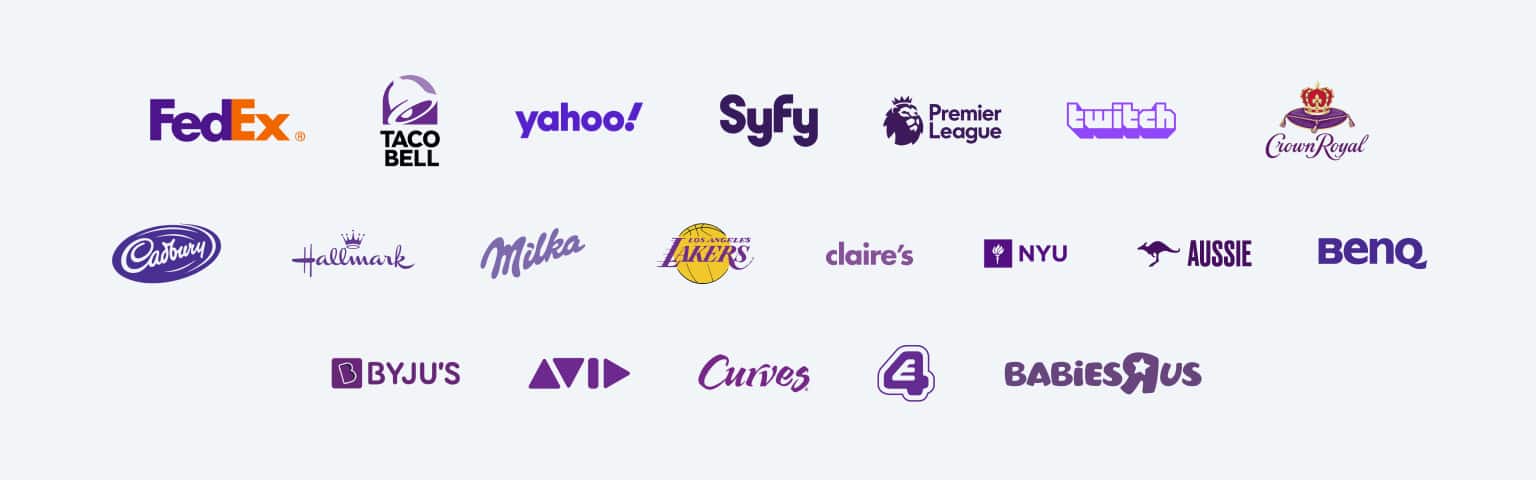
20 Purple Color Logo

The Power of Purple in Branding

Purple is more than just a color; it’s a statement. Often associated with royalty, luxury, and creativity, purple carries a unique blend of calm stability from blue and fierce energy from red. This dual nature makes it a versatile choice for brands aiming to convey sophistication, mystery, or innovation. Purple logos are visually appealing and evoke deep emotions, helping brands stand out in a crowded market. Let’s explore how some of the most famous brands have harnessed the power of purple in their logos.

The psychology behind the color purple

Here’s the color psychology behind the color purple, presented in points:

  • Royalty and Luxury: Historically linked to nobility and wealth, purple evokes a sense of luxury and exclusivity.
  • Creativity and Imagination: It combines the calm of blue with the energy of red, fostering creativity and innovative thinking.
  • Spirituality and Mystery: Often associated with the mystical, it promotes introspection and spiritual awareness.
  • Wisdom and Power: Symbolizes knowledge and power, making it a strong choice for authoritative branding.
  • Calmness and Ambition: Different shades can evoke either tranquility or a drive for success.

Famous Purple Logos

1. FedEx

FedEx

FedEx is a global shipping giant, and its logo is a masterclass in simplicity and clever design. The purple color represents reliability and trust. The hidden arrow between the “E” and “x” subtly communicates speed and precision, core attributes of FedEx’s brand identity.

2. Taco Bell

Taco Bell

Taco Bell’s logo is playful and vibrant, much like the brand. Its use of purple sets it apart from competitors in the fast-food industry, where red and yellow dominate. Purple symbolizes creativity and originality, which aligns with Taco Bell’s innovative menu offerings.

3. Yahoo

Yahoo

Yahoo’s logo has undergone several changes, but purple remains constant. The color choice represents the brand’s quirky and fun personality. As one of the early internet giants, Yahoo’s purple logo became synonymous with innovation and information.

4. Syfy

Syfy

The Syfy channel’s logo leverages purple to create a futuristic and imaginative vibe. Purple is often associated with the mysterious and the unknown, making it the perfect choice for a brand focused on science fiction and fantasy entertainment.

5. Premier League

The Premier League’s logo uses purple to convey royalty and authority. As one of the most prestigious football leagues in the world, the choice of purple reflects the league’s dominance and elite status in the sports industry.

6. Twitch

Twitch

Twitch, the leading live streaming platform for gamers, uses purple to resonate with its young, tech-savvy audience. Purple signifies creativity and uniqueness, aligning with Twitch’s brand as a platform for content creators and gaming enthusiasts.

7. Crown Royal

Crown Royal

Crown Royal’s logo is steeped in tradition and luxury, making purple the ideal color. The royal hue symbolizes the premium quality of the whiskey, reinforcing its position as a high-end, prestigious brand.

8. Cadbury

Cadbury

Cadbury is one of the most iconic purple logos globally. Purple has become synonymous with the brand’s identity, representing luxury, indulgence, and superior-quality chocolate. Cadbury’s use of purple is so significant that the company has even trademarked its specific shade.

9. Hallmark

Hallmark

Hallmark, known for its iconic purple logo, is a leading brand that celebrates life’s special moments through its extensive collection of greeting cards, gifts, and keepsakes. With a rich heritage in storytelling and emotional connections, Hallmark offers products that inspire people to express their heartfelt sentiments in meaningful ways. Whether for birthdays, holidays, or just because, Hallmark helps make every occasion memorable.

You can also explore our blog on Blue Color Logo, Yellow Color Logo, & Green Color Logo.

10. Milka

Milka’s purple cow logo is instantly recognizable, symbolizing softness, gentleness, and high-quality dairy products. The use of purple helps differentiate Milka from other chocolate brands, emphasizing a unique and gentle approach to branding.

11. Los Angeles Lakers

The Los Angeles Lakers’ purple and gold logo is iconic in sports. In this context, Purple symbolizes the prestige and success of the team, which has a long history of championships and legendary players.

12. Claire’s

Claire’s

Claire’s is a retail brand known for its accessories and jewelry, especially for younger audiences. The purple in Claire’s logo conveys a fun, youthful, and trendy vibe, making it appealing to its target market.

13. NYU (New York University)

NYU (New York University)

NYU’s logo features purple to symbolize wisdom, creativity, and intellectual achievement. As one of the leading educational institutions globally, using purple reinforces NYU’s reputation for academic excellence.

14. Aussie

Aussie

Aussie, a famous haircare brand, uses purple to convey vibrancy and liveliness. The color reflects the brand’s Australian roots, where boldness and individuality are celebrated.

15. BenQ

BenQ

BenQ’s purple logo is modern and sleek, reflecting the brand’s focus on cutting-edge technology and innovation. The choice of purple helps BenQ stand out in the competitive tech industry.

16. Byjus

Byjus

Byjus, an educational technology company, uses purple to symbolize creativity and ambition. The color aligns with the brand’s mission to make learning engaging and innovative.

17. Avid

Avid

Avid’s logo, which is associated with the creative industry, uses purple to signify innovation and imagination. The brand is known for its media production tools, and purple highlights its commitment to creativity.

18. Curves

Curves

Curves, a fitness brand tailored for women, uses purple to convey empowerment and femininity. The color choice resonates with the brand’s focus on creating a supportive and positive environment for women’s health and fitness.

19. E4 Channel

E4 Channel

The E4 Channel, known for its entertainment content, uses purple to create a playful and energetic brand image. In this context, Purple appeals to a younger audience and aligns with the channel’s vibrant and dynamic programming.

20. BabiesRUs

BabiesRUs

BabiesRUs uses a soft shade of purple to create an approachable and gentle brand image. The color choice reflects the brand’s focus on nurturing and care, making it appealing to parents and families.

Best Color Combinations with Purple

Purple is a versatile color that pairs well with various other colors, creating different moods and brand impressions:

  1. Purple and Gold: This combination exudes luxury, royalty, and elegance. It’s ideal for high-end brands or products that want to convey a sense of prestige.
  2. Purple and Silver: Together, purple and silver create a sleek and modern look. This combination works well in technology or fashion branding, where a futuristic or sophisticated image is desired.
  3. Purple and White: Purple paired with white gives a clean, minimalist, and refreshing feel. This is a popular combination in the beauty, wellness, and healthcare industries, where purity and simplicity are essential.
  4. Purple and Black: This bold and dramatic combination often conveys mystery, power, or elegance. It suits luxury brands or those wanting to make a strong, impactful statement.
  5. Purple and Pink: Purple and pink together create a playful, feminine, and vibrant palette. This is often seen in brands targeting younger audiences or products related to fashion, beauty, and accessories.
  6. Purple and Yellow: This contrasting combination is eye-catching and energetic. It’s great for brands that want to stand out and be memorable, offering a lively and dynamic vibe.
  7. Purple and Teal: Purple with teal is a modern, fresh, creative combination. It’s often used in branding for tech, education, or creative industries, where innovation and forward-thinking are essential.

Final Thoughts

Purple logos are not just a visual choice but a strategic branding decision. Purple’s ability to convey luxury, creativity, and uniqueness makes it a popular choice across various industries. Whether it’s FedEx’s innovation, Taco Bell’s playfulness, or the prestige of the Premier League, purple has proven to be a powerful tool in establishing brand identity and fostering emotional connections with consumers.

The best color combinations with purple, such as gold, silver, white, black, pink, yellow, and teal, can further enhance a brand’s visual identity, making it memorable and impactful.

How to Find Your Measurement ID in Google Analytics 4: A Step-by-Step Guide

Google Analytics 4 (GA4) is a powerful tool for tracking and analyzing website data, but getting started with it can be a bit confusing. One crucial component you’ll need is your Measurement ID. This unique identifier is essential for linking your GA4 property with your website or app. In this guide, we’ll walk you through the steps to locate your Measurement ID in GA4, ensuring you have everything set up correctly for effective data tracking.

What is a Measurement ID?

The Measurement ID is a unique identifier used in Google Analytics 4 to connect your website or app with your analytics property. Unlike the Tracking ID in Universal Analytics, the Measurement ID is used specifically in GA4 to ensure data flows seamlessly between your site and your GA4 property.

Finding Your Measurement ID

Follow these steps to find your Measurement ID in Google Analytics 4:

1. Log In to Google Analytics

First, you need to access your Google Analytics account. Go to the Google Analytics login page and sign in with your credentials. Make sure you are logged into the correct Google account that has access to your GA4 properties.

2. Access the Admin Section

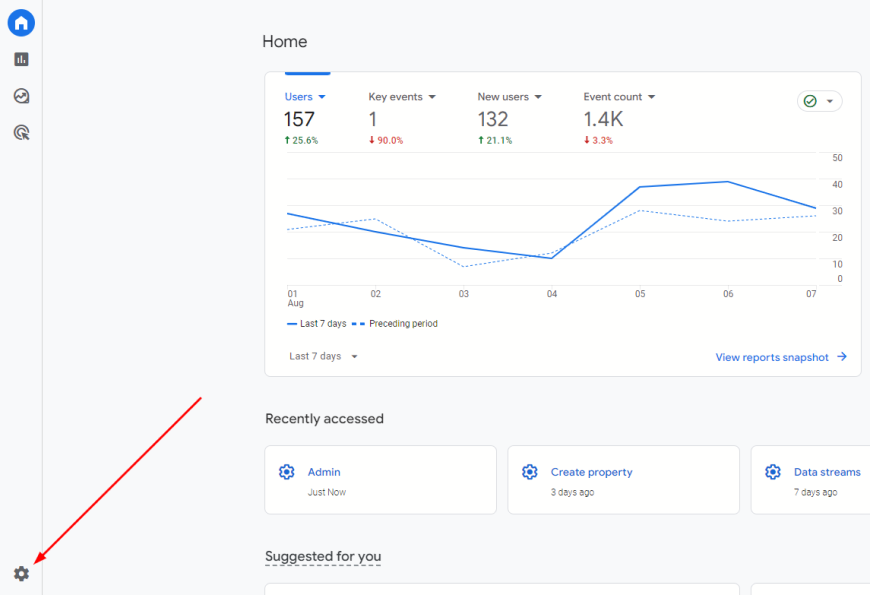
Once you’re in your Google Analytics account, navigate to the Admin section. You can find this at the bottom-left corner of the Google Analytics interface. Click on the “Admin” gear icon to proceed.

Admin in GA4

3. Select the Correct GA4 Property

In the Admin section, you’ll see three columns: Account, Property, and View. Under the “Property” column, select the GA4 property for which you need the Measurement ID. If you have multiple properties, ensure you choose the one relevant to the website or app you’re working with.

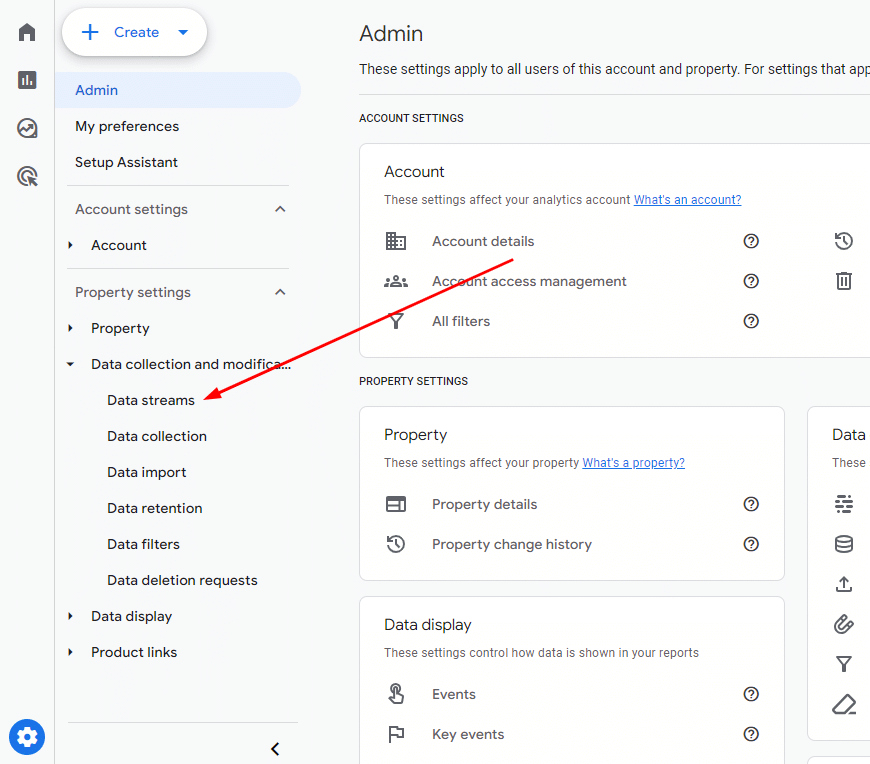
Data streams GA4

4. Locate the Measurement ID

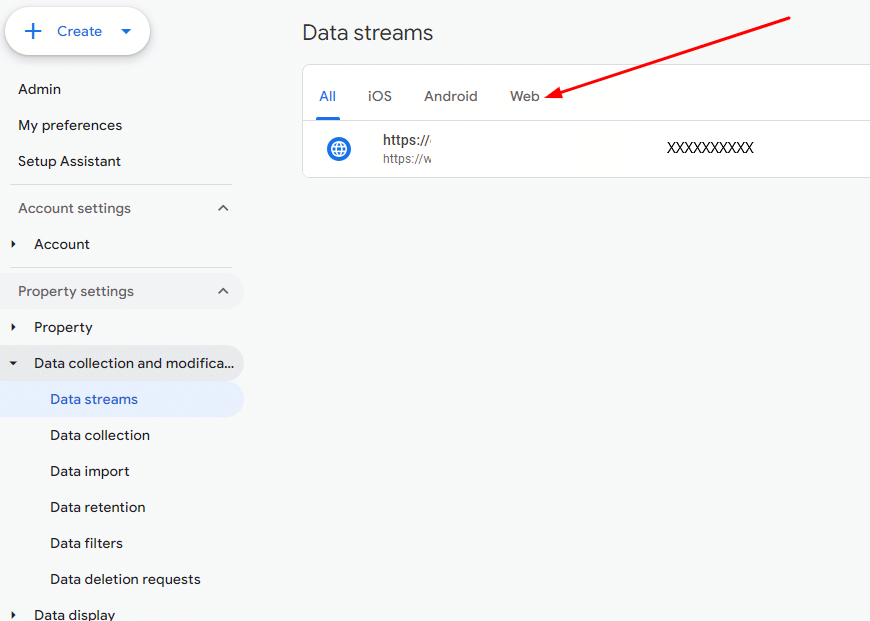
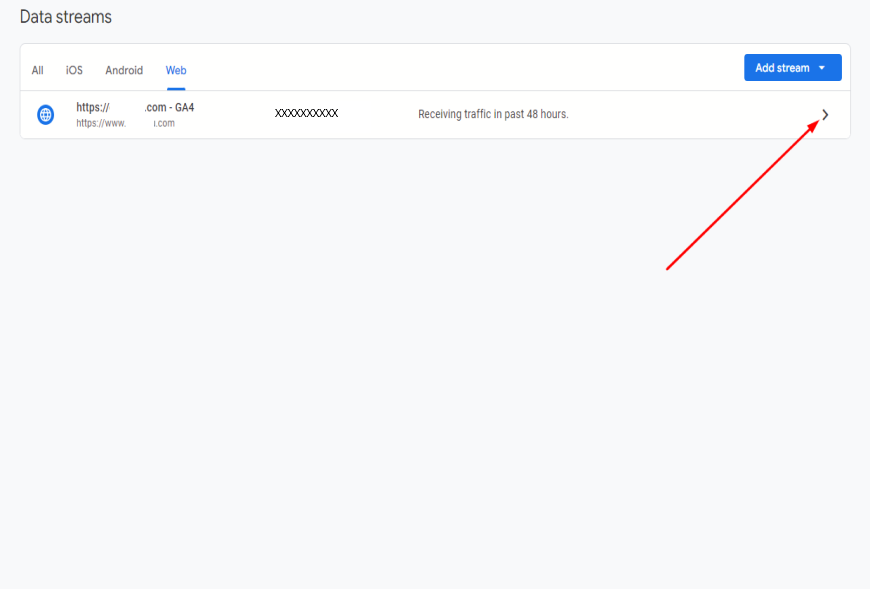
Now that you’ve selected your GA4 property, click on “Data Streams” under the Property column. You’ll be directed to a page where you can see your data streams (Web, iOS, Android). Click on the web data stream if you’re tracking a website.

Web GA4

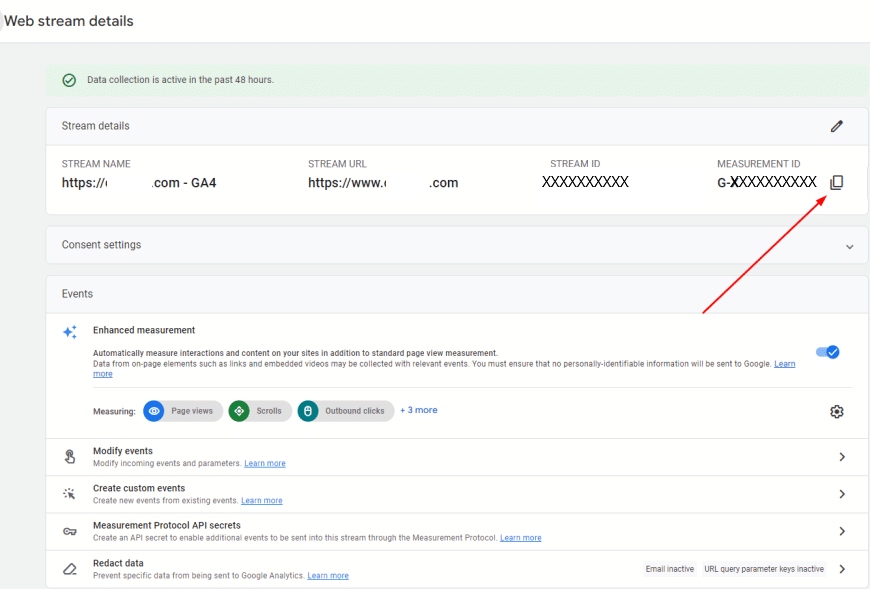
On the data stream details page, you’ll find your Measurement ID listed prominently at the top, usually in the format “G-XXXXXXXXXX.” Copy this Measurement ID as you’ll need it for setting up tracking on your site.

5. Verify Your Measurement ID

It’s crucial to verify that you’ve copied the correct Measurement ID. Ensure it matches the one listed in the GA4 interface to avoid any tracking issues. Double-check that it’s correctly implemented on your website or app.

Measurement ID in GA4

Common Issues and Troubleshooting

If you encounter issues finding your Measurement ID, consider the following tips:

  • Check Permissions: Ensure you have the necessary permissions to access the GA4 property. If you’re unable to see the Measurement ID, you may need to request access from the account administrator.
  • Verify GA4 Setup: Make sure that your GA4 property is correctly set up. If you only see Universal Analytics properties, you might need to create or switch to a GA4 property.
  • Refresh and Retry: Sometimes, a simple page refresh or logging out and back in can resolve display issues.

Finding your Measurement ID is a key step in setting up Google Analytics 4 for effective data tracking. By following the steps outlined above, you can easily locate this important identifier and ensure your website or app is correctly linked to your GA4 property. Proper setup of your Measurement ID is crucial for accurate analytics and insights, so take the time to verify everything is in place. Happy tracking!

Managing User Access in Google Analytics: Best Practices

Introduction

Google Analytics is a powerful tool for understanding how people interact with your website. To get the most out of it, it would help if you managed who can access and use your data. Properly setting up user permissions ensures that your data stays secure and that team members can do their jobs effectively. This guide will cover the basics of setting up user accounts, assigning roles, and managing access. We’ll also look at handling common problems and securing your account.

Understanding User Roles in Google Analytics

Google Analytics has different user roles to help manage who can see and do what with your data. Here’s a guide to the leading roles you’ll play in Google Analytics:

Administrator

  • What They Can Do: Administrators fully control the Google Analytics account. They can add or remove users, change settings, access all data and reports, and manage account settings and integrations.
  • Best For: This role is usually given to account owners or managers who need complete control.

Editor

  • What They Can Do: Editors can create and modify reports and dashboards. They can also make changes to settings but can’t remove users or make high-level changes to the account.
  • Best For: This role is ideal for team members who need to customize reports or set up tracking but don’t know how to manage user access.

Analyst

  • What They Can Do: Analysts can view all the reports and data but can’t change them. They can create dashboards and access data to analyze performance.
  • This role suits people who need to see and analyze data without changing settings or user management.

Viewer

  • What They Can Do: Viewers can only look at the reports and data. They cannot make changes or create new reports, so their role is very limited.
  • This role is best for users who only need to view data and reports, such as stakeholders or clients who don’t need to interact with the settings.

Setting Up User Permissions: Creating User Accounts

Setting up user accounts in Google Analytics is a straightforward process. Here’s a guide to help you get started:

  • Log In to Google Analytics: First, sign in to your Google Analytics account. You need to have administrator access to add new users.
  • Go to Account Settings: Click on the gear icon (Admin) in the screen’s bottom left corner. This takes you to the Account Settings.
  • Select the Account or Property: The Account, Property, and View columns are in the Admin section. Choose the account or property where you want to add a new user.
  • Add New Users: Click “Account” Settings” under”the Account or Property column. Look for the “Account” Users” or “Property Users” option” and click on it. Click the “Add” b” to” (usually represented by a plus sign or “+ Add.”
  • Enter User Details: Enter the email address of the person you want to add. This should be their Google account email. Choose the user role you want to assign (Administrator, Editor, Analyst, or Viewer) based on what access they need.
  • Set Permissions: Decide if the user should have “Edit” & “Analyze”. You can check the box for email notifications if you want them to receive notifications.

Best Practices for Managing User Access

Managing user access in Google Analytics is essential for keeping your data safe and ensuring everyone has the right level of access. Here are some best practices to follow:

Give the Least Access Necessary

  • What This Means: Only give users the access they need to do their job. For example, if someone only needs to view reports, they should be a Viewer, not an Editor.
  • Why It Matters: This reduces the risk of accidental changes or data breaches.

Review Access Regularly

  • What This Means: Check user access settings often to ensure they are correct. Update or remove access for users who no longer need it.
  • Why It Matters: People move on or change roles and regular reviews help keep your account secure.

Use Groups for Easy Management

  • What This Means: Create groups for teams or departments and assign roles to the whole group instead of individuals.
  • Why It Matters: This makes it easier to manage permissions and ensures everyone in the group has the same access.

Set Up Alerts for Changes

  • What This Means: Configure alerts to notify you if there are any changes to user access or settings.
  • Why It Matters: Alerts help you quickly spot and respond to unauthorized changes or potential issues.

Use Two-Factor Authentication (2FA)

  • What This Means: Enable 2FA to add an extra layer of security when users log in.
  • Why It Matters: 2FA makes it harder for unauthorized people to access your account, even if they have the password.

Keep an Eye on Audit Logs

  • What This Means: Regularly check the audit logs to see who has accessed or changed what in your account.
  • Why It Matters: Audit logs help track activity and spot unusual behavior.

Security Considerations

Keeping your Google Analytics account secure is essential to protect your data. Here are some key security tips:

Enable Two-Factor Authentication (2FA)

  • What This Means: Two-factor authentication adds an extra step when logging in. In addition to entering your password, you need to verify your identity with a code sent to your phone or email.
  • Why It Matters: This makes it harder for someone to hack into your account, even if they have your password.

Use Strong Passwords

  • What This Means: Choose a robust and unique password that is hard to guess. Avoid using simple words or readily available personal information.
  • Why It Matters: Strong passwords help prevent unauthorized access to your account.

Regularly Review User Access

  • What This Means: Check who can access your Google Analytics account and their roles. Remove access for users who no longer need it.
  • Why It Matters: This helps ensure that only the right people can see and change your data.

Monitor Account Activity

  • What This Means: Monitor your account logs to see who is accessing your data and what changes they are making.
  • Why It Matters: Monitoring helps spot suspicious or unauthorized activity quickly.

Set Up Alerts for Unusual Activity

  • What This Means: Configure alerts to notify you of any unusual activity, like changes in user access or settings.
  • Why It Matters: Alerts help you react quickly to potential security issues.

Troubleshooting Common Issues

Sometimes, users may need help with Google Analytics. Here’s Here’s handle common issues:

Users Unable to Access Reports

  • Possible Problem: A user might need the correct permissions or be using the wrong Google account.
  • Solution: Check the user’s user and ensure they have the correct permissions. Also, confirm they are logged into the correct Google account.

Role Conflicts and Misassignments

  • Possible Problem: Users might need to assign a different role, which can limit their access or abilities.
  • Solution: Review the roles assigned to each user and adjust them if needed. For example, if someone needs to edit reports but only has viewing access, change their role to Editor.

Access Issues After Account Changes

  • Possible Problem: Users might face issues accessing the data they need after making changes to account settings or user roles.
  • Solution: Verify that the changes were saved correctly and that users have the correct roles. Double-check their permissions and try reassigning roles if necessary.

Issues with Email Invitations

  • Possible Problem: Users might not receive their invitation to access Google Analytics, or the link might not work.
  • Solution: Ask the user to check their spam or junk folder for the email. If the invitation link doesn’t work, resend it or manually add the user again.

Problems with Viewing Data

  • Possible Problem: Users might see error messages or have trouble loading reports.
  • Solution: Ensure the user has the correct permissions and try clearing their browser cache. If the issue persists, check for any known Google Analytics outages or issues.

Managing user access in Google Analytics is critical to keeping your data safe and ensuring your team has the right tools for their work. By following the best practices for setting up roles and permissions, you can protect your account from unauthorized changes and ensure everyone has the necessary access. Regularly reviewing access, using strong passwords, and monitoring activity will help keep your Google Analytics account running smoothly. With these tips, you’ll be on your way to managing your data effectively and securely.

How to Set Up and Optimize Your Google Analytics Tag

Introduction

Google Analytics is a powerful tool for understanding how visitors interact with your website. Setting up Google Analytics correctly is crucial for getting accurate data about your site’s performance. This data can help you make informed decisions to improve your website and grow your business.

This guide will walk you through the steps to set up and optimize your Google Analytics tag. Whether you’re new to Google Analytics or need a quick refresher, we’ll cover everything you need to know. You’ll learn how to set up the tracking code, customize your settings, and ensure that you’re capturing all the essential data. By the end, you’ll have a well-optimized setup that provides clear insights into your website’s performance.

Understanding Google Analytics

Google Analytics is a free tool that helps you see how people use your website. It collects data about your visitors and shows you valuable reports, helping you understand what’s working on your site and what might need to be improved.

Here’s what Google Analytics can do for you:

  • Track Visitors: You can see how many people visit your site, where they come from, and how long they stay.
  • See What They Do: It shows which pages they visit, what links they click, and what actions they take.
  • Measure Goals: You can set goals, like signing up for a newsletter, and track the number of visitors who complete them.
  • Understand Traffic Sources: You’ll learn if visitors find your site through search engines, social media, or other websites.

By understanding these things, you can make better choices to improve your website, attract more visitors, and achieve your business goals.

Setting Up Your Google Analytics Tag

Step 1: Create a Google Analytics Account

Creating a Google Analytics account is the first step in setting up your tracking. Here’sHere’s how to do it:

  • Go to Google Analytics: Open your web browser and go to the Google Analytics website.
  • Sign In or Create a Google Account: If you already have a Google account (like Gmail), sign in. If not, you’ll you’ll need to create one. Click on “Sign Up” to make a new account.
  • Start Setting Up Google Analytics: Once you’re signed in, click the “Start Measuring” button to begin setting up Google Analytics.
  • Fill in Your Details: You’ll need to provide information about your website. Enter your website’s name, URL, and industry category—You’ll also need to choose your reporting time zone.
  • Get the Tracking Code: After you’ve filled in the details, Google Analytics will give you a tracking code. This code helps Google Analytics collect data from your site.
  • Agree to the Terms: Read and accept the terms of service and data sharing settings.
  • Click on “Create” or “Next” to finish the setup. Then, click on the button to create your Google Analytics account.

Step 2: Install the Google Analytics Tag

Installing the Google Analytics tag on your website is essential for tracking your visitors. Here’s a simple guide to help you do it:

  • Get the Tracking Code: You’ll receive a tracking code after creating your Google Analytics account. This code looks like a long string of text.
  • Open Your Website’s Code: Add the tracking code to your HTML. If you use a website builder like WordPress or Wix, there’s usually a special place to put it. Look for “Header” or “Site Settings.”
  • Add the Tracking Code: Copy the tracking code from Google Analytics. Paste it into your website’s HTML before the closing </head> tag. This means it should be placed in the part of your code that appears at the top of your pages.
  • Save Your Changes: After pasting the code, save the changes to your website.
  • Check the Installation: To ensure the tag works, you can use tools like Google Tag Assistant or Google Analytics’Analytics’ real-time reports. These tools will help you see if your website sends data to Google Analytics.

Step 3: Verify Installation

After adding the Google Analytics tag to your website, it is essential to ensure it works correctly. Here’s how you can verify that your Google Analytics tag is installed correctly:

Use Google Tag Assistant
  • Install the Extension: Add the Google Tag Assistant extension to your web browser. This small tool helps you check whether your tags are working.
  • To activate the Extension, Click on the Tag Assistant icon in your browser and then go to your website.
  • Check for Errors: The Tag Assistant will show if your Google Analytics tag is firing correctly. Look for any errors or warnings.
Check Real-Time Reports in Google Analytics
  • Log In: Go to Google Analytics and log in to your account.
  • Go to Real-Time Reports: Click “Real-Time” in the left menu. This shows you what’s happening on your site right now.
  • Visit Your Website: Open a new tab and go to your website. Your visit should appear in the Real-Time reports.
Use Google Analytics Debugger
  • Install the Extension: Add the Google Analytics Debugger extension to your browser.
  • Activate the Debugger: Click the Debugger icon and refresh your website.
  • Check the Console: Open your browser’sbrowser’s console (usually found in developer tools). Look for any messages related to Google Analytics. This will show if the tag is working.

Optimizing Your Google Analytics Tag

Once your Google Analytics tag is installed and working, you can optimize it to get more helpful information. Here’s how to make the most of your Google Analytics setup:

Customizing Tracking Settings

  • Set Up Goals: Goals help you track essential actions on your website, like completing a purchase or signing up for a newsletter. To set up a goal, go to the “Admin” section in Google Analytics, select “Goals,” and click “New Goal.” Choose a type (like destination or duration), and fill in the details to track the actions that matter most to your business.
  • Enable eCommerce Tracking: If you run an online store, enabling eCommerce tracking lets you see how much money you’re making and where your sales are coming from. In Google Analytics, go to “Admin,” select your property, click on “Ecommerce Settings,” and turn on the “Enable Ecommerce” option. Follow the instructions to add extra code to your site if needed.

Utilizing UTM Parameters

  • Create UTM Parameters: UTM parameters are tags you add to your URLs to track where your traffic is coming from. For example, add parameters to a link in an email to see how many people clicked through. Use Google’sGoogle’s Campaign URL Builder to create these tags. Enter your website URL, source (like email or social media), medium (like banner or post), and campaign name. This helps you see which marketing efforts are working best.
  • Analyze Campaign Data: Once you’ve added UTM parameters to your links, you can track them in Google Analytics under “Acquisition” and “Campaigns.” This lets you see how each campaign performs and helps you make better marketing decisions.

Integrating with Google Ads

  • Link Google Ads and Google Analytics: Connecting Google Ads with Google Analytics helps you see how your ads perform on your site. Go to Google Analytics, click “Admin,” then “Google Ads Linking,” and follow the steps to link your accounts. This allows you to view ad performance data directly in Google Analytics.
  • Analyze Ad Performance: After linking, you can see detailed reports about your ad campaigns under “Acquisition” and “Google Ads.” This helps you understand which ads bring the most visitors and which ones lead to conversions so that you can improve your ad strategy.

Common Issues and Troubleshooting

You might encounter some common issues even with a correctly set up Google Analytics tag. Here’s how to identify and fix them:

Tracking Code Not Found

  • Issue: The Google Analytics tag must sometimeneeds be added to your site correctly or is missing entirely.
  • Solution: Double-check that the tracking code is placed correctly in your website’swebsite’s HTML. It should be added just before the closing </head> tag. If you’re using a website builder, ensure you’ve pasted the code in the right spot, often under “Header” settings.

No Data in Reports

  • Issue: If you do not see any data in your Google Analytics reports, there might be a problem with the setup.
  • Solution: Ensure that the tracking code is correctly installed and there are no errors. Use tools like Google Tag Assistant to check if the code is firing correctly. Also, check your Google Analytics account settings to ensure you’re looking at the right property and view.

Data Discrepancies

  • Issue: Sometimes, the data in Google Analytics might not match what you see on your website or in other reports.
  • Solution: Look for familiar reasons, such as filters that might exclude some data or issues with setting goals. Ensure all your tracking settings are configured correctly and no unnecessary filters are applied.

Spam Traffic

  • Issue: Spam or bot traffic can inflate your website’s data, making it less accurate.
  • Solution: Use filters to exclude known spam traffic from your reports. In Google Analytics, go to “Admin,” select “Filters,” and add filters to exclude traffic from specific IP addresses or known spam sources.

Incorrect Goal Tracking

  • Issue: Goals need to be tracked correctly if they are set up with the wrong details or if there are issues with the goal setup.
  • Solution: Review the goal settings in Google Analytics to ensure they match the actions you want to track. Double-check the URLs or events that trigger the goals and ensure they are correctly implemented on your website.

Setting up and optimizing your Google Analytics tag is crucial for understanding how visitors interact with your website. By following the steps to install the tag, customize your settings, and verify the setup, you ensure that you’re collecting accurate data.

Troubleshooting common issues, such as missing data or incorrect tracking, helps maintain the quality of your insights. Regularly checking and optimizing your Google Analytics tag will help you make informed decisions to improve your website’s performance and achieve your business goals.

What is Googlebot?

Imagine having a great website, but it’s not appearing in Google search results. This can be frustrating, especially when you’ve put so much effort into creating valuable content. The issue often lies in how well Googlebot, Google’s web crawler, can access and understand your site.

Understanding Googlebot is crucial for SEO success. Googlebot is like a librarian for the internet. It helps Google find, understand, and index your web pages. If Googlebot can’t crawl your site effectively, your content might not appear in search results, no matter how good.

In this blog, we will explore Googlebot, how it works, and what you can do to ensure it can easily crawl and index your website. By the end, you’ll have clear tips on optimizing your site to improve its visibility on Google.

What is Googlebot?

Googlebot is Google’s web crawling bot. Think of it as a digital librarian. Its job is to explore the internet by visiting web pages, reading their content, and then returning this information to Google.

Googlebot is important because it helps search engines and webmasters. Search engines like Google gather and index web pages, making it easier to show relevant results when you search. For webmasters, understanding how Googlebot works can help ensure their websites get noticed and ranked in search results. If Googlebot can’t find or understand your site, it won’t appear in Google searches. So, making your site easy for Googlebot to crawl and index is key to improving your online visibility.

Key Functions of Googlebot

Googlebot performs several vital tasks to help Google understand and index web pages. Its main functions include crawling, indexing, following the robots.txt file, and managing crawl rate limits. Let’s explore each of these in detail.

Crawling

Crawling is how Googlebot explores the web. It visits web pages and reads their content. Googlebot starts with a list of URLs from past crawls and sitemaps website owners provide.

Process:

Googlebot follows links to discover new content. When it visits a page, it looks for links to other pages. By following these links, Googlebot finds new or updated pages to add to Google’s index. This process helps Google ensure that it has the latest information about the web.

Indexing

Indexing is how Googlebot organizes the web. After crawling a page, Googlebot processes the content and adds it to Google’s index. This index is like a giant library of web pages.

Googlebot reads the text, images, videos, and other elements on a page to understand its content. It then stores this information in the index, making it easy for Google to retrieve and display relevant pages when someone searches.

Importance:

Being indexed in Google’s database is crucial. If your site isn’t indexed, it won’t appear in Google search results. Indexing ensures that users can find your web pages when they search for topics related to your content. This is key to driving traffic and visibility for your site.

Following Robots.txt

A robots.txt file is a set of instructions for web crawlers. It tells bots like Googlebot which parts of a website they can or cannot access. This file is placed in the website’s root directory.

Role:

Googlebot uses the robots.txt file to respect webmaster instructions. When Googlebot visits a site, it first checks the robots.txt file. If the file tells Googlebot to avoid certain pages or directories, it will not crawl those areas. This helps webmasters control what content is accessible and ensures that sensitive or unnecessary pages are not indexed.

Crawl Rate Limits

Crawl rate limits control how often Googlebot visits your site. These limits help ensure that Googlebot doesn’t overload your server with too many requests at once.

Adaptation:

Googlebot adjusts its crawling based on server health. Suppose it detects that your server is responding slowly or experiencing issues. In that case, it will reduce its crawl rate to avoid putting extra strain on your site. Conversely, suppose your server is fast and stable. In that case, Googlebot might increase its crawl rate to ensure it captures all the new and updated content promptly. This helps balance thorough indexing with maintaining your website’s performance.

Types of Googlebots

Googlebot comes in different forms to better understand and index web content. The two main types are Googlebot Desktop and Googlebot Smartphone. Each type helps ensure that web pages perform well on both desktop and mobile devices.

Googlebot Desktop

Googlebot Desktop crawls web pages as they appear on desktop browsers. It views and indexes the content just like a user would on a computer screen, including text, images, videos, and other elements designed for desktop viewing.

Ensuring desktop versions of websites are indexed is important. Many users still access the internet from desktop computers, so indexing your desktop site ensures it appears in search results. This helps you reach a wider audience and provides a better user experience for those on desktop devices.

Googlebot Smartphone

Googlebot Smartphone crawls web pages as they appear on mobile browsers. It examines your site’s mobile version, ensuring it looks good and functions well on smartphones and tablets. This includes checking for responsive design, mobile-friendly navigation, and proper content display.

Mobile-First Indexing means Google primarily uses the mobile version of your site for indexing and ranking. Since most users now browse the internet on mobile devices, Google prioritizes mobile-friendly sites. If your site isn’t optimized for mobile, it might not rank well in search results, impacting your visibility and traffic. Ensuring your mobile site is in top shape is crucial for SEO success.

The Importance of Googlebot for SEO

  • Visibility: Being accessible to Googlebot is critical for search visibility. If Googlebot can’t crawl your site, it can’t index your pages. This means your content won’t appear in Google’s search results, making it hard for people to find your site.
  • Ranking: Googlebot’s indexing directly affects your search rankings. When Googlebot indexes your pages, it analyzes their content and quality, helping determine where your pages rank in search results. Well-indexed pages with valuable content are more likely to appear higher in search results, driving more traffic to your site. Ensuring Googlebot can easily crawl and index your site is essential for improving your SEO and online presence.

Common Issues with Googlebot

While Googlebot is essential for SEO, it can encounter issues that prevent it from effectively crawling and indexing your site. Understanding these common problems can help you address them and ensure your website is accessible to Googlebot.

Blocked Resources

  • Problem: What happens when important resources are blocked. When resources like JavaScript, CSS, and images are blocked, Googlebot can’t see your site’s full content and layout. This can lead to incomplete indexing and poor search rankings because Googlebot might not understand how your site looks and functions.
  • Solution: Ensure resources like JavaScript, CSS, and images are accessible. To fix this, ensure these resources are not blocked in your robots.txt file. You can check this using Google’s Search Console. Allow Googlebot to access all necessary files to fully understand and index your site. This helps ensure your site is accurately represented in search results.

Mobile-Friendliness

  • Problem: Issues with non-mobile-friendly sites. When your site isn’t mobile-friendly, it can be hard for users to navigate and read on smaller screens. Googlebot may also struggle to properly index these sites, leading to lower search rankings. Since more people use mobile devices to browse the web, a non-mobile-friendly site can significantly reduce your traffic and visibility.
  • Solution: Steps to ensure your site is mobile-friendly. To make your site mobile-friendly:
  1. Start by using a responsive design that adjusts to different screen sizes.
  2. Test your site with Google’s Mobile-Friendly Test tool to identify and fix any issues.
  3. Do check buttons and links are easy to tap, text is readable without zooming, and images load quickly.

Page Speed

  • Problem: The impact of slow loading speeds. Slow loading speeds can frustrate users and make them leave your site quickly. Googlebot also takes page speed into account when ranking websites. A slow site can lead to lower search rankings and reduced visibility, as both users and search engines prefer fast-loading pages.
  • Solution: Tips for improving page speed:
  1. Start by optimizing your images.
  2. Compress images to minimize their size without losing quality.
  3. Minimize using large scripts and external resources that can slow down your site.
  4. Use browser caching to store commonly used files locally on users’ devices, reducing load times for repeat visitors.
  5. Consider using a content delivery network (CDN) to serve your content from servers closer to your users.

These steps can help make your site faster and more user-friendly, improving user experience and search engine rankings.

Structured Data

  • Problem: Lack of structured data. When your website needs more structured data, Googlebot might need help understanding the context and details of your content. This can result in missed opportunities for rich search results like snippets, ratings, and other enhanced features that can improve your site’s visibility and click-through rates.
  • Solution: How to implement structured data for better content understanding. To implement structured data, use schema.org vocabulary to mark up your content. This assist search engines understand the different elements on your page. Use Google’s Structured Data Markup Helper to create and add the necessary tags. Test your structured data with Google’s Structured Data Testing Tool to ensure it’s correctly implemented. By using structured data, you provide Googlebot with more detailed information about your content, which can boost how your site appears in search results and attract more visitors.

Best Practices for Optimizing Your Site for Googlebot

Optimizing your site for Googlebot is essential for improving your search rankings and visibility. By following best practices, you can ensure Googlebot can efficiently crawl and index your content, leading to better performance in search results.

Create a Robots.txt File

Instructions: How to create and optimize a robots.txt file. To create a robots.txt file, open a text editor like Notepad. Add rules to specify which parts of your site Googlebot can and cannot crawl. For example, use User-agent: * to apply rules to all bots and Disallow: /folder/ to block specific directories. Save the file as robots.txt and upload it to your website’s root directory.

Dos:
  • Do allow access to important content and resources.
  • Do specify the location of your Sitemap with Sitemap: http://www.example.com/sitemap.xml.
  • Test your robots.txt file using Google Search Console to ensure it works correctly.
Don’ts:
  • Don’t block essential resources like CSS and JavaScript files that help Googlebot understand your site’s layout and functionality.
  • Don’t use robots.txt to hide sensitive data; use proper authentication methods instead.
  • Don’t forget to update your robots.txt file as your site evolves.

Following these guidelines will help Googlebot effectively crawl and index your site, improving your SEO performance.

Ensure Mobile Friendliness

  • Tools: Use Google’s Mobile-Friendly Test tool. To check if your site is mobile-friendly, use Google’s Mobile-Friendly Test tool. Simply check your website’s URL, and the tool will analyze your site and provide feedback on its mobile usability. This helps identify areas that need improvement to ensure a better experience for mobile users.
  • Tips: Key elements of a mobile-friendly site.
    • Responsive Design: Ensure your site automatically adjusts to different screen sizes.
    • Easy Navigation: Use clear menus and buttons that are easy to tap.
    • Readable Text: Make sure text is large enough to read without zooming.
    • Fast Loading: Optimize images and use efficient coding to reduce load times.
    • Avoid Pop-ups: Minimize the use of pop-ups that can be difficult to close on mobile devices.

By following these tips and regularly testing your site, you can provide a better experience for mobile users and improve your site’s performance in search results.

Optimize Page Speed

  • Tools: Use Google PageSpeed Insights. To check your site’s speed, use Google PageSpeed Insights. Enter your website’s URL, and the tool will analyze your site’s performance on both mobile & desktop devices. It provides a score and specific suggestions to improve your site’s speed.
  • Techniques: Tips for improving site speed.
    • Optimize Images: Compress images to reduce their file size without losing quality.
    • Enable Browser Caching: Allow browsers to store some of your site’s files locally to speed up repeat visits.
    • Minify CSS, JavaScript, and HTML: Remove unnecessary characters and spaces in your code to make it load faster.
    • Reduce Server Response Time: Choose a reliable hosting service and optimize your server settings.
    • Use a Content Delivery Network (CDN): Distribute your content across multiple servers worldwide to speed up access for users everywhere.

By applying these techniques, you can significantly improve your site’s loading speed, enhancing user experience and boosting your search engine rankings.

Implement Structured Data

Tools: Use Google’s Structured Data Testing Tool. To ensure your structured data is correct, use Google’s Structured Data Testing Tool. Enter your website’s URL or paste your code, and the tool will check for errors and suggest improvements. This helps you make sure your structured data is properly implemented and understood by search engines.

Examples: Common structured data types and their implementation.

Article: Use the Article schema to mark up news articles, blogs, and other content. Example:

{
"@context": "https://schema.org",
"@type": "Article",
"headline": "Example Article Title",
"author": {
"@type": "Person",
"name": "John Doe" },
"datePublished": "2024-07-23",
"image": "https://example.com/image.jpg"
}

Product: Use the Product schema to mark up product information on e-commerce sites.

Example:

{
"@context": "https://schema.org",
"@type": "Product",
"name": "Example Product",
"image": "https://example.com/product.jpg",
"description": "This is an example product.",
"offers": {
"@type": "Offer",
"priceCurrency": "USD",
"price": "29.99"
}
}

Event: Use the Event schema to mark up events.

Example:

{
"@context": "https://schema.org",
"@type": "Event",
"name": "Example Event",
"startDate": "2024-08-01T19:00:00Z",
"location": {
"@type": "Place",
"name": "Example Venue",
"address": "123 Main St, Anytown, USA"
}
}

Regular Audits

Tools: Use tools like Google Search Console for site audits to keep your site in top shape. This tool helps you monitor your site’s performance and identify any issues. It gives insights into how Googlebot views your site and highlights areas that need improvement.

Actions:

  1. Regularly check and fix issues detected by Googlebot.
  2. Make it a habit to review your site’s performance in Google Search Console.
  3. Look for crawl errors, broken links, and other issues affecting your site’s visibility.
  4. Fix these problems promptly to ensure Googlebot can crawl and index your site effectively.

Regular audits help maintain your site’s health and boost its chances of ranking well in search results.

Final Thought

Understanding and optimizing for Googlebot is crucial for improving your site’s visibility and search rankings. Ensuring Googlebot can effectively crawl and index your site enhances your chances of appearing in search results. Implement the best practices discussed, such as creating a robots.txt file, ensuring mobile-friendliness, optimizing page speed, and using structured data.

For further reading, check out Google Search Central and other SEO resources.

We’d love to hear about your experiences or issues with Googlebot. We offer a free site audit and SEO consultation service if you need personalized assistance. Contact us today to improve your SEO and boost your online presence!

Get a Free Site Audit and SEO Services

The Great Comeback: Unlocking Success through Instagram Account Recovery

Understanding Instagram Account Recovery

In the digital age, social media platforms like Instagram have become an integral part of our lives. However, there may be instances where you find yourself locked out of your Instagram account. Understanding the process of Instagram account recovery is crucial for regaining access and continuing to enjoy the platform’s features.

Importance of Instagram Account Recovery

Instagram account recovery is essential for several reasons. Firstly, it allows you to regain control of your account and protect your personal information. By recovering your account, you can prevent unauthorized access and potential misuse of your profile.

Moreover, recovering your Instagram account enables you to reconnect with your followers, regain access to your posts and content, and resume normal activity on the platform. This is particularly important for individuals who rely on Instagram for personal or business purposes.

Common Reasons for Account Recovery

There are various reasons why you may need to initiate the account recovery process on Instagram. Some common scenarios include:

  1. Forgotten Password: Forgetting your account password is a common occurrence. This can happen due to various reasons, such as using multiple passwords or not logging in for an extended period.
  2. Hacked or Compromised Account: If your Instagram account has been hacked or compromised, it’s crucial to take immediate action to regain control and secure your profile.
  3. Suspension or Deactivation: Instagram may suspend or deactivate accounts that violate its guidelines or terms of service. In such cases, you may need to go through the account recovery process to reinstate your profile.
  4. Device or App Issues: Technical issues with your device or the Instagram app itself can sometimes result in account access problems. Recovering your account helps resolve these issues.

By understanding the importance of Instagram account recovery and being aware of the common reasons for initiating the process, you can take the necessary steps to regain access to your account. In the following sections, we will explore the initial steps and recovery options available to help you restore your Instagram account.

Initial Steps for Account Recovery

If you find yourself locked out of your Instagram account, don’t worry – there are steps you can take to initiate the account recovery process. By following the initial steps outlined below, you can begin the journey to regain access to your account.

Accessing the Instagram Help Center

The first step is to navigate to the Instagram Help Center, which is the official support platform provided by Instagram. You can access the Help Center by visiting the Instagram website or opening the Instagram app and following these steps:

  1. Tap on your profile icon in the bottom right corner of the app.
  2. Tap on the hamburger menu icon (three horizontal lines) in the top right corner.
  3. Scroll down and tap on “Settings.”
  4. Tap on “Help.”
  5. Tap on “Help Center.”

Once you’re in the Help Center, you’ll find a wide range of articles and resources to assist you with your account recovery process. Take the time to explore the available information and familiarize yourself with the options and guidelines provided.

Providing Necessary Information

To initiate the account recovery process, Instagram will require certain information to verify your identity and ownership of the account. You’ll need to provide the following details:

  1. Your username or the email address linked to your account: This is the primary identifier used to locate your account.
  2. Detailed description of the issue: Clearly explain the problem you’re experiencing, such as being locked out of your account or being unable to reset your password.
  3. Additional information: Instagram may ask for additional information to verify your identity, such as the phone number associated with your account or past login locations.

It’s crucial to provide accurate and detailed information to increase the chances of a successful account recovery. Be prepared to answer any additional questions or provide further documentation if requested by Instagram.

By following these initial steps, you’ll be on your way to starting the account recovery process. Remember to thoroughly explore the resources available in the Instagram Help Center to ensure you have a clear understanding of the recovery options and guidelines provided. For more information on preventing future account issues, continue reading our article on strengthening account security.

Recovery Options

In the unfortunate event that you are locked out of your Instagram account, there are several recovery options available to regain access. Instagram provides different methods to verify your identity and ensure the security of your account. Let’s explore three common recovery options: email verification, phone number verification, and two-factor authentication.

Email Verification

One of the primary recovery options is email verification. When you attempt to recover your account, Instagram will send an email to the email address associated with your account. This email will contain a link or instructions to verify your identity and regain access. It’s essential to have access to the email account linked to your Instagram to utilize this recovery option.

To increase the chances of successful email verification, ensure that you have access to the email account and regularly check your spam or junk folders in case the email from Instagram gets filtered. It’s important to follow the instructions provided in the email promptly to complete the recovery process.

Phone Number Verification

If you have provided your phone number during the registration process or linked it to your Instagram account, phone number verification can be used as a recovery option. Instagram will send a verification code to your phone number, which you can enter on the recovery page to prove your identity.

To utilize phone number verification, make sure that your phone number is active and accessible. Keep your phone nearby to receive the verification code promptly. Enter the code accurately on the recovery page to regain access to your Instagram account.

Two-Factor Authentication

Enabling two-factor authentication (2FA) adds an extra layer of security to your Instagram account and can also be used as a recovery option. With 2FA enabled, you will need to provide a verification code generated by an authenticator app or received via SMS when logging into your account.

To set up two-factor authentication, navigate to your Instagram settings and follow the instructions to link your account to an authenticator app or phone number. When recovering your account, you will be prompted to provide the verification code generated by the app or received via SMS. This ensures that only you, as the account owner, can regain access.

Utilizing two-factor authentication not only helps protect your account from unauthorized access but also provides an additional recovery option in case you are locked out. Take advantage of this feature to enhance the security of your Instagram account.

By utilizing email verification, phone number verification, or two-factor authentication, you can successfully recover your Instagram account and regain access to your profile, photos, followers, and other account features. Remember to keep your recovery information up to date and secure to prevent future account issues.

Additional Support

If you encounter difficulties with your Instagram account recovery, don’t worry. Instagram provides additional support options to assist you in regaining access to your account. Two primary avenues for seeking support include contacting Instagram Support directly and seeking help from community forums.

Contacting Instagram Support

When facing account recovery challenges, reaching out to Instagram Support can be a valuable step. Instagram’s Support team is equipped to address a wide range of issues and can provide guidance specific to your situation. To contact Instagram Support:

  1. Open the Instagram app or visit the Instagram website.
  2. Navigate to the “Settings” or “Help” section, usually accessible through the profile menu.
  3. Look for the “Help Center” or “Support” option.
  4. Browse through the available topics or search for “account recovery.”
  5. Follow the instructions provided to submit a support request or report your issue.

By contacting Instagram Support, you can receive personalized assistance tailored to your account recovery needs. Remember to provide accurate and detailed information about your situation to ensure a swift and effective resolution.

Seeking Help from Community Forums

In addition to contacting Instagram Support, seeking help from community forums can be a valuable resource for account recovery. There are various online communities and forums where users share their experiences and offer advice on Instagram-related issues.

To find relevant community forums:

  1. Conduct an internet search using keywords like “Instagram account recovery help” or “Instagram support forums.”
  2. Explore forums and communities dedicated to Instagram or social media support.
  3. Look for threads or posts related to account recovery and read through the discussions.
  4. If needed, create an account on the forum to actively participate and ask questions.

Engaging with the community can provide insights from individuals who have encountered similar challenges and successfully resolved them. However, exercise caution and verify information from reputable sources before implementing any suggestions.

Remember, while seeking support is crucial, it’s important to remain patient throughout the account recovery process. Following Instagram’s guidelines and maintaining open communication with their support team or community members can greatly increase your chances of successfully recovering your account.

Preventing Future Account Issues

After successfully recovering your Instagram account, it’s important to take proactive measures to prevent future account issues. By strengthening your account security and regularly updating your recovery information, you can minimize the risk of encountering similar problems in the future.

Strengthening Account Security

One of the key aspects of preventing future account issues is to ensure that your Instagram account is secure. Here are some steps you can take to strengthen your account security:

  1. Create a Strong Password: Choose a unique and complex password that includes a combination of letters, numbers, and special characters. Avoid using easily guessable information such as your name or birthdate. Consider using a password manager to securely store your login credentials.
  2. Enable Two-Factor Authentication: Two-Factor Authentication (2FA) adds an extra layer of security to your account. By enabling 2FA, you will be required to provide a verification code, usually sent to your mobile device, in addition to your password when logging in. This helps protect your account even if your password is compromised.
  3. Be Wary of Suspicious Links and Emails: Avoid clicking on suspicious links or opening emails from unknown senders. These could be phishing attempts aiming to steal your login information. Always verify the authenticity of any emails or messages claiming to be from Instagram before providing any personal information.
  4. Regularly Review Connected Apps: Periodically review the list of third-party apps and services connected to your Instagram account. Remove any apps or services that you no longer use or trust, as they may pose a security risk.

Regularly Updating Recovery Information

Another important step in preventing future account issues is to regularly update your recovery information. This ensures that you have the necessary means to recover your account in case of any unforeseen circumstances. Here’s what you can do:

  1. Verify and Update Your Email Address: Ensure that the email address associated with your Instagram account is accurate and up to date. This is crucial as it will be used for account recovery purposes. Visit your Instagram account settings to verify and update your email address if needed.
  2. Add a Phone Number: Adding a phone number to your Instagram account provides an additional recovery option. In case you lose access to your email, having a verified phone number allows you to receive account recovery codes via SMS.
  3. Familiarize Yourself with the Account Recovery Process: Stay informed about the account recovery process on Instagram. Familiarize yourself with the steps and requirements so that you know what to expect in case you ever need to recover your account again.

By following these preventive measures, you can significantly reduce the chances of encountering future account issues on Instagram. Remember to stay vigilant and prioritize the security of your account. 

Final Thoughts on Account Recovery

Recovering an Instagram account can be a frustrating process, but with patience and persistence, it is possible to regain access. Here are some final thoughts to keep in mind when going through the account recovery process.

Patience and Persistence

Account recovery can take time, so it’s important to be patient throughout the process. Instagram receives numerous requests for account recovery, and they need time to investigate and verify the information provided. It’s essential to follow the instructions provided by Instagram and avoid submitting multiple requests, as this can further delay the process.

Remember to check your email regularly for any updates or instructions from Instagram. If additional information or verification is required, respond promptly to ensure a smooth account recovery process.

Importance of Following Instagram Guidelines

While going through the account recovery process, it’s crucial to adhere to Instagram’s guidelines and policies. Failure to comply with these guidelines can result in further complications and delays. Make sure to provide accurate and truthful information when submitting your account recovery request.

To avoid future account issues, familiarize yourself with Instagram’s terms of service and community guidelines. Understanding and following these guidelines will help prevent violations that could lead to account suspension or other issues. Take the time to read through the guidelines and stay informed about any updates or changes.

By being patient, persistent, and following Instagram’s guidelines, you can increase your chances of successfully recovering your account. Remember to take steps to strengthen your account security and regularly update your recovery information to minimize the risk of future account issues. 

Breaking the Chains: Steps to Lift an Instagram Account Suspension

Understanding Instagram Account Suspension

Instagram account suspension can be a significant disruption for users who rely on the platform for personal connections or business purposes. Understanding the impact of such actions and the reasons behind them is essential for prevention and recovery.

Impact on Influencers and Businesses

The suspension of an Instagram account can have a profound impact on influencers and businesses that utilize the platform as a primary channel for engagement and revenue. Influencers often experience a direct hit to their income streams, as sponsorships and partnerships may be tied to their online presence and ability to reach their audience. Businesses, particularly those that have built their brand through Instagram, can see a noticeable decline in customer engagement and potential sales.

The ripple effects of an account suspension can also include a loss of brand credibility and a significant reduction in audience reach. Influencers and businesses must act swiftly to address a suspension to mitigate these impacts and safeguard their online reputation.

Reasons for Account Suspension

Instagram enforces a strict set of rules, and noncompliance can result in the suspension of an account. Common reasons for account suspension include, but are not limited to, the following:

  • Violation of community guidelines: Engaging in activities that go against Instagram’s community standards, such as posting inappropriate content or conducting abusive behavior, can lead to suspension.
  • Copyright infringement: Sharing content that infringes on intellectual property rights without permission is a violation that Instagram takes seriously.
  • Bot activity and spamming: Accounts suspected of using automated services for likes, follows, or comments, or those engaged in spamming activities, are at risk of being suspended.
  • Use of banned hashtags: Unknowingly using hashtags that have been banned due to association with prohibited content can result in account suspension.
  • User complaints: Multiple complaints or reports from other users about an account’s activities can trigger an investigation and possible suspension.

To regain access to a suspended account, users must follow a recovery process that involves verifying their identity and demonstrating compliance with Instagram’s guidelines. For those who have experienced an account suspension, Instagram account recovery offers guidance on how to navigate the process.

To prevent suspension, users should familiarize themselves with Instagram’s community guidelines and adhere to best practices when engaging on the platform. This includes understanding what constitutes prohibited content, avoiding the use of banned hashtags, and ensuring that any third-party services used for account growth comply with Instagram’s policies. For more information on correctly engaging with Instagram features such as stories, reels, and captions, users can explore internal links that provide tips and guidelines.

Instagram Rules and Violations

Navigating the world of Instagram can sometimes feel like walking through a minefield due to the platform’s strict rules and regulations. Understanding these rules is essential to avoid the dreaded Instagram account suspension.

Consequences of Breaking Rules

Instagram has set forth strict rules, and breaking them can lead to severe consequences such as suspension of your page, ad account, or both. Users who violate Instagram’s terms may find their content removed, their reach reduced, or their accounts banned temporarily or permanently.

Consequences can range from a simple warning to more severe actions:

Violation SeverityPotential Consequence
MinorWarning or content removal
ModerateTemporary suspension
SeverePermanent ban

It’s important to note that Instagram’s algorithm is designed to enforce these rules automatically, and sometimes even well-meaning accounts can get caught in the net. In such cases, understanding the Instagram account recovery process can be invaluable.

Banned Hashtags and Activities

Instagram maintains a list of banned hashtags that, if used, can restrict your post from being shown in followers’ feeds and make them unsearchable. This list includes hashtags that are associated with spammy or inappropriate content. Unfortunately, Instagram doesn’t publish this list, so users must stay informed about which hashtags to avoid. Using banned hashtags can not only limit the visibility of a single post but can also have long-term effects on account reach.

Additionally, engaging in activities that mimic bot behavior, such as using unauthorized apps to gain Instagram likes and Instagram followers can result in a ban for your brand. Instagram sets daily limits on actions, especially for new users, to prevent spam and bot-like activity. Exceeding these limits can flag your account as suspicious.

Banned ActivityConsequence
Using unauthorized like/follower appsTemporary or permanent ban
Overusing hashtagsShadowban or post-removal
Exceeding daily action limitsAccount Restrictions

Moreover, spreading misinformation is taken seriously on the platform, and users may face restrictions or bans for such actions as part of Instagram’s efforts to maintain a trustworthy and safe environment for all users.

To keep your account in good standing, familiarize yourself with Instagram’s community guidelines, avoid the use of banned hashtags, and engage in authentic interactions rather than relying on automation or deceptive practices. By following these guidelines, you can help ensure your account remains active and your content reaches your intended audience without interruption.

Preventing Account Suspension

Maintaining an active and engaging Instagram presence is vital for businesses, influencers, and everyday users. To avoid the disruption caused by an Instagram account suspension, it’s essential to understand and implement strategies for safeguarding your account.

Strategies to Protect Your Account

The first step in protecting your Instagram account is to be aware of the actions that may trigger a suspension. Utilizing third-party apps that promise more likes and followers can be tempting, but Instagram has systems to detect such behavior, and it could lead to a ban. Here are several strategies to keep your account in good standing:

  • Audit Third-Party Apps: Regularly review and revoke access to any third-party apps that are not officially affiliated with or endorsed by Instagram.
  • Content Originality: Ensure all content you post is authentic and original, or that you have the right to share it.
  • Regularly Update Passwords: Change your passwords periodically to secure your account against unauthorized access.
  • Enable Two-Factor Authentication: This adds an extra layer of security to your account.
  • Monitor Account Activity: Keep an eye on login activity and be alert to any unusual actions on your account.

By implementing these strategies, you can minimize the risk of account suspension and maintain your Instagram followers, engagement, and online presence.

Adhering to Community Guidelines

Adherence to Instagram’s community guidelines is paramount to avoid suspension. The Instagram algorithm and moderation team are on the lookout for content that violates these guidelines, including misinformation, inappropriate content, and the use of banned hashtags. To ensure compliance:

  • Review Instagram’s Policies: Familiarize yourself with the latest community guidelines and terms of service.
  • Avoid Misinformation: Be cautious of the information you share and ensure it’s accurate and reliable.
  • Post Appropriate Content: Avoid sharing images or videos containing nudity, sexual content, or violence to prevent your account from being flagged.
  • Use Hashtags Wisely: Stay updated on Instagram hashtags that are banned or considered inappropriate to prevent shadowbans.

While the platform does not explicitly notify users of shadowbans, a noticeable decrease in engagement or malfunctioning hashtags could indicate that you’ve been affected. Regularly auditing your account for compliance can help you avoid these and other sanctions.

By following these protective measures and consistently adhering to the community guidelines, you can significantly reduce the likelihood of facing an Instagram account suspension. This proactive approach will help safeguard your online presence and ensure uninterrupted access to your audience on the platform.

Handling Account Suspension

Being unable to access an Instagram account can be a distressing experience, especially for those who rely on the platform for business or personal branding. Understanding the recovery process and verifying identity and compliance are crucial steps in lifting an Instagram account suspension.

Recovery Process

If your account has been suspended, the first step is to identify the cause of the suspension. Instagram may suspend an account for reasons such as violating community guidelines, being suspected of bot activity or spamming, or during an outage. Once you have identified the cause, you can begin the recovery process:

  1. Log into your suspended account and follow the on-screen instructions provided by Instagram.
  2. If no instructions are provided, use the “Help” option on the login screen to submit an appeal.
  3. Wait for Instagram’s response to your appeal. This could take several hours to a few days.

During this process, ensure that you comply with any requests from Instagram, such as providing additional information or clarifying your previous activities on the platform.

Verifying Identity and Compliance

In cases where an account is suspected of fraud or deceptive activity, Instagram may require users to verify their identity. You may be asked to provide a selfie video and government-issued ID to confirm that you are the rightful owner of the account.

Should you need to verify your identity, here are the steps to follow:

  1. Prepare a clear, legible copy of your government-issued ID.
  2. Follow Instagram’s instructions for recording a selfie video, if requested.
  3. Submit the required documentation through the secure link provided by Instagram.

Failure to verify your identity can result in the permanent termination of your account after 180 days. Therefore, it is crucial to act promptly and provide accurate information to regain access to your account.

Remember that the duration of suspension may vary. Temporary suspensions typically last from 24 to 48 hours, while more serious infractions involving fraud may lead to suspensions that can last up to 180 days or until the issue of identity is resolved. Users are encouraged to familiarize themselves with Instagram’s Community Guidelines to prevent future suspensions and ensure a smooth experience on the platform.

Effects of Suspension on Users

The repercussions of an Instagram account suspension extend beyond mere inconvenience; they can have substantial and tangible effects on users, especially those who rely on the platform for business and influencer activities.

Financial Impact

For those who have integrated Instagram into their monetization strategy, a suspension can be particularly crippling. Influencers and businesses often engage with their audience consistently and collaborate with brands to generate income. When an account is suspended, these activities come to an abrupt halt, leading to not only immediate financial losses but also potential long-term repercussions related to brand partnerships and sponsorships.

The financial troubles arising from a suspension are compounded by the loss of loyalty and trust that influencers and businesses have cultivated over time. This can be particularly damaging for smaller influencers or businesses that do not have the same resources as larger entities to manage the fallout.

ImpactDescription
Immediate Income LossDirect loss of revenue from halted sponsored posts and collaborations.
Long-Term Brand DamageDeterioration of brand partnerships and future income opportunities.
Loss of LoyaltyDecreased trust from followers, affecting engagement and support.

Loss of Engagement and Reach

Suspension can also have a crucial impact on a user’s engagement and reach. The Instagram algorithm favors accounts that post consistently, and a sudden drop in activity can negatively affect how content is prioritized and displayed in followers’ feeds. This can result in a decrease in Instagram likes, Instagram followers, and overall visibility on the platform.

Recovering from a suspension involves not only regaining access to the account but also rebuilding the engagement metrics that have been lost. This might include re-establishing consistency in posting on Instagram stories, Instagram reels, and the Instagram feed, as well as re-engaging with the community through comments, Instagram live, and Instagram captions.

MetricPre-SuspensionPost-Suspension
Average Likes per Post500300
Daily Follower Growth5010
Post Reach10,0006,000

Engagement and reach are vital for maintaining a successful presence on Instagram, and a suspension can undermine the efforts users put into growing their accounts. Users must understand Instagram rules and violations to prevent suspensions and protect their online presence. For those who have experienced a suspension, following the Instagram account recovery process and implementing the recommended preventive strategies are key steps to mitigate the impact and safeguard their accounts for the future.

Recent Instagram Suspensions

Recent events involving Instagram account suspensions have raised concerns among users about the stability and reliability of the platform. These instances not only affect individual users but also have broader implications for influencers and businesses that rely heavily on Instagram for their operations.

Outage Impact and Resolution

Instagram users were taken by surprise when a mass suspension hit the platform. Meta, Instagram’s parent company, quickly addressed the situation, restoring access to the affected accounts. Reports indicated that the suspension wave could have impacted hundreds or thousands of users. The issue was resolved, but it shed light on the importance of understanding the Instagram account suspension processes and how they can affect a user’s social presence.

During the outage, users lost access to essential features such as Instagram stories, Instagram reels, and the ability to engage with their Instagram followers. The swift resolution minimized the financial and engagement losses that could have been much more significant had the outage lasted longer.

Duration of Suspensions

The length of an Instagram account suspension can vary significantly depending on the nature of the infringement. According to information, temporary suspensions usually span 24-48 hours, providing users with a brief pause to review the platform’s community guidelines. More severe infractions, particularly those related to fraudulent activities, can result in suspensions lasting up to 180 days or until the user completes the necessary steps to verify their identity.

Reason for SuspensionSuspension Duration
Minor Violations24-48 hours
Fraud-Related IssuesUp to 180 days or until identity verification

When dealing with a suspension, users need to engage with the Instagram account recovery process promptly. This can involve actions such as verifying identity, providing compliance documentation, or simply waiting out the suspension period.

For those who depend on Instagram for their livelihood, such as Instagram influencers and businesses, understanding the potential duration of suspensions is crucial for Instagram marketing planning and risk management. It’s also important for all users to remain updated on Instagram’s rules and regulations to prevent future suspensions and to maintain a healthy and active Instagram presence.

Alternatives For Google

Google is the most popular search engine in the world. Many people use it daily to find information, products, and services. But did you know other search engines offer different features and benefits?

Exploring alternative search engines is important. Some focus on privacy, while others help the environment or support charities. Trying different search engines can give you a better online experience.

In this blog, we will look at several types of alternative search engines. We will cover private search engines, sustainable search engines, charitable search engines, AI search engines, copyright-free search engines, and mainstream search engines. Each one has unique features that might be just what you need.

Private Search Engines

Private search engines are designed to protect your privacy. They do not track your searches or store your personal information. This is important because it keeps your online activities private and secure.

DuckDuckGo

Key Features

DuckDuckGo is known for its focus on privacy and simplicity. Some of its key features include:

  • Anonymous Searches: DuckDuckGo does not track or store any personal information or search history.
  • No Personalized Ads: Because it does not track your searches, it does not serve you personalized ads.
  • Clean User Interface: The search engine offers a simple and clean interface, making it easy to use.
  • Instant Answers: DuckDuckGo provides quick answers to your questions directly at the top of the search results, similar to Google’s featured snippets.
  • Bangs: These are shortcuts that let you search on other websites directly from DuckDuckGo. For example, typing “!w” followed by a search term will take you to Wikipedia.
Benefits of Anonymous Search Results

Using DuckDuckGo has several benefits, especially when it comes to privacy:

  • Enhanced Privacy: Since DuckDuckGo does not track or store your search data, online activities remain private.
  • No Filter Bubble: You get unbiased search results because DuckDuckGo does not use your search history to personalize your results. This means you see the same results as everyone else.
  • Reduced Ad Targeting: Without tracking, advertisers cannot target you based on your search history. This leads to fewer personalized ads following you around the web.
  • Peace of Mind: Knowing that your searches are not being tracked or stored provides security and peace of mind.

Using DuckDuckGo is a straightforward way to maintain your privacy while searching the Internet, ensuring your data remains yours.

Startpage

Key Features

Startpage is a private search engine that offers several key features to ensure your privacy:

  • Google Results with Privacy: Startpage delivers Google search results without tracking or storing your data.
  • No User Tracking: It does not track your IP address, search history, or personal information.
  • Anonymous View: The Startpage offers an “Anonymous View” option, which allows you to visit websites without being tracked.
  • No Filter Bubble: You get unfiltered search results, as Startpage does not personalize searches based on your history.
  • Secure Connection: It uses HTTPS to ensure a secure search connection.
Benefits

Startpage provides several benefits for users who value privacy:

  • Enhanced Privacy: Startpage does not track or store your search data, keeping your information private.
  • Unbiased Results: Without a filter bubble, you receive unbiased search results not influenced by your past searches.
  • Secure Browsing: The “Anonymous View” feature lets you browse websites without being tracked, adding an extra layer of security.
  • Google Quality: You enjoy Google’s high-quality search results combined with the privacy features of Startpage.

Using Startpage helps maintain your privacy while benefiting from reliable and accurate search results.

Qwant

Key Features

Qwant is a European search engine that prioritizes user privacy. Its key features include:

  • No Tracking: Qwant does not track your searches or use personal data for advertising.
  • Privacy by Design: It is built with privacy as a core principle, ensuring your data stays private.
  • Neutral Search Results: Qwant provides search results that are not influenced by your search history.
  • User-Friendly Interface: The interface is simple and easy to use, making it accessible to everyone.
  • News and Social Tabs: Qwant offers dedicated tabs for news and social media, helping you quickly find specific types of content.
Benefits

Using Qwant offers several benefits, especially for those who value privacy:

  • Enhanced Privacy: Qwant does not store or track your personal information, ensuring your searches remain private.
  • Unbiased Results: You receive neutral search results not tailored based on your previous searches, giving you a broader perspective.
  • Secure Browsing: With no tracking, your online activities are more secure and less susceptible to data breaches.
  • User Control: Qwant’s privacy-focused approach gives you more control over your personal information and online presence.

Using Qwant, you can enjoy a secure and private search experience without sacrificing usability or access to a wide range of information.

Swisscows 

Key Features

Swisscows is a privacy-focused search engine with unique features:

  • No Tracking: Swisscows does not track your searches or store personal data.
  • Family-Friendly: It automatically filters out explicit content, making it safe for all ages.
  • Contextual Search: Uses AI to provide relevant and contextual search results.
  • Data Security: All data is stored on Swiss servers, ensuring high levels of security.
  • User-Friendly Design: The interface is simple and easy to navigate.
Benefits

Swisscows offers several benefits for users:

  • Enhanced Privacy: Your searches remain completely private with no tracking or data storage.
  • Safe Browsing: The built-in content filter ensures a safe browsing environment, especially for families.
  • Relevant Results: The AI-powered contextual search delivers accurate and useful results.
  • High Security: Storing data on Swiss servers ensures robust protection against data breaches.
  • Ease of Use: The simple interface makes it easy for anyone, regardless of age or tech-savvy.

Using Swisscows provides a secure, private, and family-friendly search experience without compromising on the quality of results.

Search Encrypt

Key Features

Search Encrypt is a search engine designed with privacy in mind. Its key features include:

  • Local Encryption: Search terms are encrypted locally before being sent to the search engine.
  • Auto-Clearing History: Search history is automatically cleared after a set period, ensuring no trace of your activity.
  • No Tracking: It does not track your searches or store personal information.
  • Secure Browsing: Uses HTTPS to secure your connection and keep your data safe.
  • User-Friendly Interface: Simple and easy to use, making it accessible for everyone.
Benefits

Using Search Encrypt offers several benefits:

  • Enhanced Privacy: Local encryption ensures your search terms are private and secure.
  • No Trace Left Behind: Auto-clearing history means your search activity is not stored, providing peace of mind.
  • Secure Connection: HTTPS protects your searches and data from prying eyes.
  • Unbiased Results: Without tracking, you receive neutral search results that are not personalized based on your history.
  • Ease of Use: The simple interface makes it easy for anyone to perform private and secure searches.

Search Encrypt helps you maintain your privacy and security while browsing the Internet, ensuring your data stays private and protected.

Searx

Key Features

Searx is an open-source metasearch engine designed to prioritize user privacy. Its key features include:

  • Open Source: Searx’s code is open for anyone to review, modify, and use, promoting transparency.
  • Metasearch Engine: It aggregates results from various search engines, providing comprehensive results.
  • No Tracking: Searx does not track your search queries or store personal data.
  • Customizable: Users can customize their search preferences and sources.
  • Privacy-Focused: It does not use tracking cookies and protects your search privacy.
Benefits

Using Searx offers several benefits:

  • Enhanced Privacy: Searx does not track or store your search data, ensuring privacy.
  • Comprehensive Results: As a metasearch engine, it gathers results from multiple sources, giving you a wide range of information.
  • Transparency: Being open-source, Searx allows users to inspect and trust its operations.
  • Customization: You can tailor your search experience by choosing which search engines to include in the results.
  • No Ads: Searx typically avoids displaying ads, offering a clean and distraction-free search experience.

Using Searx ensures a private, customizable, and comprehensive search experience, keeping your data secure and providing broad results.

Sustainable Search Engines

Sustainable search engines are designed to support environmental causes while you search the web. They use their revenue to fund projects like tree planting and ocean cleanup. These tools help reduce your digital footprint and promote a healthier planet.

Ecosia

How It Uses Ad Revenue to Plant Trees

Ecosia uses the money it earns from ads to fund tree-planting projects. Whenever you click on an ad in Ecosia’s search results, a portion of the revenue goes toward planting trees. The company invests this money in reforestation projects around the world.

Impact on Reforestation Projects

Ecosia has had a significant impact on reforestation. Planting trees helps restore forests, improve soil health, and support biodiversity. These efforts also contribute to fighting climate change by absorbing CO2 from the atmosphere. Ecosia’s work benefits the environment and supports local communities by providing jobs and improving living conditions.

OceanHero

Revenue Model Focused on Removing Plastic from Oceans

OceanHero uses its ad revenue to fund projects that remove plastic from the oceans. When you click on ads in OceanHero’s search results, a portion of the money goes toward organizations and initiatives dedicated to cleaning up marine environments. This model ensures that your everyday searches contribute directly to reducing ocean pollution.

Comparison with Mainstream Search Engines

Unlike mainstream search engines like Google, which primarily focus on providing search results and generating ad revenue, OceanHero combines search functionality with a clear environmental mission. While mainstream engines use ad revenue for company profits and development, OceanHero channels a significant part of its earnings into environmental cleanup efforts. This gives users a meaningful way to help protect the oceans by searching the web, making it a unique and impactful alternative.

Ekoru

Donations to Ocean Cleanup and Climate Action

Ekoru dedicates some of its ad revenue to ocean cleanup and climate action projects. Every time you use Ekoru to search the web, part of the money from the ads you see goes to organizations that work to remove plastic from the oceans and combat climate change. This makes your searches a force for environmental good.

Partnership with Bing and Focus on Sustainability

Ekoru partners with Bing to provide reliable search results while maintaining a strong focus on sustainability. This partnership ensures that users get accurate and comprehensive search results. At the same time, Ekoru prioritizes green initiatives, such as using renewable energy to power its servers and supporting various environmental causes. This blend of technology and environmental responsibility makes Ekoru a unique and eco-friendly alternative to mainstream search engines.

AI Search Engines

AI search engines use artificial intelligence to enhance search results and provide more accurate and personalized information. They learn from user behavior to deliver smarter and more relevant answers. This technology makes searching faster and more intuitive, improving the overall user experience.

You.com

Customization of Search Results

You.com allows users to customize their search results. You can choose which sources and types of content you prefer, such as news, blogs, or videos. This feature ensures that the results are tailored to your needs and interests, making your search experience more efficient and relevant.

Personalization Features

You.com uses AI to personalize your search experience. It learns from your search behavior and preferences to provide results that match your interests. This means you get more relevant answers quickly. Personalization helps save time and makes finding the information you need easier and more enjoyable.

Neeva

Ad-Free, Subscription-Based Model

Neeva operates on a subscription-based model, offering an ad-free search experience. This means you won’t see any ads in your search results, providing a clean and uncluttered interface. By subscribing to Neeva, users support a search engine that prioritizes their experience over ad revenue.

AI-Driven Personalized Search Results

Neeva uses AI to deliver personalized search results. It learns from your search history and preferences to provide results that are more relevant to you. This AI-driven approach ensures you find the information you need quickly and efficiently, making your searches more productive and tailored to your interests.

Perplexity AI

Concise Answers to Complex Questions

Perplexity AI excels at providing concise answers to complex questions. It uses advanced AI to understand and break down complicated queries, delivering straightforward and easy-to-understand responses. This feature makes it an excellent tool for quickly grasping complex topics.

Explanation and Summary Features

Perplexity AI also offers detailed explanations and summaries. After answering your question, it can provide additional context and summaries to enhance your understanding. These features ensure you get the answer you need and a deeper insight into the topic in a simple and clear manner.

Copyright-Free Search Engines

Copyright-free search engines help users find content that can be freely used and shared without legal restrictions. These tools are essential for creators, educators, and anyone needing access to images, audio, and other media free from copyright issues. They promote creativity and ensure the legal and ethical use of online resources.

CC Search

Aggregation of Creative Commons-Licensed Content

CC Search is a tool that aggregates Creative Commons-licensed content from across the web. It collects resources that are free to use, share, and modify. This makes it easy for users to find and access a wide range of materials without worrying about copyright issues.

Types of Media Available

CC Search provides access to various types of media, including images, audio files, and videos, all licensed under Creative Commons. This variety allows creators, educators, and students to find the right media for their projects, ensuring they can use these resources legally and ethically.

Openverse

Project by WordPress

Openverse is a WordPress initiative that provides access to openly licensed and public domain content. It aims to create a vast repository of free-to-use media, supporting the creative community by offering high-quality resources that anyone can use without legal restrictions.

Comparison to CC Search

Like CC Search, Openverse aggregates Creative Commons-licensed content but also includes public domain works. While CC Search focuses solely on Creative Commons licenses, Openverse offers a broader range of free-to-use materials. This makes Openverse a comprehensive tool for finding diverse and legally safe media for any project.

Mainstream Search Engines

Mainstream search engines like Bing, Yahoo Search, Baidu, Yandex, and Ask.com provide valuable alternatives to Google. These platforms offer diverse features and cater to different regional and user preferences, ensuring users have multiple options for reliable and comprehensive search experiences.

Bing

Bing, developed by Microsoft, offers a range of features that make it a strong alternative to Google. It provides comprehensive search results, including web pages, images, videos, and news. Bing’s image and video search capabilities are particularly robust, offering high-quality results with advanced filtering options.

Bing integrates seamlessly with various Microsoft services, enhancing its usability. It works well with Office 365, providing quick access to documents and email. Bing is also integrated into the Windows operating system, allowing users to search directly from the taskbar. Additionally, Bing Maps offers detailed maps and directions, similar to Google Maps. This integration makes Bing a convenient choice for users already within the Microsoft ecosystem, ensuring a smooth and efficient search experience.

Yahoo Search

Yahoo Search provides various search services to meet various user needs. It offers web, image, video, and news searches, delivering relevant and diverse results. Yahoo Search also integrates Yahoo’s other services, such as Yahoo News, Yahoo Finance, and Yahoo Sports, providing users with quick access to the latest updates in these areas.

In addition to standard search features, Yahoo Search offers a user-friendly interface and advanced search options to refine results. It also includes local search capabilities, helping users find nearby businesses and services easily. This comprehensive approach makes Yahoo Search a reliable tool for finding a broad spectrum of information efficiently.

Baidu

Baidu is the leading search engine in China, commanding a significant market share. Its dominance is attributed to its ability to cater specifically to the needs and preferences of Chinese users. Baidu’s services are deeply integrated with the local internet ecosystem, making it the go-to search engine for millions of people in China.

Local Search Options and Features

Baidu offers a variety of local search options and features tailored to the Chinese market. It provides detailed search results for local businesses, maps, and directions, similar to Google Maps. Baidu also supports local language processing, ensuring accurate and relevant search results in Chinese. Additionally, Baidu offers unique features like Baike (an encyclopedia similar to Wikipedia), Tieba (a popular discussion forum), and robust multimedia search capabilities. These local-focused features make Baidu an essential tool for navigating the web in China.

Yandex

Yandex is the most popular search engine in Russia, widely used by millions of people daily. Its success is due to its deep understanding of the Russian language and local market. Yandex effectively caters to Russian users’ specific needs and preferences, making it the preferred choice over international competitors.

Range of Services Including Music, Video, and Maps

Yandex offers a comprehensive range of services beyond traditional search. It provides Yandex Music for streaming and discovering music, Yandex Video for finding and watching videos, and Yandex Maps for detailed maps and navigation. These services are integrated seamlessly, offering users a unified and convenient experience. Yandex also includes features like Yandex Translate and Yandex Disk (cloud storage), making it a versatile tool for various online activities. This wide range of services ensures that Yandex meets the diverse needs of its users, solidifying its position as a leading search engine in Russia.

Ask.com

Ask.com is unique in its focus on a question-answer format. Unlike traditional search engines that list various web pages, Ask.com encourages users to ask specific questions. This format is designed to provide quick and relevant answers, making it easy for users to find the information they need without sifting through multiple links.

Direct Answers to Queries

Ask.com excels at delivering direct answers to user queries. When you enter a question, Ask.com uses its extensive database and algorithm to provide concise and accurate responses. This approach saves time and simplifies the search process. Whether you need a quick fact, a definition, or a how-to guide, Ask.com aims to give you a straightforward answer, making it a useful tool for efficient information retrieval.

We’ve explored various alternative search engines, each offering unique features and benefits. Some prioritize your privacy, others support environmental and charitable causes, and some provide personalized results or access to copyright-free content. Mainstream alternatives also offer robust and diverse services.

It is important to explore and choose a search engine that aligns with your needs and values. Diversifying your search engine usage can enhance your online experience, provide better security, and support worthy causes. Consider trying different options to find your best fit, ensuring a more secure, efficient, and meaningful browsing experience.